Error Establishing a Database Connection in WordPress: 10 Easy Fixes
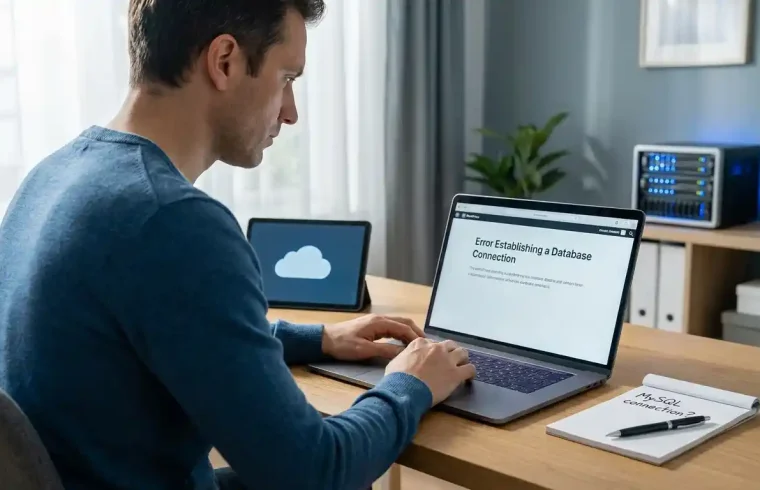
You open your WordPress website and instead of seeing your homepage, you get a simple message:
Error Establishing a Database Connection
Your website may be completely unavailable, and in some cases, you won’t even be able to access the WordPress dashboard.
If this is happening to you right now, don’t panic.
This error usually means WordPress cannot connect to the database that stores your website’s posts, pages, users, settings, and other important information.
The good news is that the problem is often fixable.
A wrong database password, incorrect wp-config.php settings, a database server problem, exhausted hosting resources, or a corrupted database can all cause this error.
In this guide, I’ll show you 10 practical ways to fix the “Error Establishing a Database Connection” error in WordPress, starting with the easiest checks and moving toward more technical solutions.
What Does “Error Establishing a Database Connection” Mean?
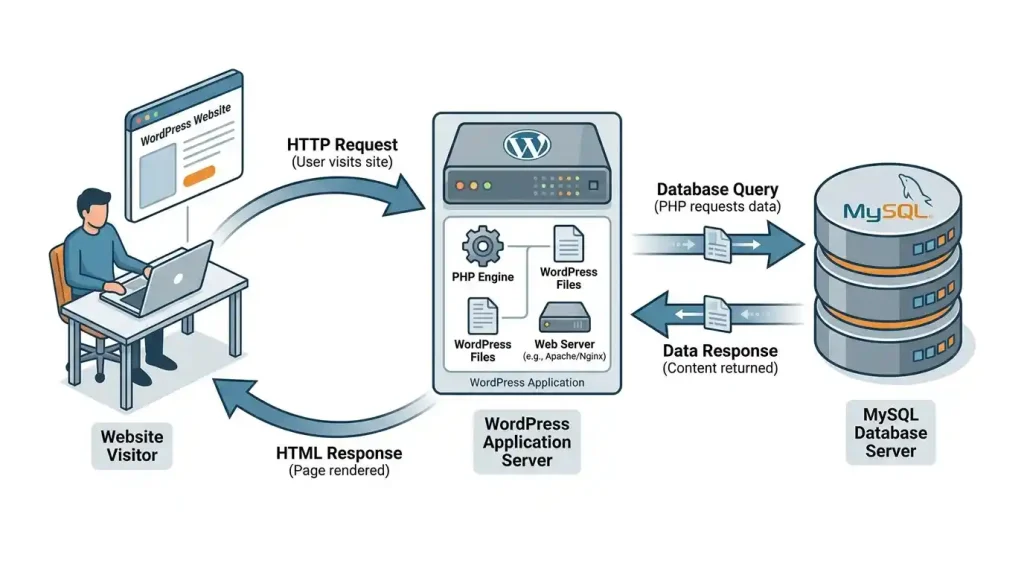
WordPress uses a database to store most of the information your website needs.
Your WordPress files and your database work together.
When someone visits your website, WordPress needs to connect to the database and retrieve the information required to generate the page.
If that connection fails, WordPress cannot load the website properly.
That’s when you may see:
Error Establishing a Database Connection
This doesn’t necessarily mean that your entire website has been deleted or that your database is permanently damaged.
It simply means WordPress could not establish the required connection at that moment.
According to the official WordPress documentation on common errors, incorrect database information, database server problems, and hosting-related issues can all contribute to this error.
What Causes a WordPress Database Connection Error?
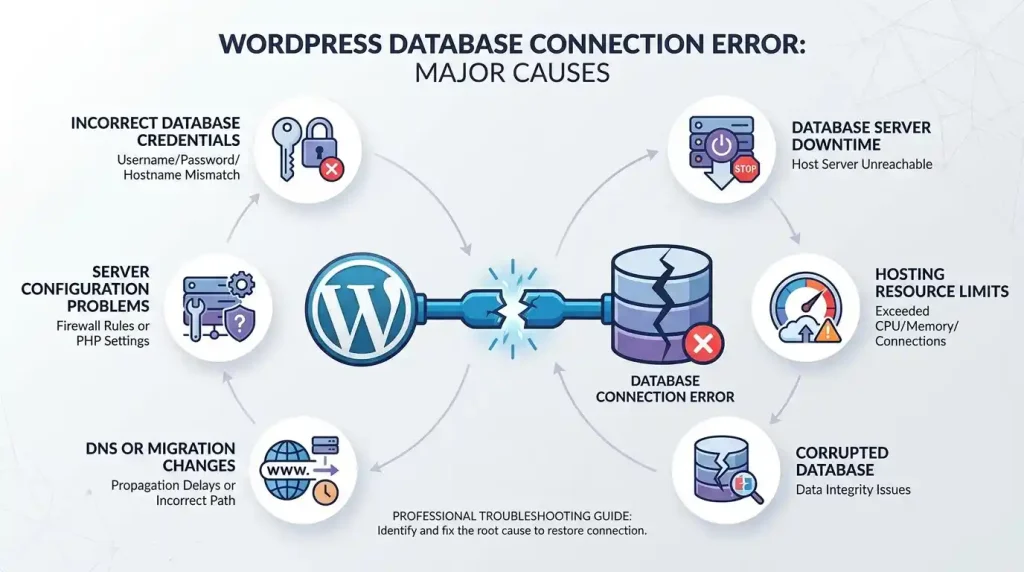
There are several possible causes.
The most common ones are:
- Incorrect database name
- Incorrect database username
- Incorrect database password
- Incorrect database host
- Database server is down
- Hosting account has reached its resource limit
- Database has reached a quota
- Corrupted database tables
- Recent hosting or DNS changes
- Incorrect server configuration
- A failed migration
- A security or malware problem
If the error appeared immediately after you changed your hosting, migrated your website, changed the database password, or edited wp-config.php, start by checking those changes.
If you didn’t change anything and the error appeared suddenly, your hosting provider or database server may be the first place to investigate.
If you’re not sure whether the problem is actually server-related, our guide on why a website goes down covers several other causes, including hosting, DNS, SSL, database, and WordPress problems.
Before You Start: Take a Backup
Before editing WordPress files or making database changes, take a backup if you still have access to your hosting account.
Ideally, keep a copy of:
- WordPress files
- Database
wp-config.php- Important uploads
- Theme and plugin files
If your hosting provider offers automatic backups, check when the latest backup was created.
You don’t want to turn a connection problem into a bigger problem by changing several things without a recovery point.
If you’re setting up a new WordPress website and haven’t created a backup system yet, our WordPress website setup guide covers the basic setup and maintenance considerations for beginners.
1. Check Your WordPress Database Credentials
This should be one of your first checks.
WordPress stores its database connection information inside the wp-config.php file.
The file normally contains values similar to:
define( 'DB_NAME', 'database_name' );
define( 'DB_USER', 'database_user' );
define( 'DB_PASSWORD', 'database_password' );
define( 'DB_HOST', 'localhost' );
These four values are particularly important:
DB_NAMEDB_USERDB_PASSWORDDB_HOST
If any of them is incorrect, WordPress may not be able to connect to the database.
The official WordPress wp-config.php documentation explains how these configuration values are used.
You can usually find wp-config.php in the root directory of your WordPress installation.
Depending on your hosting provider, you may access it through:
- cPanel File Manager
- Hosting File Manager
- FTP
- SFTP
- SSH
If you’re not comfortable editing this file, ask your hosting provider to verify the database credentials for you.
2. Check Whether the Database Server Is Working
Sometimes your WordPress configuration is completely correct.
The actual problem may be on the server.
Your database server could be:
- Temporarily unavailable
- Overloaded
- Restarting
- Out of resources
- Experiencing an internal problem
If you have not changed anything on your website and the error suddenly appeared, contact your hosting provider.
Ask them:
“Can you confirm that my WordPress database server is running and accepting connections?”
Your hosting provider can usually check server logs and database status that you cannot access from the WordPress dashboard.
If the database server is down, changing WordPress files won’t solve the problem.
3. Verify the Database Name and Username
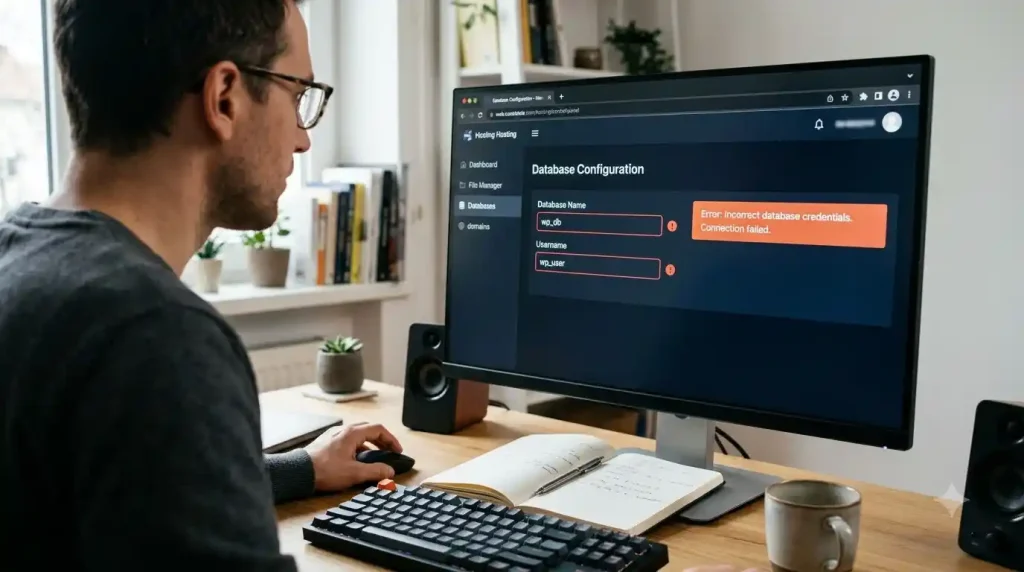
If you recently moved your website to a new hosting provider, don’t assume the old database details are still correct.
Hosting migrations can change:
- Database name
- Database username
- Database password
- Database hostname
For example, your old hosting account might have used:
oldaccount_wordpresswhile your new hosting account uses:
newaccount_wordpressIf wp-config.php still contains the old database name, WordPress won’t be able to connect.
Log in to your hosting control panel and check the databases and database users that actually exist.
Then compare those values with the ones in wp-config.php.
Be careful when copying passwords. A single missing character can cause the connection to fail.
If you’re moving your website between hosting providers, it’s also worth reviewing your DNS configuration. Our guide on what DNS is and how it works explains how domains connect to servers and other services.
4. Check the Database Password
A changed database password is another common reason for this error.
For example, suppose your hosting provider or server administrator changed the MySQL or MariaDB user’s password.
The database itself may still be perfectly healthy.
But WordPress is trying to connect using the old password stored in wp-config.php.
The result?
Error Establishing a Database Connection.
If you recently changed the database password, update the corresponding DB_PASSWORD value in wp-config.php.
Don’t guess the password.
Get the correct database user credentials from your hosting control panel or hosting provider.
5. Check the Database Host
Many WordPress installations use:
define( 'DB_HOST', 'localhost' );But localhost is not universal.
Some hosting providers use a different database hostname.
If your database is hosted on another server, localhost may be completely wrong because it tells WordPress to look for the database on the same server.
Check your hosting documentation or ask support for the correct database hostname.
If you recently migrated your website, this is especially worth checking.

6. Check Your Hosting Resource Limits
Your database can be healthy while your hosting account is running out of resources.
On shared hosting, you may have limits on things such as:
- CPU
- RAM
- Database connections
- Disk space
- I/O
- Processes
If too many requests are hitting your website at the same time, the server may fail to handle new database connections.
This can result in a database connection error.
Check your hosting control panel for resource usage.
Look for warnings about:
- CPU usage
- Memory usage
- Entry processes
- MySQL connections
- Disk space
If your website regularly reaches its limits, you may need to optimize the site or consider a hosting plan with more resources.
Before upgrading, though, find out which resource is actually being exhausted.
If your site is also slow, read our WordPress Speed Optimization guide. It covers hosting, caching, plugins, images, and other common performance problems.
7. Check Whether Your Database Has Reached Its Limit
Some hosting providers place limits on databases or database usage.
For example, your account might have:
- A database storage limit
- A maximum number of database connections
- A maximum number of users
- A server-level MySQL connection limit
If the limit is reached, WordPress may fail to establish a new connection.
This is one reason the error can sometimes appear and then disappear later.
If the problem is intermittent, tell your hosting provider that the database connection error comes and goes.
Ask them to check:
MySQL/MariaDB connection limits and server logs.
That gives support a much better starting point than simply saying “my WordPress is down.”
8. Repair a Possibly Corrupted WordPress Database
If your database credentials are correct and the server is running, your database itself may need attention.
WordPress provides a built-in database repair feature that can be enabled temporarily through wp-config.php.
You can add:
define( 'WP_ALLOW_REPAIR', true );WordPress will then provide access to its database repair tool.
However, don’t leave this setting enabled permanently.
After you’re finished, remove the line from wp-config.php.
Also, don’t start repairing tables blindly on a production website without a backup.
If you’re unsure whether the database is corrupted, ask your hosting provider to check the database first.
9. Check for Recent Website Changes
Think about what happened immediately before the error appeared.
Did you:
- Move to a new host?
- Change your domain?
- Change DNS?
- Change the database password?
- Restore a backup?
- Install a plugin?
- Update WordPress?
- Change PHP versions?
- Modify
wp-config.php? - Change server settings?
This question can save you a lot of time.
For example, if the error appeared immediately after a hosting migration, database credentials and database host should be your first suspects.
If it appeared after changing the database password, check DB_PASSWORD.
If nothing changed and the error appeared suddenly, ask your host about the database server and resource usage.
10. Check WordPress Debug Logs
If you still can’t find the cause, WordPress debugging can provide more information.
WordPress has built-in debugging options that can log PHP errors and warnings to:
wp-content/debug.logFor troubleshooting, you can use:
define( 'WP_DEBUG', true );
define( 'WP_DEBUG_LOG', true );
define( 'WP_DEBUG_DISPLAY', false );
This allows WordPress to write errors to the log without displaying them publicly to visitors.
After enabling debugging, reproduce the problem and check the latest entries in debug.log.
Look for errors mentioning:
- MySQL
- MariaDB
- Database connection
- Access denied
- Connection refused
- Too many connections
- Plugin names
- Theme files
- PHP fatal errors
For the full details, see the official WordPress debugging documentation.
Once you’ve finished troubleshooting, disable debugging on a normal production website unless you have a specific reason to keep it enabled.
What If You Can Access wp-admin but the Website Is Broken?
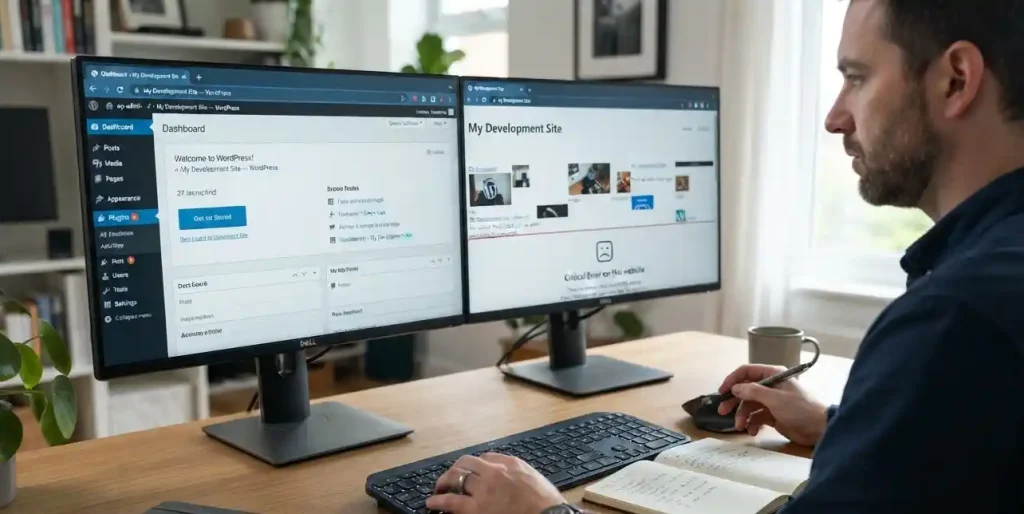
If the front end is showing a database connection error but you can still access the dashboard, check:
Tools → Site Health
Site Health can give you useful information about your WordPress installation and server environment.
Check for warnings related to:
- Database
- PHP
- REST API
- Scheduled events
- Plugins
- Themes
- Server configuration
If the dashboard itself is also unavailable, you’ll need to work through your hosting control panel, FTP/SFTP, database tools, or hosting support instead.
What If the Error Appears After a Hosting Migration?
This is a common situation.
After moving WordPress to a new host, check these things first:
1. Make sure the database exists
Confirm that the database was actually imported into the new hosting account.
2. Make sure the database user exists
Confirm that the database user was created.
3. Check database permissions
The database user must have the required permissions for the WordPress database.
4. Check wp-config.php
Verify:
DB_NAME
DB_USER
DB_PASSWORD
DB_HOST
5. Check DNS
Make sure your domain is pointing to the correct server.
If you recently changed nameservers or DNS records, use our guide on DNS_PROBE_FINISHED_NXDOMAIN and how to fix it if visitors are seeing that specific DNS error.
Don’t change DNS records randomly. Use the nameserver or DNS information provided by your hosting provider.
What If the Error Keeps Coming Back?
If the error disappears and then returns later, don’t just keep refreshing the website.
An intermittent database connection problem can point to an underlying server or resource issue.
Possible causes include:
- Too many database connections
- Hosting resource limits
- Database server instability
- Heavy traffic
- A poorly optimized plugin
- Server configuration problems
- Temporary database outages
Contact your hosting provider and ask them to check the server logs around the exact time the error occurred.
Give them useful information such as:
- Approximate time of the error
- Whether the error affects all visitors
- Whether wp-admin is also unavailable
- Whether the error disappears by itself
- Whether you recently changed anything
This can make support much more effective.
What If Your WordPress Site Is Completely Blank?
A database problem isn’t the only reason WordPress can display an empty or broken page.
If your website is showing a completely blank screen instead of the database connection message, the problem could be a PHP error, plugin conflict, theme issue, or memory problem.
In that situation, read our guide on WordPress White Screen of Death and follow the troubleshooting steps there.
Start with the error you actually see instead of applying random fixes from different guides.
How to Prevent WordPress Database Connection Errors
You can’t prevent every server problem, but you can reduce the risk.
Keep regular backups
A recent backup can save you when a database or server problem becomes more serious.
Monitor your hosting resources
Don’t wait until your account reaches its limits.
Be careful during migrations
Always verify database credentials, permissions, and DNS after moving a website.
Keep WordPress and plugins updated
Outdated software can create compatibility and security problems.
Avoid unnecessary plugins
Every additional plugin adds another piece of software that can interact with your WordPress installation.
Use reliable hosting
Cheap hosting isn’t always bad, but extremely limited hosting can become a problem as your website grows.
Monitor your website
A monitoring service can tell you when your website goes down instead of relying on visitors to report the problem.
Frequently Asked Questions
Why is WordPress showing “Error Establishing a Database Connection”?
WordPress shows this error when it cannot connect to the database. Incorrect database credentials, a database server problem, hosting resource limits, permissions, and database issues are common causes.
How do I fix Error Establishing a Database Connection in WordPress?
Start by checking DB_NAME, DB_USER, DB_PASSWORD, and DB_HOST in wp-config.php. Then check the database server, hosting resources, permissions, and server logs.
Can a wrong password cause a WordPress database error?
Yes. If the database user’s password has changed but wp-config.php still contains the old password, WordPress cannot authenticate with the database.
Can hosting cause a database connection error?
Yes. Database server downtime, resource limits, connection limits, or server configuration problems can prevent WordPress from connecting to its database.
Can I fix the database connection error without accessing WordPress?
Yes. You can troubleshoot many causes through your hosting File Manager, FTP/SFTP, database tools, or hosting support without accessing wp-admin.
Does reinstalling WordPress fix a database connection error?
Not necessarily. Reinstalling WordPress will not fix incorrect database credentials, a database server outage, connection limits, or hosting problems.
Is my WordPress database deleted?
Not necessarily. A connection error usually means WordPress cannot connect to the database. Check your hosting control panel or database management tool before assuming that the database is gone.
How do I prevent database connection errors?
Keep regular backups, monitor hosting resources, use reliable hosting, keep WordPress updated, and investigate recurring database problems instead of simply restarting the website every time.
Final Thoughts
The “Error Establishing a Database Connection” message can make it look like your entire WordPress website has disappeared.
Usually, that’s not what happened.
In many cases, the problem comes down to a configuration issue such as an incorrect database password, database name, username, or host.
Other times, the database server or hosting account is the problem.
The important thing is not to start changing everything at once.
Check the database credentials first. Then check the database server, hosting resources, permissions, recent changes, and logs.
And before making major database changes, make sure you have a backup.
If you’re building a WordPress website, keeping your hosting, DNS, SEO, speed, and troubleshooting guides connected makes it much easier for readers to find the next piece of information they need.
You can also explore more WordPress and website guides from GlobalVior for related troubleshooting and website management topics.