
Introduction
Starting a WordPress website can feel a little confusing when you’re doing it for the first time. You have to choose a domain name, find the right hosting, install WordPress, pick a theme, and figure out what to do next. The good news is that you don’t need to be a developer to get started.
If you’re planning to build a blog, personal website, portfolio, or small business site, WordPress gives you a flexible way to get online without having to build everything from scratch.
In this guide, I’ll walk you through the process step by step, from choosing your domain and hosting to setting up WordPress, creating important pages, publishing your first content, and getting your website ready for visitors.
You don’t need to complete everything perfectly on day one. Start with the basics, keep things simple, and improve your website as you learn.
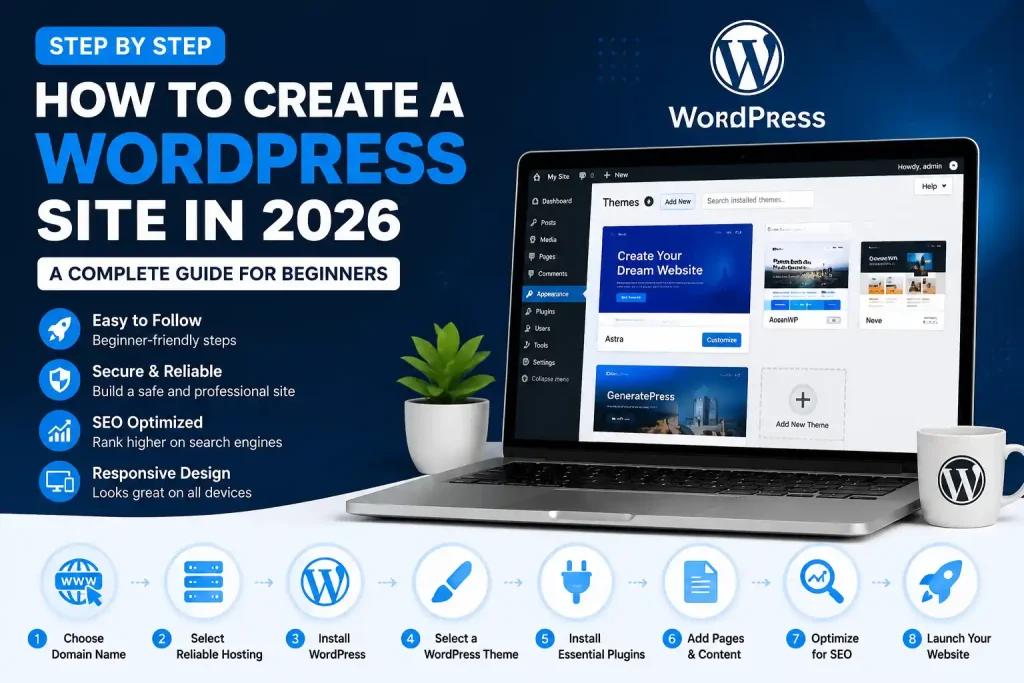
Step 1: Choose a Domain Name
Your domain name is the address people will type into their browser to find your website. For example, yourwebsite.com is a domain name.
Choosing a domain doesn’t have to be complicated. Try to pick something that’s short, easy to remember, and simple to spell. If you’re creating a business website, using your business or brand name is usually a good starting point.
Before registering a domain, take a little time to make sure it works well for your website and isn’t confusingly similar to another established brand.

What Makes a Good Domain Name?
A good domain name should be the following:
- Easy to remember – Visitors should be able to recall it later.
- Easy to spell – Avoid unusual spellings that people may get wrong.
- Short and simple – Shorter names are generally easier to type and share.
- Relevant to your website – Your name should make sense for your brand or project.
- Flexible – Don’t choose a name that limits you if your website expands into other topics later.
Should You Use Keywords in Your Domain?
You don’t need to force your main keyword into your domain name.
For example, if you’re starting a technology blog, you don’t have to choose a domain like besttechnologytips2026.com. A short, memorable brand name can be a better long-term choice.
If you already have a business or personal brand, using that name can make your website easier to build and promote over time.
Check the Domain Before Buying
Before registering the domain, check:
- Whether the name is available
- Whether a similar business already uses it
- Whether the matching social media name is available
- Whether the domain has an unusual history
- How much the domain will cost to renew
Tip: Don’t choose a domain just because it’s available. Make sure you would still be happy with the name a few years from now.
Step 2: Choose the Right WordPress Hosting
Once you have a domain name, the next thing you need is web hosting. Your hosting provider stores your website’s files, images, database, and other data on a server so people can access your website online.
You don’t need the most expensive hosting plan when you’re starting out. The right choice depends on the type of website you’re building, how much traffic you expect, and how much control you want over the server.

Which Type of Hosting Should You Choose?
There are several types of hosting you can choose from. For most beginners, these are the options worth understanding:
Shared Hosting
Shared hosting is usually the simplest and most affordable option for a new website. Your website shares server resources with other websites, which helps keep the cost low.
It’s a reasonable starting point if you’re building:
- A personal blog
- A small business website
- A portfolio
- A new website with relatively low traffic
You can always upgrade later if your website grows.
WordPress Hosting
WordPress hosting is designed specifically for websites built with WordPress. Depending on the provider, it may include WordPress-focused features such as automatic updates, backups, caching, security tools, or easier WordPress setup.
If you’re just getting started, look for a hosting plan that makes WordPress installation and day-to-day management easy.
VPS Hosting
VPS hosting gives you more resources and control than traditional shared hosting. It’s generally better suited to websites that have grown beyond basic shared hosting or need more control over their server environment.
If you’re considering VPS hosting, you can read our Best VPS Hosting guide to compare your options.
Managed VPS Hosting
Managed VPS hosting can be useful if you want the benefits of a VPS but don’t want to handle every server-management task yourself.
Depending on the provider, managed services may include server setup, updates, monitoring, security, backups, and technical support.
If you’d like to understand the difference, read our guide on What Is Managed VPS Hosting?.
What Should You Look for in WordPress Hosting?
Before choosing a hosting provider, check a few basic things:
- Performance: Your hosting should provide enough resources for your website.
- Reliability: Look for a provider with a good track record of uptime and support.
- Security: Check what security features are included.
- Backups: Find out how backups work and whether they are included.
- Scalability: Make sure you can upgrade if your website grows.
- Support: Helpful customer support can make a big difference when you’re new to website management.
- Renewal pricing: Don’t look only at the introductory price. Check what you’ll pay when the promotional period ends.
If you’re comparing hosting providers and looking for an introductory discount, you can also check our HostGator Offer Code guide before choosing a plan.
Don’t Overpay for Hosting
One of the most common mistakes beginners make is paying for features they don’t need yet.
If you’re starting a simple blog or small website, an entry-level plan may be enough. You can upgrade when your traffic, storage needs, or technical requirements increase.
The goal isn’t to buy the biggest hosting plan.
The goal is to choose a plan that fits your website today and gives you room to grow.
Step 3: Connect Your Domain and Hosting
After buying your domain and hosting, you need to connect the two so visitors can reach your website.
Think of it this way: your domain is your website’s address, while hosting is the place where your website lives. They work together, but buying one doesn’t automatically mean the other is connected.
How you connect them depends on where you bought your domain and hosting.
If Your Domain and Hosting Are From the Same Provider
This is usually the easiest option for beginners.
When you purchase both from the same hosting company, the provider may connect the domain to your hosting account automatically. In that case, you may not need to change any DNS settings yourself.
After completing the purchase, check your hosting dashboard to see whether the domain has already been connected.
Still confused about the difference between a domain and hosting? Read our guide to Web Hosting vs Domain Name.
If Your Domain and Hosting Are From Different Providers
If you bought your domain from one company and hosting from another, you’ll usually need to point the domain to your hosting provider.
Your hosting company will normally give you nameservers similar to:
ns1.examplehost.com
ns2.examplehost.com
You need to add those nameservers in your domain registrar’s DNS or nameserver settings.
The exact steps vary between domain providers, so follow the instructions provided by your hosting company.
How Long Does It Take?
DNS changes don’t always appear immediately.
Sometimes your website becomes available within a short time, while in other cases you may need to wait longer for the changes to propagate.
Don’t worry if your domain doesn’t work immediately after changing the nameservers. Give the DNS changes some time before assuming something is wrong.
Check Your Domain Before Installing WordPress
Once the domain is connected, open it in a browser and check whether it points to your hosting account.
If you see your hosting provider’s default page or a setup screen, that’s usually a sign that the domain is reaching the correct server.
Once the domain and hosting are connected, you’re ready for the next step: installing WordPress.
Beginner tip: Keep your domain registrar and hosting account login details somewhere safe. You’ll need access to both when managing your website.
Step 4: Install WordPress
Once your domain and hosting are connected, it’s time to install WordPress.
For most beginners, this is much easier than it sounds. Many hosting providers offer a one-click or guided WordPress installation, so you usually don’t have to upload WordPress files manually.

Use Your Hosting Provider’s WordPress Installer
Log in to your hosting account and look for an option such as:
- WordPress
- Install WordPress
- WordPress Manager
- Website Setup
- One-Click Install
The exact name depends on your hosting provider.
Start the installation and select the domain where you want WordPress to be installed.
You’ll usually be asked to create:
- Your WordPress admin username
- A strong password
- An administrator email address
- Your website title
- Sometimes a site description
Take your time when creating the admin account. Avoid using an obvious username such as admin, especially if your hosting provider allows you to choose a custom username.
Choose a Strong Password
Your WordPress administrator account controls your entire website, so don’t use a password you’ve already used somewhere else.
A good password should be:
- Long
- Unique
- Difficult to guess
- Different from your email or hosting password
A password manager can make this easier if you have trouble keeping track of different passwords.
Enable HTTPS
After WordPress is installed, make sure your website uses HTTPS.
You can check this by opening your website in a browser. Your address should begin with:
https://
rather than:
http://
HTTPS helps protect the connection between your visitors and your website. WordPress also recommends HTTPS as part of its current hosting requirements.
If your hosting provider includes a free SSL certificate, follow its instructions to enable it.
Log In to WordPress
Once the installation is complete, you can normally access your WordPress dashboard by visiting:
https://yourdomain.com/wp-admin/Replace yourdomain.com with your actual domain.
Enter the administrator username and password you created during installation.
You’ll now see the WordPress dashboard, which is where you’ll manage your website’s content, design, plugins, settings, and other features.
Don’t Install Everything at Once
When you first open WordPress, you’ll probably find plenty of themes, plugins, and settings that look interesting.
You don’t need to install everything immediately.
Start with the basics and add tools only when you actually need them. A smaller, well-maintained WordPress installation is usually easier to manage than a website filled with plugins you never use.
Step 5: Configure the Basic WordPress Settings
After installing WordPress, spend a few minutes going through the basic settings before you start publishing content.
You don’t need to change everything in the dashboard. A handful of settings are enough to get your new website off to a good start.
1. Set Your Site Title and Tagline
Go to:
Settings → General
Add your website name in the Site Title field.
The tagline is optional. If you use one, keep it short and make sure it tells visitors what your website is about.
For example:
Site Title: GlobalVior
Tagline: Practical guides for websites, hosting, and technology
Don’t try to fill the tagline with keywords. Write it for people who actually visit your website.
2. Check Your WordPress Address
In the same settings area, check that your WordPress and Site Address use the correct version of your domain.
If your SSL certificate is active, your website should normally use:
If you’re not sure about changing these fields, don’t change them just for the sake of SEO. An incorrect URL can cause problems with your website.
3. Set Your Time Zone
Go to:
Settings → General → Timezone
Choose the time zone that matches where you or your main audience is located.
This affects things such as scheduled posts and the time shown in your WordPress dashboard.
4. Choose a Clean Permalink Structure
Go to:
Settings → Permalinks
For most blogs and content websites, Post name is a simple choice.
For example:
is easier for people to understand than a URL containing numbers or database-style parameters.
Once you’ve chosen your permalink structure, try not to change it repeatedly. Changing URLs later can create broken links and unnecessary redirects.
5. Set Up Your Homepage
If your website is a blog, you may want your latest posts to appear on the homepage.
For a business website or a more traditional site, you may prefer a static homepage with a separate page for your blog posts.
You can change this from:
Settings → Reading
Choose the option that fits the type of website you’re building.
6. Review Comment Settings
WordPress allows visitors to comment on your posts, but you don’t have to leave every comment setting at its default.
Go to:
Settings → Discussion
Review the options for comment moderation, notifications, and whether visitors need to be registered before commenting.
If your website doesn’t need comments, you can disable them where appropriate.
7. Check Your Site Visibility
While your website is still under construction, make sure you understand the Search engine visibility setting under:
Settings → Reading
If you accidentally discourage search engines from indexing your website after launch, your pages may not appear in search results as expected.
Before publishing your site, make sure this setting matches your actual intention.
A Quick Tip Before Moving On
Don’t spend hours trying to make every WordPress setting perfect.
At this stage, your goal is simple: make sure your website has the correct name, URL, timezone, permalink structure, homepage, and visibility settings.
You can always come back and adjust other settings as your website grows.
Step 6: Choose a Lightweight WordPress Theme
Now that the basic settings are in place, you can start working on how your website looks.
WordPress themes control the overall appearance of your site, including things like the layout, typography, colors, menus, and page structure. You don’t need a complicated theme to create a professional-looking website.
In fact, when you’re starting out, simple is usually better.
What Should You Look for in a WordPress Theme?
Before installing a theme, look for a few basic things:
- Responsive design: Your website should look good on phones, tablets, and desktops.
- Fast loading: Avoid themes packed with features you don’t need.
- Regular updates: A theme that is actively maintained is a safer long-term choice.
- Good customization options: You should be able to adjust the basic design without editing code.
- Compatibility: Make sure it works properly with your WordPress version and the plugins you plan to use.
- Clean layout: Visitors should be able to find your content without getting distracted by unnecessary design elements.
Free or Premium Theme?
You can build a perfectly good website with a free WordPress theme. You don’t need to buy a premium theme simply because you’re starting a website.
A premium theme may offer additional templates, customization options, support, or other features. Whether those extras are worth paying for depends on what you’re trying to build.
If a free theme already gives you everything you need, there’s no reason to upgrade just for the sake of having a premium theme.
Don’t Change Your Theme Every Few Weeks
It’s tempting to keep trying different themes when you’re building a new website.
Try to avoid that.
Once you’ve found a clean theme that works well on desktop and mobile, spend your time improving the actual website—writing useful content, creating helpful pages, and making navigation easier.
Changing themes later can also mean rebuilding menus, widgets, layouts, or custom settings.
Keep Your Design Simple
You don’t need animations, sliders, pop-ups, and dozens of decorative elements to make a website look professional.
A simple design with:
- Clear navigation
- Easy-to-read fonts
- Enough white space
- Consistent colors
- Well-organized content
- Fast-loading pages
can provide a much better experience for visitors.
Where to Find WordPress Themes
For your first theme, the official WordPress Theme Directory is a good place to start. You can browse themes directly from your WordPress dashboard or visit the official directory.
Before installing a theme, check when it was last updated, whether it supports your WordPress version, and whether other users are reporting major problems.
One More Thing: Don’t Ignore Mobile Users
A large portion of website visitors may access your site from a phone.
After installing your theme, open your website on your phone and check the basics:
- Is the menu easy to use?
- Can you read the text without zooming?
- Do images fit the screen?
- Are buttons easy to tap?
- Does the content look crowded?
If the answer is no, fix the problem before spending time on small design details.
Step 7: Install Essential WordPress Plugins
Plugins let you add extra features to WordPress without having to build everything yourself. You can use them for SEO, security, contact forms, backups, performance, and many other tasks.
The problem is that beginners often install too many plugins at once.
You don’t need dozens of plugins to run a good WordPress website. Start with the features you actually need and add more later if there’s a genuine reason.
What Plugins Does a New Website Usually Need?
The exact plugins you need depend on your website, but these are some common categories worth considering.
1. SEO Plugin
An SEO plugin can make it easier to manage things such as:
- SEO titles and meta descriptions
- XML sitemaps
- Basic on-page SEO
- Schema settings
- Search engine visibility
Since you’re already using Rank Math on your website, you can keep using it rather than installing another SEO plugin that does the same job.
Don’t install two full SEO plugins together.
2. Security Plugin
A security plugin can add features such as login protection, malware scanning, firewall rules, or other security controls.
However, a plugin isn’t your entire security strategy.
Use strong passwords, keep WordPress and your plugins updated, and remove plugins you no longer use.
3. Backup Plugin
Regular backups can save you a lot of trouble if something goes wrong with your website.
Depending on your hosting provider, backups may already be included in your hosting plan. Check what’s available before installing another backup plugin.
More importantly, find out where the backups are stored and how you would restore your website if you actually needed them.
4. Contact Form Plugin
If visitors need to contact you, a simple contact form is useful.
You don’t need a complicated form builder unless your website actually requires advanced forms.
For a basic website, a simple name, email, subject, and message form may be enough.
5. Performance or Caching Plugin
Caching can help WordPress serve pages more efficiently.
Some hosting companies already provide server-level caching or performance optimization. If that’s the case, check the hosting documentation before adding another caching plugin.
Running multiple caching or optimization plugins can sometimes cause conflicts rather than improving performance.
Don’t Install Plugins Just Because They’re Popular
Before installing a plugin, ask yourself:
Do I actually need this feature?
Then check:
- When was the plugin last updated?
- Is it compatible with your WordPress version?
- Does the developer actively maintain it?
- Are users reporting serious issues?
- Does it duplicate something you already have?
If you don’t need a plugin, don’t install it.
And if you stop using one, deactivate and delete it rather than leaving unused plugins sitting on your website.
Keep Your Plugin List Under Control
There’s no magic number of plugins that every WordPress website should have.
A website with 10 well-maintained plugins can be perfectly fine, while another website with 5 poorly coded plugins could have problems.
Focus on quality and necessity, not the number.
Beginner Tip
Before installing a new plugin, check whether WordPress, your theme, or your hosting provider already offers the same feature.
This simple habit can help keep your website easier to maintain.
Step 8: Create the Important Pages
Before publishing lots of articles, take some time to create the basic pages that help visitors understand who is behind the website and how they can contact you.
You don’t need to write a huge amount of text on these pages. What matters is that the information is clear, accurate, and easy to find.
1. About Page
Your About page tells visitors what your website is about and who is responsible for the content.
For example, if your website publishes guides about WordPress, hosting, SEO, and technology, explain that clearly.
You can include:
- What your website focuses on
- Who creates or manages the content
- What readers can expect from your guides
- Your experience or areas of knowledge
- Why you created the website
Don’t fill the page with generic statements. A short, honest explanation is more useful than a long marketing-style introduction.
2. Contact Page
Give visitors a straightforward way to contact you.
A basic contact page can include:
- Contact form
- Business or support email
- Social profiles, if relevant
Make sure the contact form actually works before publishing the page.
If someone reports a broken link, incorrect information, or another problem with your content, they should have a reasonable way to reach you.
3. Privacy Policy
If your website collects information through contact forms, analytics, cookies, advertising, or other services, visitors should be able to understand how their information is handled.
WordPress includes a Privacy Settings area that can help you create or manage a privacy policy page.
Don’t simply copy another website’s privacy policy and publish it without understanding what it says. Your policy should reflect the services and tools your website actually uses.
If you’re using Google AdSense, analytics, affiliate programs, contact forms, or other third-party services, make sure your privacy information covers the relevant data practices.
4. Terms and Conditions
A Terms and Conditions page can explain the rules for using your website.
It’s particularly useful if your website includes:
- Affiliate links
- User-generated content
- Products or services
- Downloads
- Memberships
- Other interactive features
The exact content you need depends on how your website operates.
5. Affiliate Disclosure
If you earn a commission when someone purchases a product or service through one of your links, tell your readers.
Keep the disclosure easy to understand.
For example:
Affiliate Disclosure: Some links on this website may be affiliate links. If you make a purchase through one of these links, we may receive a commission at no additional cost to you.
Only use a disclosure that accurately describes your actual affiliate relationships.
Make These Pages Easy to Find
Don’t create these pages and then hide them somewhere nobody can find them.
A simple footer menu can include:
About | Contact | Privacy Policy | Terms | Affiliate Disclosure
You can also link to relevant pages from your main navigation if that makes sense for your website.
Keep Your Information Consistent
Before publishing your website, check that your:
- Website name
- Contact email
- Author information
- About page
- Privacy policy
- Affiliate disclosure
are consistent with each other.
If you change your business email or website name later, remember to update these pages as well.
A Small but Important Tip
Don’t create pages just to make your website look “complete”.
Each page should have a real purpose and provide useful information to visitors. If you don’t need a particular page, there’s no reason to add one simply because another website has it.
Step 9: Create Your First Content
Once your website is set up, it’s time to give people a reason to visit it.
For most websites, that means creating useful pages and articles around a clear topic. You don’t need to publish ten posts on your first day. Start with a few genuinely helpful pieces and build from there.
Start With a Clear Topic
Before writing an article, ask yourself:
What problem am I helping the reader solve?
For example, instead of writing a broad article about “WordPress,” you could create something more specific, such as:
- How to install WordPress
- How to choose WordPress hosting
- How to speed up a WordPress website
- How to secure a WordPress login
- How to create a WordPress contact page
A specific topic makes it easier to decide what information belongs in the article.
Write for the Person Reading the Article
Try to imagine that someone who knows less about the subject is sitting beside you and asking questions.
Explain unfamiliar terms when they first appear. Don’t assume that every reader knows what DNS, SSL, caching, or a permalink is.
For example, instead of simply writing:
“Change your DNS records.”
Explain what DNS does and why the reader needs to change it.
That small amount of context can make a technical guide much easier to follow.
Use Clear Headings
Long blocks of text are difficult to read, especially on a phone.
Break your article into logical sections using headings such as:
- H2 for major sections
- H3 for subsections
- Short paragraphs for individual ideas
For example:
H1: How to Start a WordPress Website

H2: Choose a Domain Name
H2: Choose WordPress Hosting
H2: Install WordPress
H2: Configure WordPress Settings

H3: Set Your Site Title
H3: Choose Your Permalink Structure
Don’t add headings simply to include keywords. Use them where they help the reader understand the content.
Add Helpful Images
Images can make a tutorial easier to understand.
For a WordPress guide, useful visuals might include:
- Dashboard screenshots
- Step-by-step screenshots
- Simple diagrams
- Comparison graphics
- Original illustrations
Avoid adding stock images just to increase the number of images on a page.
Every image should have a reason to be there.
For example, if you’re explaining how to change a WordPress setting, a screenshot of that setting can be much more useful than a generic photo of a laptop.
Link to Other Useful Articles
Internal links help readers discover related information on your website.
For example, if you’re writing about WordPress hosting, you could naturally link to a detailed guide about Best VPS Hosting when you mention VPS hosting.
The link should help the reader—not just exist because you want another internal link.
You can also link to authoritative external sources when they provide additional information or support a factual claim.
Don’t Write Just to Reach a Word Count
A 2,000-word article isn’t automatically better than a 900-word article.
If a topic can be explained properly in 1,000 words, don’t add another 1,000 words of repetition just to make the article longer.
A useful article should answer the reader’s questions as clearly and completely as possible.
Review Your Article Before Publishing
Before hitting the Publish button, read the article once as if you’ve never seen your website before.
Check:
- Is the main question answered?
- Are the instructions easy to follow?
- Are the headings logical?
- Are there unnecessary paragraphs?
- Do the links work?
- Are the images clear?
- Does the article look good on mobile?
- Did you check spelling and grammar?
- Are any claims outdated?
It’s also worth reading the article out loud. If a sentence sounds awkward when you say it, it probably needs rewriting.
Don’t Try to Sound Like a Robot
You don’t need complicated vocabulary to sound professional.
Write the way you would explain something to a real person. Use clear sentences, give examples when they help, and admit when something depends on the hosting provider, WordPress version, or individual situation.
Useful content doesn’t need to sound impressive. It needs to be helpful.
Step 10: Set Up Basic WordPress SEO
Once you start publishing content, you’ll want search engines to understand what each page is about. That’s where basic SEO comes in.
You don’t need to become an SEO expert before publishing your first article. Start with a few fundamentals and improve your site as you learn.
Choose a Clear Topic for Each Page
Before writing an article, decide what question or problem you’re trying to answer.
For example, if your article is about starting a WordPress website, don’t try to make the same page rank for every WordPress-related search.
Keep the article focused on its main purpose and cover closely related questions that genuinely help the reader.
Write a Useful SEO Title
Your SEO title is often what people see in search results.
A good title should tell the reader what they’ll find on the page without making exaggerated promises.
For example:
How to Start a WordPress Website in 2026: Step-by-Step Guide
is clearer than:
The Ultimate #1 Secret to Building a Website Fast!
You can use an SEO plugin such as Rank Math to manage your SEO title and other on-page settings.
Write a Natural Meta Description
A meta description gives search engines and users a short summary of your page.
Try to explain what the article covers and why someone might find it useful.
For example:
Learn how to start a WordPress website from scratch, including choosing a domain, selecting hosting, installing WordPress, and preparing your site for launch.
Don’t turn the description into a list of keywords. Write it for someone deciding whether to click.
Keep Your URLs Simple
A clean URL is easier for both people and search engines to understand.
For example:
example.com/how-to-start-a-wordpress-website/
is easier to read than:
example.com/page?id=7392
Keep URLs relatively short and descriptive, and avoid changing them after your page has been published unless there’s a good reason.
Use Headings to Organize Your Content
Use your headings to create a logical structure.
Your main page title should normally be the H1. Major sections can use H2 headings, with H3 headings for smaller sections underneath them.
For example:
H1: How to Start a WordPress Website

H2: Choose a Domain Name
H2: Choose WordPress Hosting
H2: Install WordPress

H3: Use Your Hosting Provider's Installer
H3: Create a Strong Admin Password
Don’t repeat the same keyword in every heading. Headings should describe what the section is actually about.
Add Internal Links
Internal links connect related pages on your website.
If you’re explaining hosting and mention VPS hosting, linking to a detailed VPS guide can help the reader learn more without leaving your site.
For example:
You can also link from your new WordPress guide to your HostGator Offer Code article where it naturally fits.
The important thing is context. Don’t add ten internal links to a paragraph just because you have ten articles.
Use Descriptive Image Alt Text
Alt text helps describe an image to people who use screen readers and can also provide search engines with useful context.
For example, instead of:
wordpress
you could use:
WordPress dashboard showing the General Settings page
Write alt text based on what’s actually visible in the image.
Don’t stuff your focus keyword into every image’s alt text.
Create an XML Sitemap
WordPress and many SEO plugins can generate an XML sitemap containing your site’s important URLs.
A sitemap helps search engines discover your pages, especially as your website grows.
If you’re using Rank Math, check its sitemap settings and make sure the pages and posts you actually want indexed are included.
You can then submit your sitemap through Google Search Console.
Don’t Obsess Over SEO Scores
SEO plugins can show scores, recommendations, and checklists.
They’re useful as a guide, but a page doesn’t become valuable simply because a plugin gives it a green score.
A genuinely useful article with clear information is more important than getting every SEO indicator to 100%.
Write for people first, then use SEO to make that content easier to understand and discover.
Quick SEO Checklist
Before publishing an article, check:
- One clear main topic
- Descriptive SEO title
- Natural meta description
- Clean URL
- Logical H1/H2/H3 structure
- Relevant internal links
- Useful external sources where appropriate
- Descriptive image alt text
- Mobile-friendly layout
- XML sitemap enabled
Step 11: Secure Your WordPress Website
Security is something you should think about from the beginning. You don’t need a complicated security setup, but a few simple habits can prevent many common problems.
Use a Strong Admin Password
Use a unique password for your WordPress administrator account. Don’t reuse the same password for your email, hosting account, or other websites.
If possible, enable two-factor authentication (2FA) for important accounts.
Keep WordPress Updated
Keep your WordPress core, themes, and plugins updated. Updates often include security fixes as well as bug fixes and improvements.
Before updating major components, it’s a good idea to have a recent backup available.
Remove Unused Plugins and Themes
Don’t leave plugins or themes installed if you no longer need them.
Deactivate and delete anything you’re not using. Fewer unnecessary components means fewer things you have to maintain.
Keep Regular Backups
A backup gives you a way to recover your website if something goes wrong.
Check whether your hosting provider already includes automatic backups. If it does, find out how often they’re created and how you can restore your site.
Use HTTPS
Make sure your website uses HTTPS and that your SSL certificate is working correctly.
After launching your website, check both the homepage and a few internal pages to make sure visitors aren’t seeing security warnings.
Step 12: Test Your Website Before Launch
Before telling people about your new website, take a few minutes to test it.
Open the website on both your computer and phone and check:
- Does the navigation work?
- Do all important pages open correctly?
- Are images loading properly?
- Do contact forms work?
- Are internal links working?
- Does the website look good on mobile?
- Is HTTPS working?
- Are there any obvious spelling or formatting mistakes?
Also click through your main menu and footer links. A broken link on a new website is easy to miss if you only check the homepage.
Check Your Website as a Visitor
Don’t just look at your website from the WordPress dashboard.
Open it in an incognito/private browser window and pretend you’re a first-time visitor.
Ask yourself:
Can I quickly understand what this website is about?
If the answer is no, simplify the homepage, navigation, or introductory text.
Common Beginner Mistakes to Avoid
Starting a WordPress website is fairly simple, but beginners often make a few avoidable mistakes.
Choosing Hosting Based Only on Price
The cheapest plan isn’t always the best choice. Check the resources, support, backup options, renewal price, and upgrade options before making a decision.
Installing Too Many Plugins
You don’t need a plugin for every small feature. Install only what you actually need and keep everything updated.
Ignoring Mobile Users
Always check your website on a phone. A page that looks good on a large monitor can still be difficult to use on a small screen.
Publishing Without Checking the Content
Read your articles before publishing them. Check the links, images, headings, spelling, and formatting.
Changing URLs Frequently
Once an article is published and indexed, avoid changing its URL without a good reason. If you must change it, set up an appropriate redirect.
Focusing Only on SEO
SEO can help people discover your website, but it shouldn’t be the only goal. Start by creating content that genuinely answers questions and solves problems.
How Much Does It Cost to Start a WordPress Website?
The cost depends on the type of website you want to build and the services you choose.
At a minimum, you’ll generally need:
- A domain name
- Web hosting
You may also spend money on:
- A premium WordPress theme
- Premium plugins
- Email services
- Backup or security tools
- Professional design or development
You don’t need to buy everything on day one. A simple website can start with basic hosting and a free theme, then grow as your needs change.
Before buying hosting, check both the introductory price and renewal price. A low first-term price doesn’t necessarily mean the service will remain at the same price later.
Frequently Asked Questions
Is WordPress good for beginners?
Yes. WordPress can be a good starting point because you don’t need to know programming to create and manage a basic website.
Can I start a WordPress website without coding?
Yes. You can create a basic WordPress website using the dashboard, themes, plugins, and visual editors without writing code.
Do I need hosting for WordPress?
If you’re using the self-hosted version of WordPress from WordPress.org, you need web hosting to store your website files and database.
How much traffic do I need before applying for AdSense?
Google does not publish a specific minimum traffic number as an AdSense eligibility requirement. Instead, your website needs to meet Google’s policies and provide original, useful content and a good user experience.
Can I change my WordPress theme later?
Yes. You can change your theme later, although changing themes may require you to adjust menus, layouts, widgets, and other design elements.
Should I use free or paid WordPress hosting?
There isn’t one answer for everyone. Compare the resources, reliability, support, security, backup options, and total cost before choosing a provider.
Final WordPress Website Launch Checklist
Before considering your website ready, run through this quick checklist:
- Domain connected correctly
- WordPress installed
- HTTPS working
- Site title and basic settings configured
- Mobile-friendly theme installed
- Essential plugins installed
- About page published
- Contact page working
- Privacy Policy published
- Important content created
- Internal links added
- Images optimized
- Basic SEO configured
- Backup system checked
- Website tested on mobile and desktop
Starting a WordPress website doesn’t have to happen all at once. Get the basic setup right, publish genuinely useful content, and improve the site as you learn more.
The most important thing is to build something that is useful to the people you want to reach.