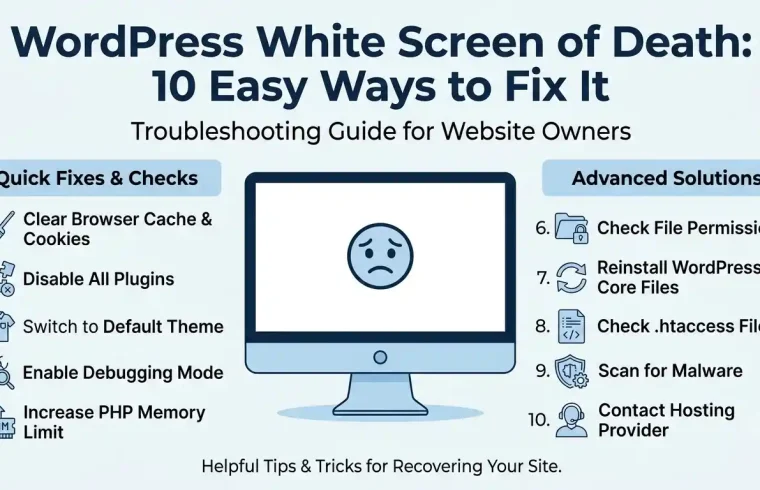
WordPress White Screen of Death: 10 Easy Ways to Fix It
Have you ever opened your WordPress website and found nothing but a blank white page?
There is no homepage, no useful error message, and sometimes you cannot even access the WordPress dashboard. This problem is commonly known as the WordPress White Screen of Death.
It can look serious, but your website is not necessarily lost. A plugin conflict, theme problem, PHP error, memory limit, or server-side issue can cause WordPress to stop loading properly.
In this guide, you’ll learn how to fix the WordPress White Screen of Death step by step. We’ll start with simple solutions and then move into more advanced troubleshooting.
What Is the WordPress White Screen of Death?
The WordPress White Screen of Death is a common WordPress problem where a page loads as a blank screen instead of displaying the expected website content.
You may experience the problem in several ways:
- The entire website displays a blank page.
- The homepage is blank, but other pages work.
- The WordPress dashboard does not load.
- Only one page is affected.
- The problem appears after installing or updating a plugin.
- The website displays a critical error instead of normal content.
According to WordPress’s official documentation on common errors, PHP errors, plugin conflicts, theme problems, and memory issues can contribute to a White Screen of Death.
If your website suddenly stops working, don’t immediately reinstall WordPress. Start by identifying what changed and troubleshoot one possible cause at a time.
What Causes the WordPress White Screen of Death?
There isn’t one single reason for a WordPress white screen.
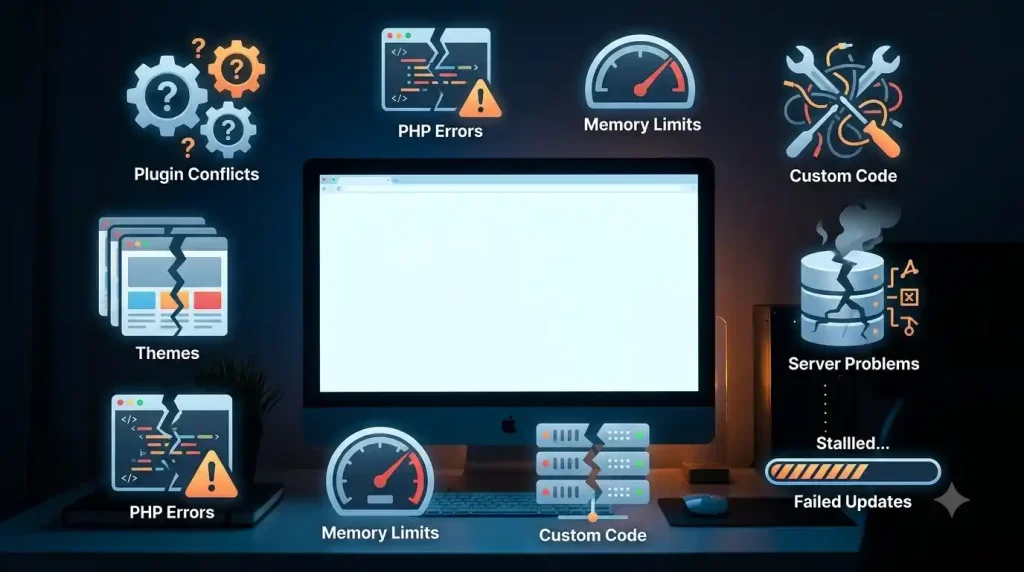
Common causes include:
- Plugin conflicts
- Theme conflicts
- PHP errors
- Low PHP memory
- Incompatible PHP versions
- Broken custom code
- Failed WordPress updates
- Corrupted WordPress files
- Server configuration problems
- Database or hosting issues
If the problem appeared immediately after an update or configuration change, start by checking that change.
For example, if you updated a plugin five minutes before your website went blank, that plugin is a much stronger suspect than an unrelated part of your website.
How to Fix WordPress White Screen of Death
Before making major changes, create a backup if you can access your hosting account or website files.
If you regularly manage a WordPress website, a recent backup can make troubleshooting much safer.
For more practical maintenance advice, read our guide on WordPress Website Maintenance: 20 Essential Tasks.
1. Clear Your Browser and Website Cache
Start with the easiest solution.
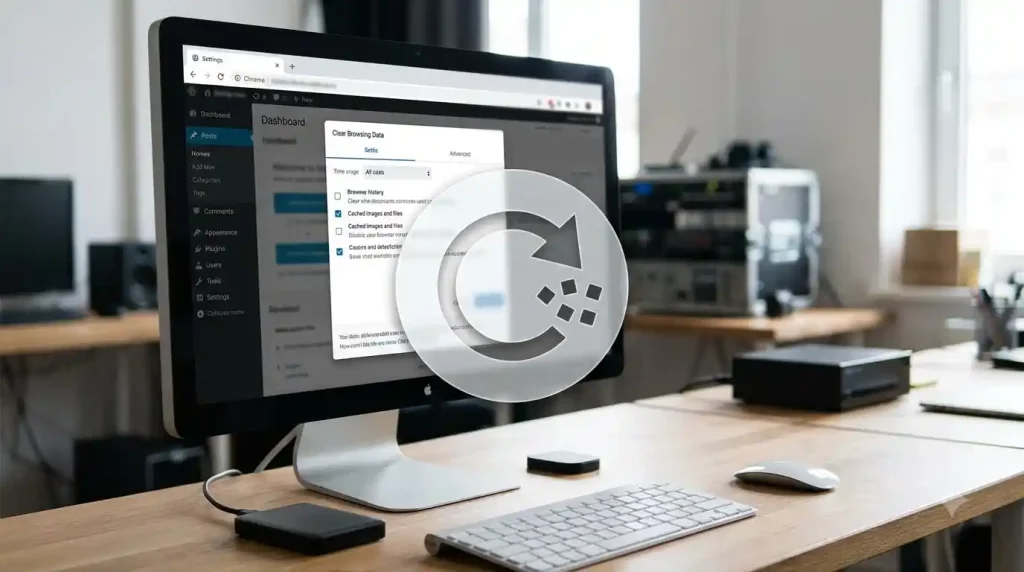
Sometimes an old cached version of a page can make troubleshooting confusing. Clear your browser cache and reload the website.
If you use a WordPress caching plugin, clear the WordPress cache as well.
If your hosting provider uses server-side caching or a CDN, clear that cache too.
Then open your website in a private or incognito browser window.
If the website loads correctly there, cached data may have been part of the problem.
If the blank page remains, continue to the next step.
2. Check Whether WordPress Admin Still Works
Try opening your WordPress login page.
If your website is working at:
example.com
your WordPress dashboard is usually available through:
example.com/wp-admin/
If you can access the dashboard, troubleshooting becomes much easier.
Go to:
Plugins → Installed Plugins
Think about what changed shortly before the problem started.
Did you install a new plugin?
Did you update several plugins?
Did you change the theme?
Did you add custom code?
Write down any recent changes before making new ones.
This helps you avoid changing several things at once.
3. Disable Your WordPress Plugins
A plugin conflict is one of the first things you should investigate when you see a WordPress white screen.

If you can access the dashboard:
- Go to Plugins → Installed Plugins.
- Deactivate all plugins.
- Open your website in a new browser tab.
- Check whether the website works.
- If it works, activate the plugins one at a time.
- Check the website after each activation.
If the white screen returns after activating one plugin, you have probably found the source of the problem.
What If You Cannot Access the Dashboard?
You can disable plugins through your hosting file manager, FTP, or SFTP.
Open:
wp-content/plugins
Rename the plugins folder to:
plugins-disabled
This prevents WordPress from loading the installed plugins.
WordPress recommends manually renaming the plugins folder as a troubleshooting method when the administration screens are unavailable. You can read the official WordPress common errors guide for more details.
After checking the website, rename the folder back to:
plugins
If the website works after disabling the plugins, reactivate them individually to find the problematic plugin.
4. Switch to a Default WordPress Theme
If disabling plugins doesn’t fix the problem, your theme could be responsible.

A theme is especially suspicious if the problem appeared after:
- Installing a new theme
- Updating the active theme
- Adding custom PHP code
- Editing
functions.php - Changing theme settings
If you can access WordPress Admin, go to:
Appearance → Themes
Activate an available default WordPress theme.
Then open your website again.
If the white screen disappears, your previous theme or one of its customizations may be responsible.
Cannot Access WordPress Admin?
You can also do this through your hosting file manager or FTP/SFTP.
Open:
wp-content/themes
Find the folder belonging to your active theme and rename it.
WordPress may then fall back to an available default theme.
If the website starts working, you have a strong indication that the theme needs further investigation.
The official WordPress troubleshooting documentation also recommends switching themes when investigating this type of problem.
5. Enable WordPress Debugging
If you still cannot identify the problem, WordPress has built-in debugging tools.
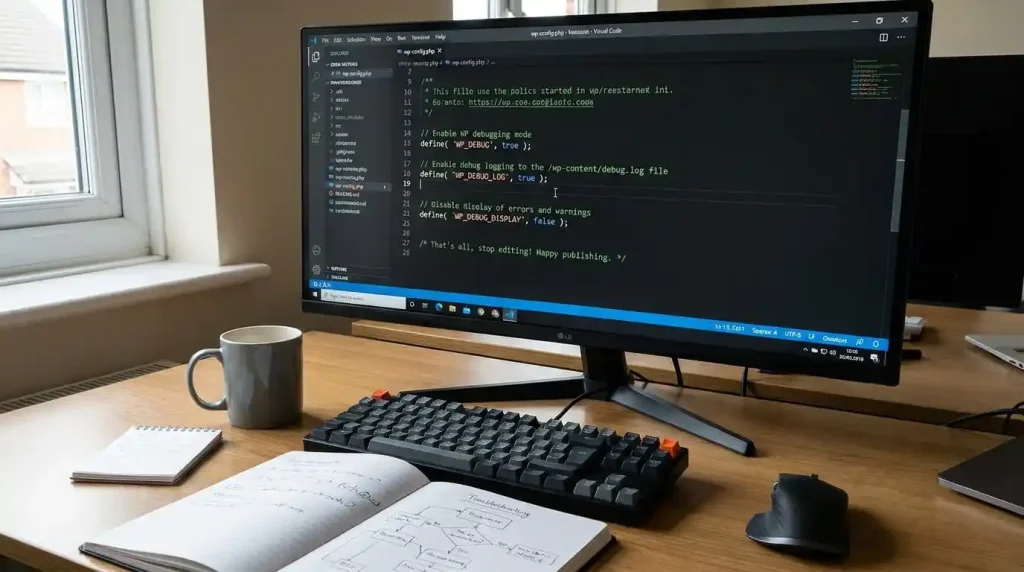
The main setting is:
WP_DEBUG
You can find this configuration in the wp-config.php file.
For troubleshooting, you can use:
define( 'WP_DEBUG', true );
define( 'WP_DEBUG_LOG', true );
define( 'WP_DEBUG_DISPLAY', false );
These settings enable debugging and write errors to a log instead of displaying technical errors directly to visitors.
WordPress explains these debugging options in its official Debugging in WordPress documentation.
The log is normally stored at:
wp-content/debug.log
After enabling logging, reproduce the problem and then check the log.
You may find an error that identifies a specific plugin, theme, PHP function, or file.
Important: Don’t Leave Debugging Exposed on a Live Site
Debugging is useful for finding problems, but displaying PHP errors publicly can expose technical information.
WordPress recommends using debugging mainly for development and troubleshooting rather than leaving detailed errors visible to visitors.
That’s why the configuration above uses:
define( 'WP_DEBUG_DISPLAY', false );
Once you’ve found and fixed the problem, turn debugging off:
define( 'WP_DEBUG', false );
You can also review the official WordPress wp-config.php documentation for additional configuration information.
If you’re not comfortable editing wp-config.php, ask your hosting provider for help.
6. Check the WordPress Debug Log
After enabling logging, open:
wp-content/debug.log
Look for messages containing terms such as:
- Fatal error
- Uncaught Error
- Uncaught TypeError
- PHP Fatal error
- Allowed memory size
- Cannot redeclare
- Call to undefined function
The exact error can help you determine what caused the WordPress White Screen of Death.
For example, if the error points to a file inside a particular plugin folder, investigate that plugin first.
If it points to your theme directory, check the theme and any custom code you recently added.
Don’t delete random files because an error appears in the log. First understand what the error means.
7. Increase the WordPress PHP Memory Limit
A website can also fail when PHP reaches its available memory limit.
One common error looks similar to:
Allowed memory size exhausted
If you see this in your debug log, your website may be running out of PHP memory.
Depending on your hosting environment, you may be able to increase the WordPress memory limit.
For example:
define( 'WP_MEMORY_LIMIT', '256M' );
The actual limit available to your website depends on your hosting configuration.
Increasing memory can help when a legitimate workload needs more resources, but don’t keep increasing the limit without finding the underlying problem.
If one plugin is consuming an unreasonable amount of memory, replacing or fixing that plugin may be a better solution.
8. Check Your PHP Version
Your WordPress website depends on PHP to run.
An incompatible PHP version can cause problems with plugins, themes, and custom code.
Check your PHP version through your hosting control panel.
Before changing it, check:
- Your WordPress version
- Your active theme
- Your important plugins
- Plugin compatibility information
- Theme compatibility information
- Your hosting provider’s available PHP versions
If the white screen appeared immediately after changing the PHP version, that change deserves special attention.
Don’t randomly switch between PHP versions on a production website. If you’re unsure which version to use, ask your hosting provider or the plugin/theme developer.
9. Check for Recent Changes
Think about the exact moment the problem started.
Ask yourself:
- Did I install a plugin?
- Did I update a plugin?
- Did I update WordPress?
- Did I change my theme?
- Did I add custom code?
- Did I change PHP?
- Did I move the website?
- Did I change hosting settings?
- Did I restore a backup?
This timeline can save you a lot of time.
For example, if your website worked perfectly until you updated a particular plugin, test that plugin first.
You don’t need to make ten changes at once.
Make one change, test the website, and record the result.
10. Use WordPress Recovery Mode
Modern WordPress versions include a fatal error protection feature called Recovery Mode.
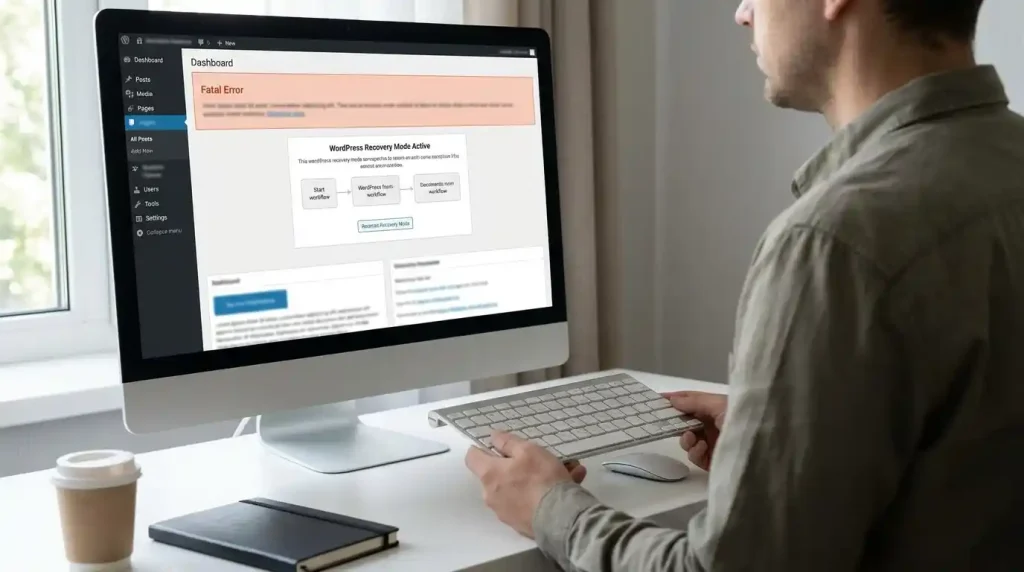
WordPress introduced Recovery Mode in version 5.2. When certain fatal errors occur, WordPress can help administrators identify the plugin or theme responsible for the problem.
If Recovery Mode is triggered, WordPress may send an email to the site administrator.
That email can contain a special recovery link.
Open the link and check which plugin or theme is causing the problem.
You can then deactivate or troubleshoot the affected component.
If you don’t receive a Recovery Mode email, don’t panic. The manual methods in this guide can still help you find the problem.
What If the WordPress White Screen Still Doesn’t Go Away?
If none of the previous methods works, you may need to investigate the server, database, or WordPress core files.
Check Server Error Logs
Your hosting provider may provide PHP and server error logs.
These logs can contain information that isn’t visible on the WordPress website.
Look for errors that started around the same time as the white screen.
If the entire website appears unavailable rather than just one WordPress page, our guide on Why Is My Website Down? 12 Common Problems & Easy Fixes can help you check broader hosting and website problems.
Check Your Database Connection
If you see a database-related error rather than a completely blank page, the problem may involve the database connection.
WordPress identifies database credentials, database problems, and hosting issues as possible causes of database connection errors.
If you aren’t comfortable working with your database, contact your hosting provider before changing database settings.
Check WordPress Core Files
A failed update or damaged WordPress files can sometimes cause serious problems.
WordPress recommends re-uploading the wp-admin and wp-includes directories from a fresh WordPress installation in some White Screen of Death cases.
Don’t delete your entire WordPress installation as a first step.
Your posts, pages, media, settings, and other data may still be completely intact.
Check Your Hosting Account
If several websites on the same hosting account are experiencing problems, the issue may be related to the server or hosting environment.
Check your hosting dashboard for:
- Server alerts
- Resource usage
- PHP errors
- Maintenance notices
- Account limits
- Error logs
If you can’t identify the problem, contact your hosting provider.
How to Prevent the WordPress White Screen of Death
You cannot prevent every WordPress error, but a few habits can make serious problems less likely and easier to recover from.
Keep WordPress Updated
Use a current compatible WordPress version and keep an eye on important security updates.
Before major updates, create a backup.
Keep Plugins Updated
Outdated plugins can become incompatible with newer versions of WordPress, PHP, themes, or other plugins.
Update plugins regularly and test important website functions afterward.
Remove Plugins You Don’t Need
If you installed a plugin for a temporary task and no longer use it, remove it.
A smaller plugin collection is generally easier to maintain.
Keep Your Theme Updated
Keep your active theme updated and be careful with custom code.
If you’ve heavily modified a theme, use an appropriate customization method rather than repeatedly editing core theme files.
Create Regular Backups
A recent backup gives you a recovery option if an update or configuration change breaks your website.
For a complete maintenance routine, see WordPress Website Maintenance: 20 Essential Tasks.
Test Major Changes Before Publishing
If your hosting provider offers a staging environment, test major changes there first.
This is especially useful before:
- Changing themes
- Installing major plugins
- Changing PHP versions
- Performing large WordPress updates
- Migrating your website
If you’re still setting up a new WordPress website, our How to Start a WordPress Website in 2026 guide covers the basic setup process from domain and hosting to WordPress configuration.
WordPress White Screen of Death vs Critical Error
A WordPress white screen and a WordPress critical error can look similar, but they aren’t exactly the same.
With a white screen, you may see a completely blank page.
With a critical error, WordPress may display a message such as:
There has been a critical error on this website.
Both problems can be caused by PHP errors, plugin conflicts, theme problems, incompatible PHP versions, or memory limitations.
If WordPress gives you a specific error message, use that information instead of guessing.
When Should You Contact Your Hosting Provider?
Contact your hosting provider if:
- You cannot access your website files.
- You cannot access your hosting control panel.
- Server logs show errors you don’t understand.
- Your account has reached a resource limit.
- Multiple websites are affected.
- The problem started after a server migration.
- PHP is failing at the server level.
- You suspect a hosting configuration problem.
When contacting support, give them useful information.
Tell them:
- When the problem started
- What you changed before the problem
- Whether WordPress Admin works
- Whether you recently updated plugins
- Whether you changed your theme
- What the debug log says
- Whether other websites are affected
This is much more useful than simply saying, “My WordPress website is blank.”
Frequently Asked Questions
What is the WordPress White Screen of Death?
The WordPress White Screen of Death is a common name for a WordPress website that displays a blank page instead of its normal content. PHP errors, plugin conflicts, theme problems, memory limits, and server issues can cause it.
How do I fix the WordPress White Screen of Death?
Start by clearing your cache and checking recent changes. Then disable plugins, switch to a default theme, check the debug log, review PHP settings, and use WordPress Recovery Mode if available.
Can a plugin cause a WordPress white screen?
Yes. A plugin conflict or incompatible plugin can trigger a PHP error and prevent WordPress from loading normally.
Can a WordPress theme cause a white screen?
Yes. A theme can cause the problem because of PHP errors, compatibility issues, custom code, or an update.
Will I lose my WordPress content because of a white screen?
Not necessarily. A blank page does not automatically mean your content has been deleted. Your database, posts, pages, and media may still be intact.
Should I reinstall WordPress to fix a white screen?
No. Reinstalling WordPress should not be your first step. Try to identify the plugin, theme, PHP, memory, server, or file problem first.
What is the fastest way to find the cause?
Check what changed immediately before the problem appeared, then review the WordPress debug log and server error logs. These can provide much more useful information than guessing.
Can low PHP memory cause a WordPress white screen?
Yes. If PHP reaches its memory limit while WordPress is processing a request, the website can fail to load correctly.
Does WordPress Recovery Mode fix the problem automatically?
Recovery Mode is designed to help isolate fatal errors. It can allow administrators to identify the plugin or theme causing the problem, but it doesn’t necessarily repair the underlying issue automatically.
Final Thoughts
The WordPress White Screen of Death can look frightening because the website may appear completely empty, but the underlying problem is often identifiable.
Start with the simple checks first. Clear the cache, review recent changes, disable plugins, test your theme, and inspect the debug log.
If the problem is related to PHP, hosting, database configuration, or server resources, your hosting provider may need to investigate it.
The most important thing is to troubleshoot systematically. Change one thing, test the website, and keep track of the result.
Regular backups, updated plugins and themes, and careful testing of major changes can make future WordPress problems much easier to recover from.