
Why Is My Website Down? 12 Common Reasons and How to Fix It
Why is my website down? If you have ever opened your website and suddenly seen a blank screen, server error, DNS message, or a browser saying that the site cannot be reached, you know how stressful it can be.
The good news is that a website being down does not always mean something serious has happened. Sometimes the problem is as simple as an expired domain, a temporary hosting issue, a DNS problem, or a WordPress plugin conflict.
The important thing is not to panic. Start with the basics, identify where the problem is happening, and then work through the likely causes one by one.
In this guide, we’ll look at 12 common reasons your website may be down, how to diagnose each problem, and what you can do to fix it.
What Does “Website Down” Actually Mean?
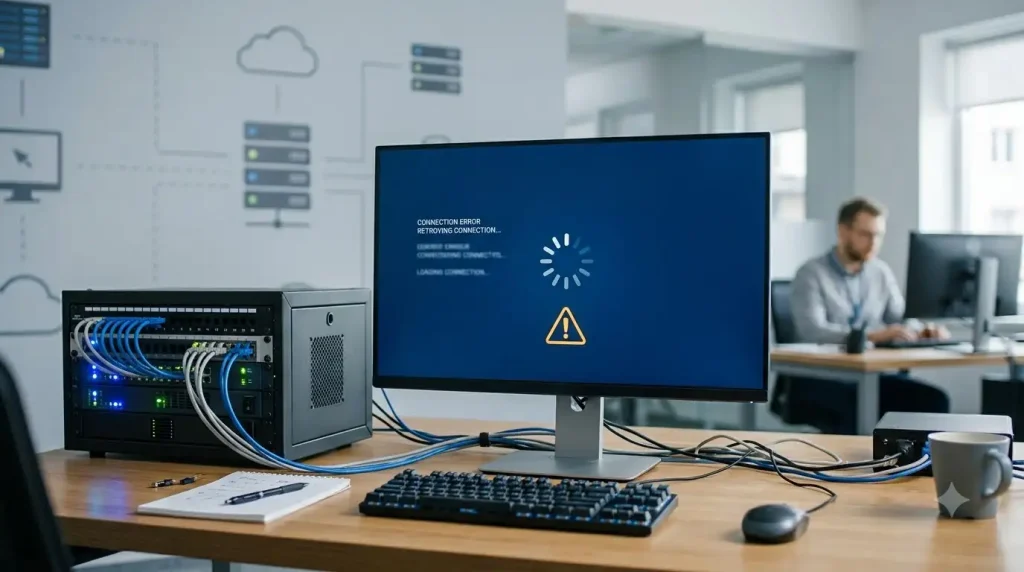
A website is considered down when visitors cannot access the site normally.
However, “down” can mean different things.
For example, your website might:
- Show a completely blank page
- Display a 500 Internal Server Error
- Show a DNS error
- Return a 404 or 403 error
- Keep loading without opening
- Show an SSL/security warning
- Display a WordPress database connection error
- Work for you but not for other visitors
This distinction matters because the solution depends on the type of problem.
Before changing anything on your website, try to identify what exactly is failing.
1. Your Hosting Server Is Having a Problem
One of the first things to check when your website suddenly stops working is your web hosting account.
Your website files, databases, and server-side resources are stored on your hosting server. If that server experiences an outage or technical problem, your website may become unavailable.
Sometimes the problem is temporary and is resolved by the hosting provider. Other times, you may need to contact support.
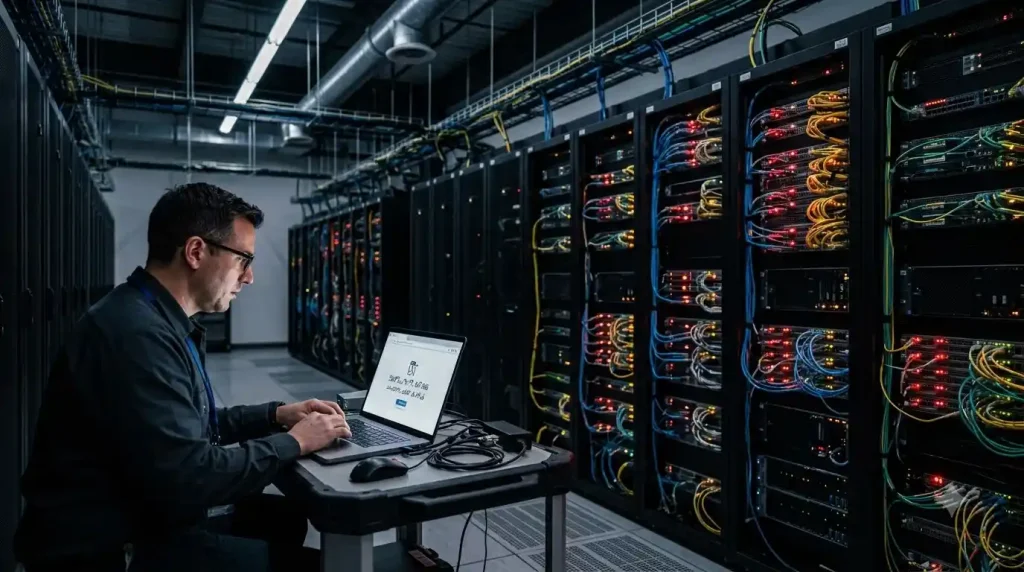
How to check
Log in to your hosting control panel and look for:
- Server status notifications
- Maintenance announcements
- Resource usage warnings
- Account alerts
- Error logs
You can also contact your hosting provider and ask whether your server is experiencing an outage.
If other websites hosted on the same server are also unavailable, that is another strong indication of a server-side problem.
What to do
If the hosting company confirms an outage, there may be nothing you need to change on your website. Wait for the provider to resolve the issue and monitor your site afterward.
If the problem happens repeatedly, it may be worth reviewing your hosting plan or considering a more reliable hosting environment.
2. Your Domain Name Has Expired
This is an easy problem to overlook.
Your hosting account can be active while your domain name has expired. If the domain registration is not renewed, visitors may no longer reach your website.
For example, imagine your hosting account is working perfectly but your domain registration expired yesterday. Your server can still contain all your website files, but visitors may not be able to reach them using your domain.
How to check
Log in to your domain registrar and check:
- Domain expiration date
- Renewal status
- Auto-renewal settings
- Domain status
- Contact or verification notifications
If the domain has expired, renew it as soon as possible.
Also check your email for messages from your domain registrar. Important renewal or verification notifications can sometimes be missed.
3. There Is a DNS Problem
DNS, or the Domain Name System, connects your domain name with the server where your website is hosted.
If your DNS records are incorrect, your domain may stop pointing to the correct server.
For example, you might have recently:
- Changed hosting providers
- Changed nameservers
- Updated DNS records
- Added a CDN
- Moved your website to another server
Any incorrect DNS configuration can prevent visitors from reaching the website.
If you want to understand the basics first, see our guide on what DNS is.
Common DNS-related symptoms
You may see messages such as:
- DNS_PROBE_FINISHED_NXDOMAIN
- DNS server not responding
- Server IP address could not be found
- This site can’t be reached
What to do
Check the nameservers and DNS records at your domain registrar.
Make sure the important records point to the correct destination provided by your hosting company.
If you recently changed DNS settings, remember that DNS changes can take some time to propagate.
4. Your SSL Certificate Has a Problem
Modern websites commonly use HTTPS to provide an encrypted connection between visitors and the website.
If your SSL certificate has expired, is incorrectly configured, or does not match the domain, browsers may display a security warning.
You might see messages such as:
“Your connection is not private.”
This can make the website appear broken or unsafe to visitors even if the server itself is working.
How to check
Open your website using HTTPS:
Then look at the browser’s security information.
You can also check your hosting control panel to see whether the SSL certificate is active.
What to do
If your hosting provider offers automatic SSL, make sure the feature is enabled.
If you recently moved your website, verify that the SSL certificate was properly installed on the new server.
Do not simply tell visitors to ignore browser security warnings. Fix the underlying certificate problem instead.
5. Your Server Is Overloaded
A website can also go down because the server does not have enough resources to handle the current workload.
This can happen when:
- Your website suddenly receives a large amount of traffic
- A plugin consumes excessive resources
- A script creates too many database requests
- Your hosting plan has limited CPU or memory
- Automated bots send unusually high numbers of requests
You may notice that your website becomes extremely slow before it stops responding completely.
What to do
Check your hosting dashboard for resource usage.
Look for:
- CPU usage
- RAM or memory usage
- PHP workers
- Entry processes
- Disk space
- Bandwidth
If your site regularly reaches its limits, consider optimising the website or upgrading your hosting resources.
Don’t immediately assume that buying a larger hosting plan is the only solution. Sometimes a poorly optimized plugin or inefficient website feature is the real problem.
6. Your Database Cannot Be Reached
WordPress and many other content management systems rely heavily on databases.
If your website cannot connect to its database, visitors may see an error such as:
“Error establishing a database connection.”
This can happen because of:
- Incorrect database credentials
- Database server problems
- Corrupted database tables
- Hosting configuration changes
- Server resource issues
What to do
If you recently changed your hosting or database settings, verify that the database credentials are correct.
If you did not make any changes, contact your hosting provider and ask them to check the database server and logs.
Before making database changes, make sure you have a recent backup.
7. A WordPress Plugin Is Causing the Problem
If you use WordPress, a plugin can sometimes cause your website to stop working.
This is especially possible after:
- Installing a new plugin
- Updating a plugin
- Updating WordPress
- Changing PHP versions
- Installing multiple plugins that conflict with each other
A plugin conflict can result in a blank page, error message, broken layout, or a complete website failure.
How to troubleshoot it
Think about what changed immediately before the problem started.
If the website went down after installing or updating a plugin, that plugin should be one of your first suspects.
If you cannot access the WordPress dashboard, your hosting file manager or FTP may allow you to temporarily disable plugins.
Do this carefully and preferably after taking a backup.
Once the site comes back, reactivate plugins one at a time to identify the problematic one.
8. Your WordPress Theme Is Causing an Error
Plugins are not the only WordPress components that can cause problems.
A theme can also create compatibility issues, particularly after an update.
This can happen when:
- The theme is outdated
- The theme is incompatible with your WordPress version
- Custom code contains an error
- A theme update introduces a bug
- The theme conflicts with a plugin
What to do
If the problem started immediately after a theme update or customization, investigate that change first.
If possible, temporarily switch to a default WordPress theme.
If the website starts working again, the theme or custom code is likely involved.
Avoid making multiple changes at the same time. Changing several plugins, the theme, and server settings together makes it much harder to identify the actual cause.
9. Your Hosting Account Has Been Suspended
Another possible reason your website is down is an account suspension.
Hosting providers may suspend accounts for different reasons, including:
- Unpaid invoices
- Excessive resource usage
- Security problems
- Malware detection
- Terms-of-service violations
- Unusual activity
How to check
Log in to your hosting account and check for account notifications.
Also check your email inbox for messages from your hosting provider.
If your account has been suspended, contact the provider to understand the exact reason.
Do not repeatedly change website files if the problem is actually an account-level suspension.
10. Your Hosting Provider Is Performing Maintenance
Sometimes nothing is wrong with your website itself.
Your hosting company may simply be performing planned maintenance.
During server maintenance, a website may temporarily become unavailable or experience slower performance.
What to do
Check your hosting provider’s:
- Status page
- Maintenance notifications
- Support dashboard
- Email notifications
If maintenance is already scheduled, waiting may be the safest option.
However, if the website remains offline significantly longer than the announced maintenance period, contact support.
11. Your CDN Is Causing the Problem
A Content Delivery Network, or CDN, sits between visitors and your origin server and can improve performance and security.
However, incorrect CDN settings can sometimes create website access problems.
Possible causes include:
- Incorrect DNS configuration
- SSL conflicts
- Incorrect origin server settings
- Firewall rules
- Cached errors
- CDN service problems
If you are unfamiliar with CDNs, our guide on what a CDN is can help explain the basics.
How to troubleshoot
First determine whether the origin server is working.
If your hosting server works directly but the domain fails when traffic passes through the CDN, the CDN configuration becomes a strong suspect.
Check your CDN dashboard for:
- DNS status
- SSL settings
- Firewall rules
- Origin server configuration
- Service alerts
Avoid randomly changing multiple CDN settings. A single incorrect configuration can create another problem.
12. A Server or Website Configuration Is Incorrect
Sometimes a website goes down because a configuration file was changed incorrectly.
This can happen after:
- Editing
.htaccess - Changing PHP settings
- Modifying server configuration
- Installing security software
- Changing redirects
- Moving the website
- Adding custom code
For WordPress websites, even a small configuration mistake can sometimes produce a server error.
What to do
Think about the most recent change you made.
If the website stopped working immediately afterward, reversing that specific change may solve the problem.
Always keep backups before modifying important configuration files.
If you are unsure what a configuration file does, ask your hosting provider or an experienced developer before changing it.
How to Check If Your Website Is Really Down
Before spending time troubleshooting, confirm that the website is actually unavailable.
Try these simple checks.
1. Open the website in another browser
Your browser may have cached an error.
Try Chrome, Edge, Firefox, or another browser.
2. Use a private/incognito window
This can help rule out some browser cache and extension-related problems.
3. Test from another device
Try your phone or another computer.
4. Check another internet connection
For example, switch between Wi-Fi and mobile data.
5. Check your hosting dashboard
Look for server status, resource warnings, or maintenance notifications.
6. Check Google Search Console
If Google has recently crawled your website, Search Console can sometimes provide useful information about crawling or server-related problems.
You can access Google Search Console to inspect your site’s indexing and performance information.

What Should You Do First When Your Website Goes Down?
When your website suddenly stops working, avoid making random changes.
Use this simple order:
Step 1: Open the website yourself.
Step 2: Check the exact error message.
Step 3: Test the site from another browser or network.
Step 4: Check your hosting account.
Step 5: Check your domain expiration.
Step 6: Check DNS if you recently changed hosting or nameservers.
Step 7: Check SSL.
Step 8: Think about your most recent WordPress/plugin/theme change.
Step 9: Check server resource usage.
Step 10: Contact hosting support if the problem appears server-side.
This approach can save you from changing something that was never actually broken.
How to Prevent Website Downtime

You cannot guarantee that a website will never experience downtime, but you can reduce the risk.
Keep regular backups
A recent backup can make recovery much easier after a serious problem.
Renew your domain on time
Enable automatic renewal if it makes sense for your situation.
Keep WordPress updated
Keep WordPress, plugins, and themes maintained, but test major changes when possible.
Use reliable hosting
Cheap hosting can be useful for beginners, but reliability and resource availability should also be considered when choosing a hosting provider.
If you are new to hosting, you can learn more in our guide explaining what web hosting is.
Monitor your website
A website monitoring service can notify you when your site becomes unavailable.
This is especially useful if your website generates leads, sales, or affiliate revenue.
Avoid unnecessary plugins
Every additional plugin can introduce another possible compatibility or security issue.
Install only plugins that your website actually needs.
Monitor your domain and SSL
Don’t wait until visitors complain. Check that your domain and HTTPS configuration remain active.
Frequently Asked Questions
Why is my website down but my hosting is working?
Your hosting server may be working while another part of the system is failing. Check your domain, DNS records, SSL certificate, CDN, and website configuration.
Why is my website not loading but other websites work?
If other websites load normally, the issue may be specific to your domain, hosting server, DNS configuration, SSL, WordPress installation, or website resources.
Can a plugin take down my WordPress website?
Yes. A plugin conflict, compatibility problem, or plugin error can sometimes prevent a WordPress website from loading correctly.
How do I know if my hosting server is down?
Check your hosting provider’s status information, hosting dashboard, server logs, or contact support. You can also test whether other services on the same hosting environment are affected.
Can an expired domain make my website go down?
Yes. If your domain expires and is no longer active, visitors may not be able to reach your website even if your hosting account is still running.
How long does website downtime last?
It depends on the cause. A temporary server issue may be resolved quickly, while DNS, configuration, security, or WordPress problems can require troubleshooting.
Final Thoughts
If you are wondering why is my website down, don’t immediately assume that your entire website has been lost.
In many cases, the cause is relatively simple: a hosting problem, expired domain, DNS configuration, SSL issue, overloaded server, plugin conflict, or recent configuration change.
The best approach is to troubleshoot methodically.
Start by checking the exact error, then investigate your hosting, domain, DNS, SSL, WordPress installation, and recent changes. If the issue appears to be server-side, contact your hosting provider rather than making unnecessary changes yourself.
Most importantly, keep regular backups and monitor your website so that a future outage does not become a major problem.