Managing a website becomes much easier when you have the right tools. If you have purchased a hosting plan, registered a domain, or started building a WordPress website, you may have come across the term cPanel.
cPanel is a web hosting control panel that lets you manage many parts of your hosting account through a graphical interface.
For beginners, cPanel can make everyday website management less confusing. It is useful for bloggers, small businesses, freelancers, and website owners who want to manage their hosting account from one dashboard.
In this guide, you will learn what cPanel is, how it works, which features matter most, how to use it with WordPress, and when Google Cloud website hosting may be a better option.
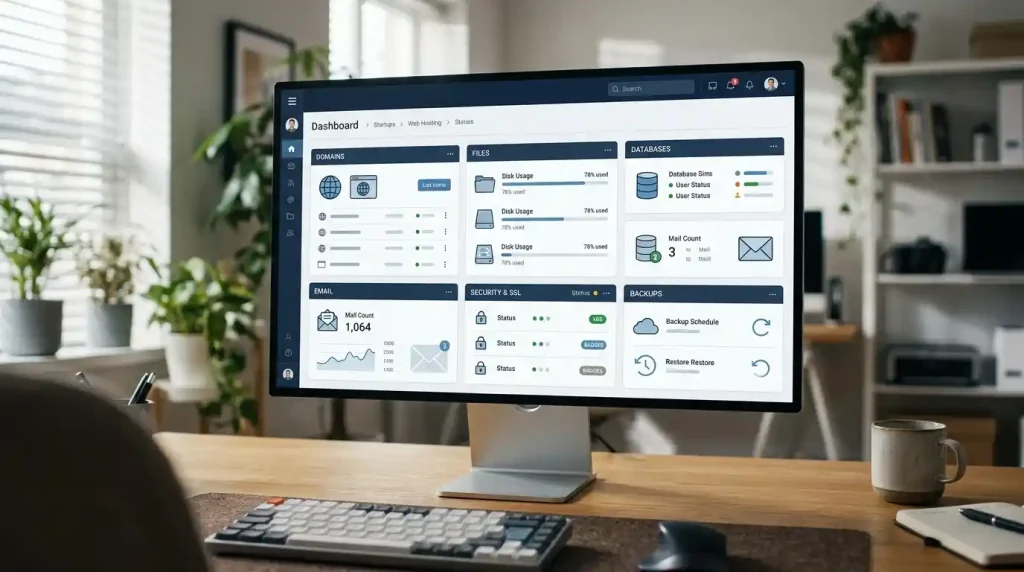
Table of Contents
- What Is cPanel?
- How Does cPanel Work?
- Main Features of cPanel
- How to Use cPanel for WordPress Hosting
- cPanel Hosting vs. Google Cloud Website Hosting
- Advantages and Disadvantages of cPanel
- Common cPanel Problems and Solutions
- Is cPanel Worth Using?
- Frequently Asked Questions
1. What Is cPanel?
cPanel is a web-based control panel used to manage a website’s hosting account. Hosting providers may include it with shared hosting, reseller hosting, VPS hosting, or other compatible hosting plans.
Instead of manually handling server files and settings, you can use menus and tools to perform common tasks. The exact features available depend on your hosting provider and the configuration of your account.
For example, if you run a WordPress blog, you may use cPanel to upload files, create a database, manage a domain, configure email accounts, and access backup tools.
It is important to understand that cPanel and web hosting are different things.
- Web hosting: Provides the server resources that store and deliver your website.
- cPanel: Provides an interface for managing parts of your hosting account.
- WordPress: Provides the software you use to publish and manage website content.
- Domain name: Gives visitors an address they can use to reach your website.
These components work together, but each has a separate purpose.
2. How Does cPanel Work?
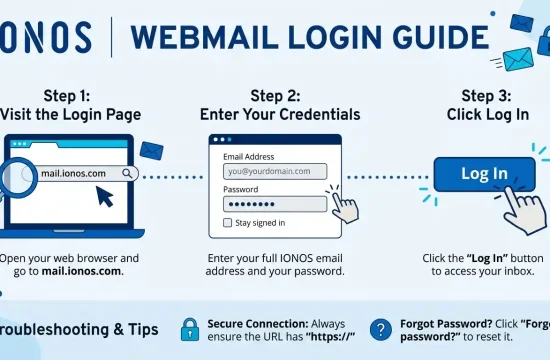
When you purchase a hosting plan that includes cPanel, your hosting provider gives you login details or a link to the control panel.
After logging in, you can access the tools enabled for your account. Depending on your plan, these may include a file manager, database management, email settings, domain controls, backups, and security options.
Here’s a basic example of how the process works:
- Register a domain name for your website.
- Purchase a hosting plan that supports your chosen website platform.
- Connect the domain to the hosting account.
- Log in to cPanel using the login access provided by your host.
- Install WordPress or upload your website files.
- Configure your database, SSL certificate, and other required settings.
- Publish your website and maintain it through your hosting dashboard.
Many hosting providers offer one-click WordPress installation or a WordPress management tool, so you may not need to create a database manually.
For more detailed instructions, read the official cPanel getting-started guide.
3. Main Features of cPanel
cPanel includes several tools that can help you manage a website. Some features may be unavailable if your hosting provider has disabled them.
File Manager
File Manager lets you browse and manage files stored in your hosting account. You can upload images, download files, edit certain files, create folders, and remove unwanted files.
For WordPress websites, the main website files are commonly stored in a directory such as public_html, although the location can differ by hosting setup.
Be careful when editing or deleting files. Removing an important WordPress file can make your website stop working.
Domain Management
Domain tools help you manage domains associated with your hosting account.
If you run a blog and a separate business website, these tools can help you organize your domains when your hosting plan permits multiple websites.
Email Accounts
Some cPanel hosting plans let you create email addresses using your domain, such as info@yourdomain.com.
You may also be able to configure email forwarding, autoresponders, and spam filtering. However, email availability and sending limits depend on your hosting provider.
A domain-based email address can be useful for business communication, customer support, and website inquiries.
Database Management
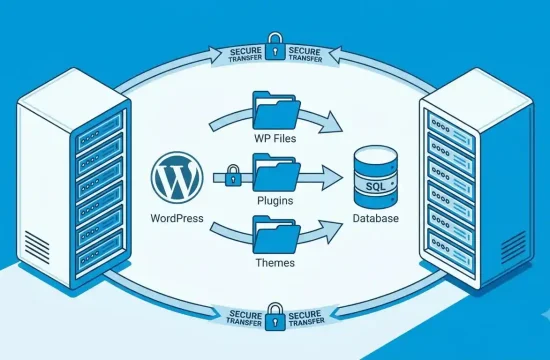
WordPress stores its posts, pages, settings, user information, and other content in a database.
These tools are useful when troubleshooting database errors, importing data, or working with a website migration.
If you are new to WordPress, avoid changing database tables unless you understand what the changes will do.
SSL and Website Security
An SSL/TLS certificate helps protect information exchanged between a website and its visitors. Websites using HTTPS establish an encrypted connection when the certificate is configured correctly.
Depending on your hosting plan, cPanel may provide SSL status information or tools for managing certificates.
You should also use strong passwords, keep WordPress and its plugins updated, and maintain backups. A control panel alone cannot guarantee that your website is secure.
Backup and Restore Tools
Backups help you recover your website if a plugin update fails, files are accidentally deleted, or a security incident damages your site.
Some hosting providers offer automatic backups through cPanel or their own hosting dashboard. Others charge extra or limit how many backups you can keep.
Check whether your plan supports full-account backups, database backups, and easy restoration. Keeping an additional copy outside your hosting account can provide extra protection.
WordPress Management Tools
Some cPanel installations include WP Toolkit or another WordPress management feature. Depending on the available configuration, these tools can help you install WordPress, manage updates, create staging sites, and perform other maintenance tasks.
These tools can save time, especially if you manage multiple WordPress websites.
For a full feature list, visit the official cPanel documentation.
4. How to Use cPanel for WordPress Hosting
If you are planning to build a blog, affiliate website, portfolio, or business website, cPanel can be part of your WordPress setup.

Follow these steps to get started.
Step 1: Choose a Compatible Hosting Plan
First, choose a hosting plan that supports WordPress and includes cPanel if you specifically want that control panel.
Compare storage, bandwidth or traffic limits, server resources, SSL support, backup options, support quality, and renewal prices before purchasing.
You can also read our guide to WordPress domain hosting to understand how a domain and hosting account work together.
Step 2: Log In to cPanel
Your hosting provider should supply a cPanel login link and the required account credentials.
Use the secure login address provided by your provider. Keep your password private and enable two-factor authentication if your hosting setup supports it.
Step 3: Install WordPress
Look for a WordPress installer or management tool in the dashboard. The name and location vary by hosting provider.
Select the domain where you want to install WordPress, enter the required site details, and create a strong administrator password.
If the host does not offer an automatic installer, WordPress can also be installed manually by following the official WordPress installation guide.
Step 4: Configure Your Website
Once WordPress is installed, open your WordPress dashboard and configure your website title, permalink structure, theme, and essential plugins.
Install an SSL certificate through your host if one is not already active. Then confirm that your website loads correctly over HTTPS.
Step 5: Set Up Backups and Security
Before publishing important content, confirm that your hosting plan provides a working backup system.
Use strong login credentials, remove unused plugins and themes, update your software, and review your hosting account’s security settings.
Step 6: Test Your Website
Check that the homepage, navigation, images, contact forms, and important pages work correctly.
Test your backup and restoration process if possible.
5. cPanel Hosting vs. Google Cloud Website Hosting
Google Cloud website hosting can support WordPress, but the setup and management requirements depend on the service you choose.

What Is cPanel Hosting?
When people talk about cPanel hosting, they usually mean a hosting plan that provides cPanel to manage a website.
This arrangement is often suitable for beginners who want to manage files, databases, domains, and email through a dashboard. Your hosting provider usually handles much of the underlying server maintenance, depending on the plan.
What Is Google Cloud Website Hosting?
You can deploy WordPress using options such as Compute Engine, while other architectures can combine services for databases, storage, and scaling.
This can give experienced users more control over server resources and infrastructure. However, configuration, monitoring, security, and billing may require more technical knowledge.
Google Cloud also offers a WordPress deployment page with information about its available options: WordPress on Google Cloud.
Comparison Table
| Feature | cPanel Hosting | Google Cloud Hosting |
|---|---|---|
| Main purpose | Hosting account management | Cloud infrastructure and services |
| Beginner experience | Often simpler | Depends on the chosen setup |
| WordPress installation | Frequently available through an installer | Available through supported deployment options |
| Server control | Depends on hosting plan | Greater infrastructure flexibility |
| Maintenance | Provider handles some server tasks | Responsibilities depend on the service |
| Billing | Often a fixed hosting subscription | Can vary with resources and services used |
| Best suited for | Blogs, small websites, and many business sites | Custom deployments and workloads needing cloud flexibility |
Which should you choose?
If you want to launch a standard WordPress blog without managing server infrastructure, a conventional hosting plan with cPanel may be easier to handle.
If you need custom infrastructure, more control over cloud resources, or a specific deployment architecture, Google Cloud may be worth considering. Remember that cPanel can also run on compatible cloud servers.
The best host for WordPress depends on your budget, technical skills, expected traffic, and website requirements. Choosing a plan simply because it includes cPanel is not enough.
Consider these factors before making a decision.
Performance and Server Resources
Check the storage type, memory and CPU limits where available, caching support, and resource restrictions.
WordPress Compatibility
Choose a provider that supports a current, compatible version of PHP, a suitable database, and the requirements of your WordPress installation.
Look for straightforward WordPress installation and update tools if you are a beginner.
Security and Backups
Check whether SSL certificates, malware scanning, account isolation, and automatic backups are included. Find out how often backups run and how much restoration costs.
Customer Support
Good support can help when your website becomes unavailable or you face a database, email, or DNS problem.
Check which support channels are offered and whether technical help is included in your plan.
Pricing and Renewal Costs
Also check whether backups, email, migrations, or other features cost extra.
Scalability
You may start with shared hosting and later move to managed WordPress hosting, a VPS, or cloud infrastructure.
For more help, read our guide to choosing a web host.
Website Hosting WordPress: What Should Beginners Choose?
For a personal blog, portfolio, or new affiliate website, shared WordPress hosting with a control panel is often a reasonable starting point.
For a complex website with custom infrastructure requirements, cloud or VPS hosting may provide the control you need.
When comparing hosting sites for WordPress, focus on the actual plan features rather than the provider’s marketing claims.
7. Advantages and Disadvantages of cPanel
Advantages
- Easy account management: Many hosting tasks are handled through menus and forms.
- Useful built-in tools: File, database, domain, and email tools are often available in one place.
- WordPress support: Many providers offer automatic WordPress installation.
- Less command-line work: Beginners can perform many routine tasks without using terminal commands.
Disadvantages
- Additional licensing costs: Some providers include cPanel in their hosting prices, while others charge separately.
- Limited server control: Shared hosting customers cannot freely change every server setting.
- Provider-dependent features: Tools and permissions vary across plans.
- Security responsibilities remain: Website owners still need to update WordPress, protect accounts, and maintain backups.
- Not a complete hosting service: cPanel needs a compatible server and hosting environment to operate.
For many small websites, these limitations are manageable. The important thing is to choose a hosting plan that matches the work you need to do.
8. Common cPanel Problems and Solutions
Here are a few common examples.
cPanel Login Is Not Working
Make sure your username and password are correct, use the right login URL, and verify that your hosting account is active.
If the problem continues, contact your hosting provider instead of repeatedly guessing passwords.
WordPress Installation Fails
Check the domain’s DNS settings, available disk space, database permissions, and the installer’s error message.
If the installer reports a technical problem, ask your host to review the server logs.
Your Website Shows a Database Connection Error
WordPress may be unable to connect to its database because of incorrect credentials, a database server problem, or a configuration issue.
Review your database settings and contact your hosting provider if you cannot find the problem.
Your Website Is Not Using HTTPS
Confirm that an SSL certificate has been issued and installed for the correct domain. Check your hosting dashboard and DNS configuration, then verify your WordPress HTTPS settings.
Avoid forcing HTTPS before the certificate works correctly, as that can cause visitors to encounter errors.
You Accidentally Deleted a File
Check whether the file is still in the file manager’s trash or whether your host has a recent backup.
Before restoring a backup, check whether it could replace or delete any recent content or data.
9. Is cPanel Worth Using?
cPanel is worth considering if you want a familiar dashboard for managing your hosting account and your provider offers the features you need.
It can be especially helpful for bloggers, freelancers, small business owners, and people running WordPress websites who do not want to handle every hosting task manually.
However, cPanel is not a guarantee of fast performance, strong security, or good customer support. Those things depend on the hosting provider, server resources, configuration, and maintenance.
Compare the full hosting plan before buying. Look at performance, renewal pricing, backups, security, technical support, and the ease of upgrading.
If you are starting a new WordPress website, a suitable shared hosting plan with cPanel may be enough. If your project requires custom cloud infrastructure, consider Google Cloud or another platform that matches your technical needs.
10. Frequently Asked Questions
What is cPanel used for?
cPanel lets you manage your web hosting account. Common tasks include managing files, domains, email accounts, databases, and certain security or backup settings.
Is cPanel necessary for WordPress?
No. WordPress can run on hosting services that use other control panels or custom dashboards. cPanel is one way to manage a compatible hosting account.
Is cPanel free?
cPanel is commercial software. Some hosting providers include its cost in their plans, while others charge separately. The total price depends on the provider and hosting package.
What is the difference between cPanel and web hosting?
Web hosting provides the server resources that run your website. cPanel is a control panel used to manage parts of the hosting account.
Is Google Cloud good for WordPress hosting?
Google Cloud supports WordPress hosting and provides several flexible setup options. It may suit users who need greater control over infrastructure, although setup and management can be more demanding than standard shared hosting.
What is the best host for WordPress beginners?
The right choice is a provider with compatible WordPress hosting, dependable support, useful backups, suitable performance, and clear pricing. Shared hosting is often enough for a new website, while managed hosting may help people who prefer less technical maintenance.
Can I use cPanel without technical knowledge?
Yes. Many routine tasks can be completed through the interface. Some work, such as repairing database problems or changing server settings, may still require technical help.
Does cPanel improve website speed?
cPanel itself does not automatically make a website faster. Website speed depends on the server, hosting resources, caching, code, images, database performance, and other factors.
Final Thoughts
cPanel makes many hosting tasks easier by putting common management tools in one dashboard. It can help you manage WordPress files, databases, email accounts, domains, and backups without needing to use command-line tools for every task.
If you are starting a blog or business website, look for a hosting plan that combines a suitable control panel with reliable performance, security features, and helpful support.
Compare your options carefully, and choose the hosting environment that fits your website today while allowing room for future growth.