SMTP (Simple Mail Transfer Protocol) helps email applications, websites, and business systems send outgoing email messages across the internet. When we send a message through Gmail, submit a contact form on a WordPress website, or receive an order confirmation from an online store, SMTP can be part of the process that transfers the message to the recipient’s mail server.
Understanding SMTP server settings helps us configure outgoing email, fix connection errors, and improve the reliability of website notifications. For WordPress site owners, the correct configuration can help resolve problems with contact forms, password reset links, registration emails, and WooCommerce order notifications.
In this guide, we explain how SMTP works, review common SMTP ports, cover Gmail SMTP settings, and show how to use WP Mail SMTP and Mailtrap. We also explain common SMTP errors, email security, and the steps we can take when a message fails to arrive.
What Is SMTP?
SMTP stands for Simple Mail Transfer Protocol. It is a communication protocol used to send outgoing email messages between email applications and mail servers.
When we compose an email and click Send, our email application connects to an outgoing mail server. The server processes the message and transfers it toward the recipient’s mail server. The receiving service then decides whether to accept, filter, or reject the message.
For example, when we send a Gmail message to a business email address, SMTP helps transfer the outgoing message. The recipient may use Gmail, Outlook, or another email application to read it.
SMTP is commonly used for:
- Sending emails through Gmail and other email services.
- Delivering WordPress contact form notifications.
- Sending password reset links and account alerts.
- Delivering WooCommerce order confirmations.
- Sending automated emails from websites and business applications.
- Connecting desktop email clients to outgoing mail servers.
SMTP handles the sending process. IMAP and POP3 serve different purposes, mainly helping email applications access messages stored in a mailbox.
For website owners, understanding the difference can make troubleshooting easier. If outgoing messages fail, we should inspect SMTP configuration first. If messages arrive but do not appear correctly across devices, we may need to check the incoming mail settings instead.
How Does SMTP Work?
SMTP moves an outgoing message through several steps. Although the process usually happens quickly, a message may pass through more than one mail server before reaching its destination.
1. We Compose and Send an Email
We write a message in an email application or trigger an automated message from a website. The application prepares the message and connects to its configured outgoing mail server.
2. The SMTP Server Authenticates the Sender
Many email providers require authentication before allowing an application to send messages. Depending on the service, we may need an email address, an app password, an API credential, or an approved authentication method such as OAuth.
The connection should use the encryption method supported by the provider. STARTTLS and implicit TLS are common options for protecting communication between an application and a mail server.
3. The Server Processes the Message
The sending server checks the message and identifies where it needs to go. The recipient’s domain helps the mail system locate the destination server through DNS records.
4. The Message Travels to the Recipient’s Mail Server
The sending server attempts to transfer the message to the destination server. Other mail servers may handle the message along the way, depending on the sending service and recipient’s email system.
5. The Recipient’s Service Accepts or Rejects the Message
The destination server evaluates the message according to its policies. If accepted, the message may be placed in the recipient’s inbox, spam folder, or another folder. The server may also reject the message or return a delivery error.
A successful SMTP connection does not guarantee inbox delivery. Incorrect DNS records, authentication failures, spam filters, and mailbox restrictions can still prevent a message from reaching its intended destination.
Common SMTP Server Settings
When configuring an email application or website, we usually need the SMTP hostname, port, encryption method, username, and authentication details.
The exact values depend on the email provider. We should use the provider’s current documentation rather than copy settings from an unrelated email service.
| SMTP setting | What it means |
|---|---|
| SMTP server or host | The address of the outgoing mail server |
| SMTP port | The network port used to connect to the server |
| Encryption | The security method used to protect the connection |
| Authentication | The method used to verify the sender |
| Username | Usually the full email address or an account-specific username |
| Password or credential | An app password, SMTP password, API credential, or approved alternative |
| From Email | The address displayed as the sender |
Common SMTP Ports
Three ports are commonly associated with SMTP traffic, although they serve different purposes.
Port 587: Commonly used for authenticated email submission with STARTTLS. It is a standard choice for many email applications and website integrations.
Port 465: Commonly used for email submission with implicit TLS encryption. The connection is encrypted from the beginning.
Port 25: Traditionally used for mail transfer between servers. Many hosting providers restrict outgoing connections on this port to reduce spam.
For most website email configurations, port 587 is a reasonable starting point when the provider supports STARTTLS. However, we should always follow the provider’s documented settings. Selecting the wrong encryption method for a port can cause connection failures.
If you are also configuring a website’s domain and hosting, our guide to WordPress domain hosting can help you understand how the domain and hosting account work together.
Gmail SMTP Settings
Gmail SMTP settings allow compatible applications, email clients, and websites to send messages through a Google account. We can use them when configuring supported software, but Google’s account security requirements determine which authentication methods are available.
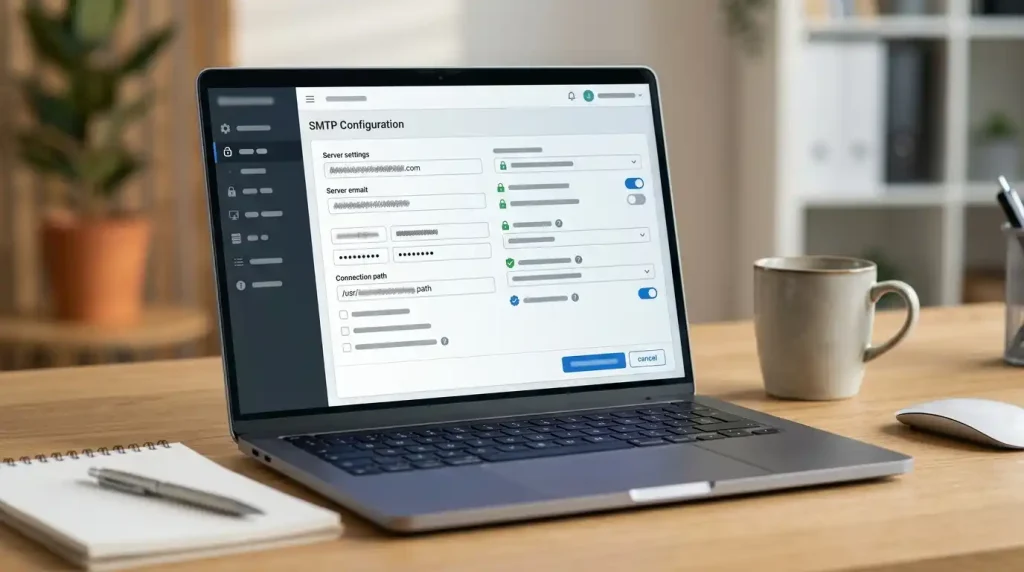
The standard Gmail SMTP details are listed below.
| Setting | Gmail SMTP value |
|---|---|
| SMTP server | smtp.gmail.com |
| Port | 587 |
| Encryption | STARTTLS |
| Alternative port | 465 |
| Alternative encryption | Implicit TLS (SSL/TLS) |
| Authentication | Required |
| Username | Full Gmail email address |
| Password | App password or another supported authentication method |
These settings apply to common Gmail SMTP connections. Some applications support Google’s OAuth authentication, which can be preferable to manually entering a password.
For official instructions, see Google’s Gmail SMTP and email client settings.
How to Configure Gmail SMTP
We can configure Gmail SMTP in a compatible application by following these steps.
- Open the application’s email or SMTP settings.
- Enter
smtp.gmail.comas the outgoing mail server. - Choose port
587and enable STARTTLS, or choose port465with implicit TLS if supported. - Enable SMTP authentication.
- Enter the full Gmail address as the username.
- Complete the authentication process supported by Google and the application.
- Save the configuration.
- Send a test message and confirm that it arrives.
If authentication fails, check the account’s security settings and the application’s supported sign-in methods. A regular Google account password may not work in an application that requires OAuth or an app password.
How to Create a Gmail App Password
A Gmail app password is a separate 16-character password available to certain Google accounts. It lets compatible applications connect without using the account’s regular password.
To create an app password:
- Sign in to your Google Account.
- Open the Security section.
- Enable two-step verification if required.
- Look for App passwords in your account’s security settings.
- Create a password for the application, if the option is available.
- Enter the generated password into the application’s SMTP password field.
App passwords are not available for every account or security configuration. Google Workspace policies and other account restrictions can affect availability.
If you cannot find the App passwords option, check Google’s current guidance or use a supported OAuth integration. Do not weaken account security to make an outdated email application work.
Gmail SMTP Not Working? Common Fixes
When Gmail SMTP stops working, the cause is often an incorrect setting, an unsupported authentication method, or a restriction imposed by the hosting environment.
Incorrect SMTP Hostname
Check that the server is entered as smtp.gmail.com. A spelling mistake or an unrelated mail server address can prevent the application from connecting.
Wrong Port or Encryption
Use port 587 with STARTTLS or port 465 with implicit TLS when supported by the application. The selected encryption method must match the connection method expected by the server.
Authentication Failed
Verify the Gmail address, app password, OAuth authorization, or other required credentials. Remove accidental spaces and reconnect the account if its authorization has expired.
Hosting Provider Blocks SMTP Connections
Some hosting environments restrict outgoing SMTP connections. If the settings appear correct but the application cannot connect, ask the hosting provider whether outbound connections on the selected port are allowed.
Gmail Sending Limits
Google applies sending limits and account policies. If the account reaches a limit, messages may fail temporarily. Websites that send frequent transactional emails may need a dedicated email delivery service.
Emails Go to Spam
SMTP authentication does not guarantee inbox placement. Check the sender address, domain reputation, message content, and relevant SPF, DKIM, and DMARC records. Also review bounce notifications and the recipient’s spam folder.
What Is WP Mail SMTP?
WP Mail SMTP is a WordPress plugin that connects a website to a supported email provider. It helps WordPress send website notifications through a configured mail service instead of relying on the server’s default PHP mail setup.
WordPress may send emails when a visitor submits a contact form, creates an account, requests a password reset, or places an order. If the hosting server is not configured to handle outgoing email correctly, these messages may fail or never reach their recipients.
WP Mail SMTP helps us choose and configure a mailer for these messages. Depending on the selected provider, the connection may use SMTP credentials, an API, or OAuth authorization.
You can find the plugin in the official WP Mail SMTP WordPress plugin directory.
How to Configure WP Mail SMTP

We can set up the plugin through the WordPress dashboard.
- Log in to the WordPress admin area.
- Go to Plugins → Add New Plugin.
- Search for WP Mail SMTP.
- Install and activate the plugin.
- Open WP Mail SMTP → Settings.
- Select a supported mailer, such as Google/Gmail or another email provider.
- Follow the provider’s instructions to connect the account.
- Configure the sender email address and sender name.
- Save the settings.
- Send a test email and check the recipient’s inbox.
The exact setup depends on the mailer you select. For example, the Gmail integration can use Google’s authorization system rather than requiring a traditional SMTP password.
For detailed instructions, follow the official WP Mail SMTP Gmail setup guide.
Should We Use Gmail SMTP or a Dedicated Email Service?
Gmail SMTP may suit a small website with modest email requirements. A dedicated transactional email provider may be a better fit when a website sends frequent order confirmations, account notifications, or other automated messages.
Before choosing a service, consider the expected email volume, authentication requirements, sending limits, reporting tools, and cost. We should also confirm that the provider permits our intended use.
A plugin can simplify the connection, but it cannot guarantee inbox placement. We still need valid sender information, appropriate domain authentication, and regular delivery testing.
What Is Mailtrap?
Mailtrap provides tools for testing application emails and sending messages through its delivery service.
Its email testing environment is useful during website development. Instead of sending test messages to real customers, we can route them to a testing inbox and inspect the results.
This is helpful when building WordPress contact forms, registration pages, password reset features, and online stores. We can check whether the application generated the expected message before enabling the feature for real users.
Visit the official Mailtrap website for its current products and documentation.
How Mailtrap Helps With Email Testing
An email testing inbox lets us inspect messages without delivering those test messages to their intended real-world recipients.
We can use it to:
- Check subject lines and message formatting.
- Review HTML and plain-text versions of emails.
- Inspect message headers and links.
- Confirm that forms and applications generate the expected messages.
- Identify problems with email templates before deployment.
Testing is particularly useful when we change a website’s theme, contact form plugin, or email template. A message can look correct in the WordPress editor but display differently in an email application.
How to Configure Mailtrap for Testing
The exact settings depend on the Mailtrap testing inbox and integration we use.
- Sign in to Mailtrap.
- Open the email testing area and select the relevant testing inbox.
- Open its integration instructions and choose SMTP.
- Copy the host, port, username, and password shown for that inbox.
- Enter those credentials in the application’s email configuration.
- Send a test message.
- Return to the testing inbox and inspect the message.
Mailtrap provides account-specific credentials, so we should copy the actual values from our account instead of using generic examples. Its official SMTP sandbox integration guide explains the process.
Important: An email testing inbox is different from a production sending service. Before launching a website, switch to an appropriate production configuration and verify the sending domain when required.
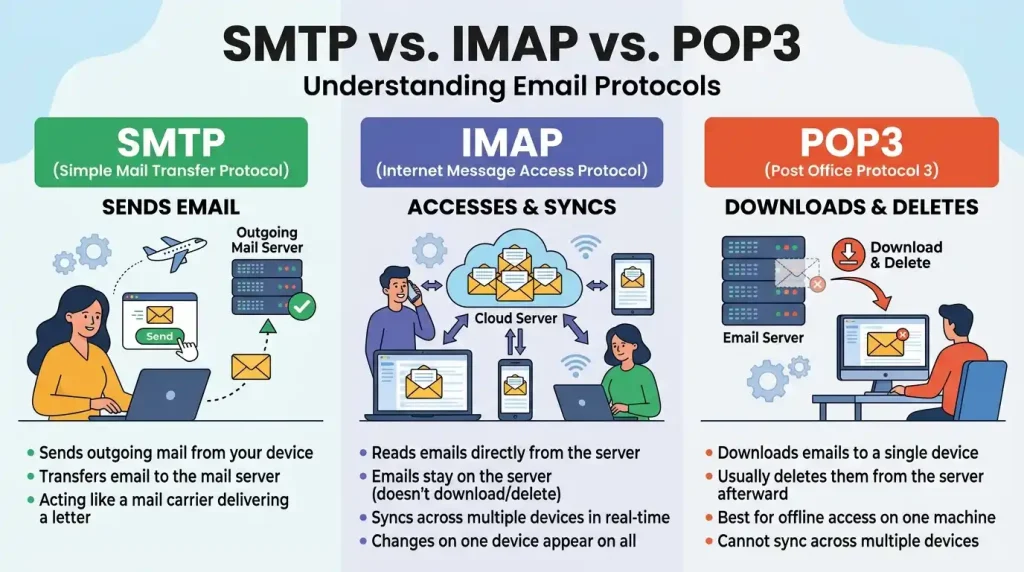
SMTP vs. IMAP vs. POP3
SMTP, IMAP, and POP3 are email protocols with different purposes. Knowing which one handles a particular task makes it easier to diagnose problems.
| Protocol | Main purpose | Typical use |
|---|---|---|
| SMTP | Sends outgoing email | Sending messages from websites and applications |
| IMAP | Synchronizes stored email | Reading the same mailbox on multiple devices |
| POP3 | Retrieves email from a server | Downloading messages to an email client |
For example, an email application may use SMTP to send a reply and IMAP to synchronize that reply with the mailbox’s Sent folder.
If an outgoing message fails, changing the IMAP or POP3 settings will not usually fix the problem. We should first identify whether the error occurs during sending or while accessing the mailbox.
SMTP Authentication and Email Security
Correct SMTP configuration helps protect email accounts and limits unauthorized sending. We should follow a few basic security practices whenever we configure email for a website.
Use the Correct Encryption
Choose the encryption method specified by the provider. STARTTLS and implicit TLS protect the connection when configured correctly.
An application using the wrong encryption method may fail to connect, even when the hostname, username, and password are correct.
Protect SMTP Credentials
SMTP passwords, app passwords, API keys, and OAuth client secrets must remain private. Do not publish them in website articles, screenshots, public code repositories, or unsecured configuration files.
If a credential is exposed, revoke or replace it as soon as possible. Review the account’s activity if unauthorized use is suspected.
Configure SPF, DKIM, and DMARC
SMTP settings tell an application how to connect to an outgoing mail server. SPF, DKIM, and DMARC help receiving mail systems evaluate the authenticity of messages sent using your domain.
- SPF (Sender Policy Framework): Identifies the servers authorized to send email for a domain.
- DKIM (DomainKeys Identified Mail): Adds a cryptographic signature that receiving systems can verify.
- DMARC (Domain-based Message Authentication, Reporting, and Conformance): Defines a domain’s policy for messages that fail authentication checks and supports reporting where available.
These records are configured through DNS. We should use the values provided by our email service and avoid creating multiple conflicting SPF records for the same domain.
For business email sent from a custom domain, correct authentication records help receiving systems assess whether messages are authorized. They do not guarantee that every message will reach the inbox.
Common SMTP Errors and How to Fix Them
SMTP errors can point to an authentication problem, a connection failure, or a delivery issue. The full error message and application logs usually provide the best starting point.
SMTP Authentication Failed
The server may have rejected the username, password, OAuth connection, or authentication method.
Check the credentials and account permissions. If the provider requires OAuth or an app password, make sure the application supports the required method.
Could Not Connect to SMTP Host
This error can indicate an incorrect hostname, blocked port, DNS problem, or unavailable mail server.
Confirm the server address and port. If the settings are correct, ask your hosting provider whether outbound SMTP connections are allowed.
Connection Timed Out
A timeout occurs when the application does not receive a response within the expected period. Firewall rules, network problems, and blocked ports can cause this error.
Check the provider’s documented connection settings before testing another supported port.
SSL or TLS Error
Encryption errors often occur when the selected security method does not match the server’s requirements.
For example, a connection configured for implicit TLS may fail if the application expects STARTTLS. Check the provider’s recommended port and encryption combination.
Email Sent but Not Received
A successful SMTP response means the message was accepted at a particular stage of the sending process. It does not prove that the recipient received it in the inbox.
Check the recipient address, spam folder, bounce messages, email logs, and sender authentication records. If the provider reports successful delivery, the recipient’s mail server may still have filtered or moved the message.
For more website troubleshooting advice, see our guide to starting a WordPress website.
Best Practices for Reliable SMTP Delivery
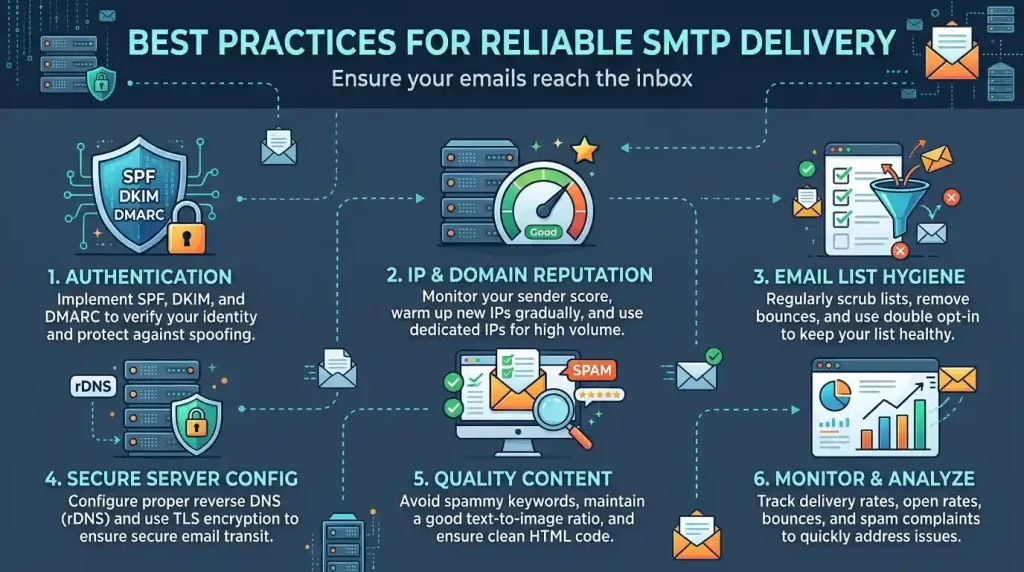
We can prevent many common email problems by checking the configuration before a website goes live and testing it after important changes.
- Choose a suitable provider. Match the service to the website’s email volume and purpose.
- Use a verified sender address. Follow the provider’s rules for the From Email field.
- Test important messages. Check contact forms, password resets, account registration, and order notifications.
- Monitor delivery errors. Review available email logs, bounce messages, and provider reports.
- Secure credentials. Restrict access to SMTP passwords, API keys, and authorization details.
- Check DNS authentication. Confirm that SPF, DKIM, and DMARC are configured as required.
- Separate testing from production. Use a testing inbox during development to avoid emailing real customers accidentally.
- Review sending limits. Confirm that the service can handle the website’s expected message volume.
These checks help us find configuration problems early and make email delivery easier to maintain.
Frequently Asked Questions About SMTP
What Does SMTP Stand For?
SMTP stands for Simple Mail Transfer Protocol. It is used to send outgoing email messages between email applications and mail servers.
What Is an SMTP Server?
An SMTP server accepts and transfers outgoing email messages. Applications connect to it using the hostname, port, encryption method, and authentication details supported by the provider.
What Are the Gmail SMTP Settings?
The standard Gmail SMTP hostname is smtp.gmail.com. Port 587 is commonly used with STARTTLS, while port 465 is commonly used with implicit TLS. Authentication is required, and the available sign-in method depends on the account and application.
Can We Use Gmail SMTP for WordPress?
Yes. We can connect WordPress to Gmail through a compatible plugin such as WP Mail SMTP. The setup must follow Google’s current authentication requirements and the plugin’s instructions.
Is WP Mail SMTP Free?
WP Mail SMTP offers a free version and paid plans with additional features. Check the official WordPress plugin listing for current features and plan information.
What Is Mailtrap Used For?
Mailtrap provides tools for testing application emails and services for sending email. Its testing inbox lets us inspect messages during development without delivering them to real recipients.
Why Is My SMTP Server Not Working?
Common causes include incorrect settings, invalid credentials, unsupported authentication, blocked ports, TLS errors, and provider restrictions. Check the full error message before changing the configuration.
Does SMTP Improve Email Deliverability?
SMTP provides the mechanism for sending email. Deliverability also depends on sender authentication, domain reputation, recipient policies, message quality, and the sending provider. Correct SMTP settings alone cannot guarantee inbox placement.
Which SMTP Port Should We Use?
Port 587 with STARTTLS is a common choice for authenticated email submission. Port 465 with implicit TLS is another option. Use the combination supported by your email provider.
Do We Need SMTP for a WordPress Website?
WordPress can use its default PHP mail functionality, depending on the hosting environment. Configuring a supported SMTP or transactional email service gives us more control over outgoing messages and can make delivery problems easier to diagnose.
Conclusion
SMTP is an important part of sending email from websites, email applications, and business systems. Understanding SMTP server settings helps us configure outgoing connections and troubleshoot common authentication, port, and encryption errors.
For Gmail, smtp.gmail.com supports common SMTP configurations using port 587 with STARTTLS or port 465 with implicit TLS. For WordPress, WP Mail SMTP can connect a website to a supported email provider. Mailtrap can help us test messages safely during development.
Before relying on website email, we should protect credentials, verify sender information, configure the required DNS authentication records, and test every important notification. These steps help us identify problems before they affect website visitors or customers.