How to Use AI in WordPress: 7 Easy Ways for Beginners
Managing a WordPress website involves writing articles, optimizing images, improving SEO, and handling repetitive tasks. Learning how to use AI in WordPress can help you complete many of these jobs more efficiently without giving up control over your website.
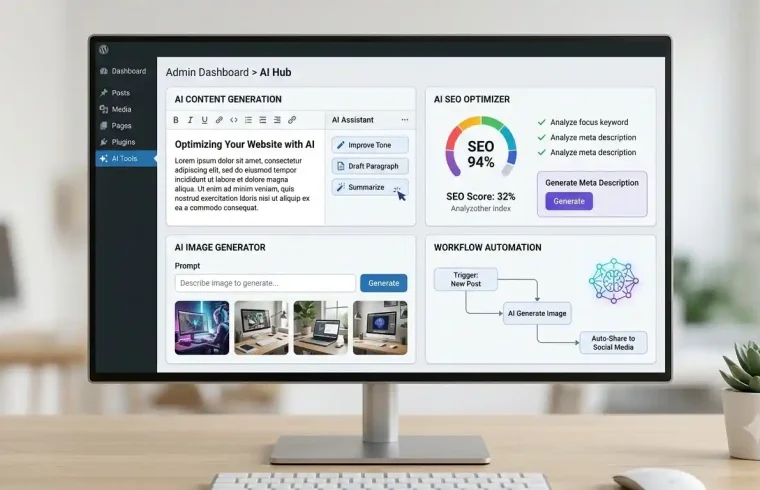
AI tools can help you prepare blog post drafts, suggest SEO titles, generate image descriptions, organize content, and connect different website tasks through automation. Some tools work directly inside the WordPress dashboard, while others connect through external services.
In this guide, you will learn seven practical ways to use AI in WordPress, how to set up a basic automation workflow, which tools to consider, and what to check before publishing AI-assisted content.
Table of Contents
- What Is AI in WordPress?
- Benefits of Using AI in WordPress
- How to Use AI in WordPress: 7 Practical Ways
- How to Automate WordPress With AI
- Best Practices for WordPress AI Automation
- Common Mistakes to Avoid
- Frequently Asked Questions
- Final Thoughts
What Is AI in WordPress?
AI in WordPress means using artificial intelligence to help with website content, editing, image descriptions, SEO planning, and selected administrative tasks.
These tools can work through WordPress plugins, external AI platforms, or automation services that connect different applications.
For example, an AI writing tool can prepare a draft from a topic. Another tool can suggest alternative page titles or describe an image for accessibility. An automation platform can send information from a WordPress form to another service for processing.
The features available depend on the tool, your WordPress version, and the services you connect. AI does not automatically improve every website, so choose tools that solve specific problems.
Benefits of Using AI in WordPress
Using AI can help website owners manage several tasks more efficiently.
- Content creation: Prepare article outlines, draft introductions, summarize long posts, and improve existing paragraphs.
- SEO assistance: Generate title ideas, meta descriptions, related keyword suggestions, and FAQ ideas.
- Image accessibility: Suggest descriptive alt text for meaningful images.
- Content editing: Correct grammar, simplify explanations, and remove repetitive wording.
- Task automation: Connect supported WordPress events with other services.
- Website maintenance: Help interpret error messages and organize troubleshooting steps.
AI-generated information still needs to be checked. Its main benefit is helping you complete routine work so you can spend more time reviewing accuracy and improving the reader’s experience.
How to Use AI in WordPress: 7 Practical Ways
1. Install an AI Plugin for WordPress
An AI plugin can bring selected artificial intelligence features into your WordPress dashboard.
One option is the official AI plugin on WordPress.org. It provides AI-related features for supported WordPress editing workflows. Depending on the plugin version and configuration, available features can include image alt text generation, comment moderation, and writing assistance.
Before installing it, check its current WordPress requirements and available features. The plugin’s current requirements may exclude older WordPress installations.
Follow these steps:
- Log in to your WordPress dashboard.
- Open Plugins → Add New Plugin.
- Search for the official AI plugin and review its publisher and compatibility details.
- Install and activate it if your website meets the requirements.
- Open its settings and review the available features.
- Configure a supported AI connector if required.
- Test the feature on draft content before using it on a live website.
Some features require an AI provider connection or additional configuration. Installing the plugin alone does not guarantee that every feature will work immediately.
If your website uses the Classic Editor or an older WordPress version, check compatibility before proceeding.
2. Use an AI Content Generator for WordPress
Writing useful blog posts takes research, planning, drafting, and editing. An AI content generator for WordPress can help you prepare an outline or first draft, making it easier to organize your ideas.
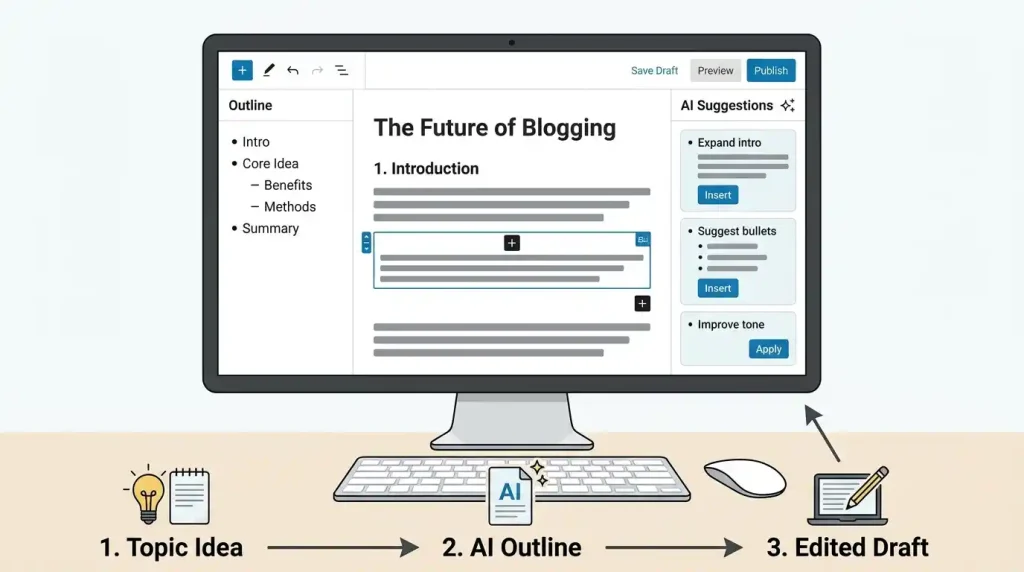
For example, suppose you want to write an article about website speed. You can ask an AI tool to organize the topic into sections covering common causes of slow loading, practical fixes, testing methods, and troubleshooting.
Try this prompt:
Create a beginner-friendly outline for a WordPress tutorial about website speed optimization. Include an introduction, clear H2 headings, practical steps, common mistakes, troubleshooting advice, and five useful FAQs. Do not invent statistics, product features, or testing results.
Review the outline before writing the article. Add verified information, examples, and practical instructions that answer the reader’s question.
You can also use AI to improve an existing draft. Ask it to simplify technical language, identify repeated ideas, or suggest sections that need more explanation.
Do not publish a generated article without checking it. Verify technical claims, remove generic passages, and make sure the content offers something useful to readers.
3. Improve WordPress SEO With AI
AI can support your SEO workflow by helping you brainstorm keyword variations, write draft meta descriptions, organize headings, and identify gaps in an article.
For example, if your focus keyword is “how to use AI in WordPress,” you can ask an AI tool to suggest related questions and headings that match the search intent.
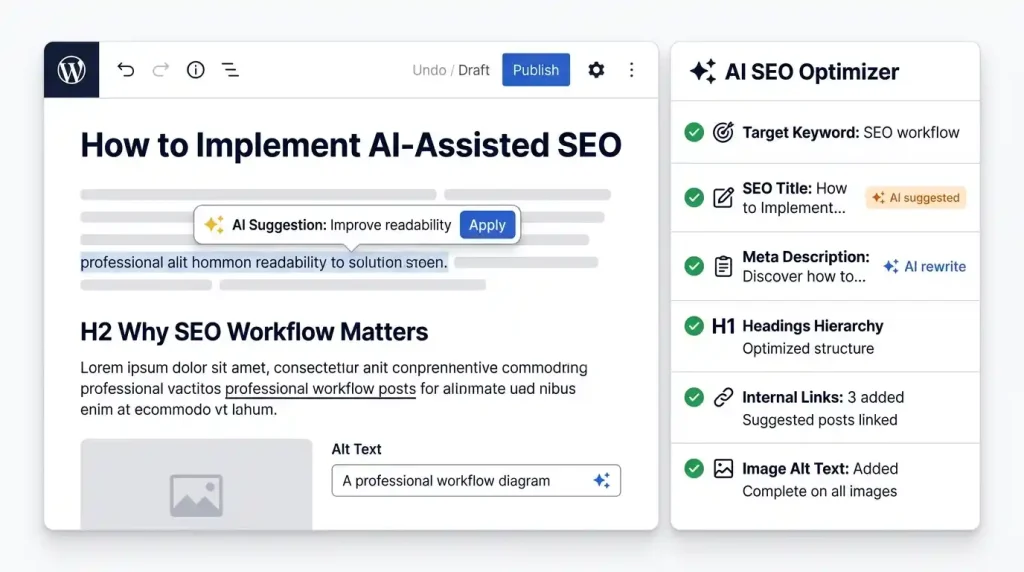
Use this prompt:
Review this WordPress article outline for search intent. Suggest relevant secondary keywords, useful H2 and H3 headings, five FAQs, and a natural meta description. Do not invent search volumes or promise Google rankings.
Treat the results as suggestions. Use a keyword research tool to verify search demand and competition before making decisions based on search volume.
You should also review your SEO plugin settings after editing an article. A plugin can help manage page titles, meta descriptions, sitemaps, and other on-page SEO settings, but it cannot guarantee rankings.
For more detailed instructions, read GlobalVior’s guide on how to do WordPress SEO.
If you need help choosing an SEO plugin, see the WordPress SEO plugin guide.
4. Generate Image Alt Text With AI
Image alt text describes an image for people who cannot see it or who use assistive technology. AI can suggest descriptions, but you must confirm that they accurately describe the image.
For example, a screenshot of the WordPress plugin screen might use the alt text “WordPress dashboard showing the installed plugins page.”
Follow these steps:
- Upload the image to your WordPress Media Library.
- Open the image details.
- Use an available AI feature to generate a description, if supported.
- Check the suggested alt text against the actual image.
- Save the accurate description.
- Compress the image and check how it appears on mobile devices.
Use meaningful descriptions rather than filling the alt text field with keywords. Decorative images may need empty alt text, depending on their purpose and implementation.
AI can also help brainstorm image captions, filenames, and featured image concepts. However, it should not invent details that are absent from the image.
5. Improve Existing WordPress Articles
AI can help you review older articles and identify areas that need attention.
You can ask it to simplify difficult explanations, remove repetition, suggest missing sections, or identify claims that require updated sources.
Try this editing prompt:
Review this WordPress article for clarity and readability. Preserve the original meaning, remove repetition, identify information that needs verification, and suggest practical improvements. Do not add unsupported facts or fabricate personal experience.
After reviewing the suggestions, check the article’s links, screenshots, product information, and technical instructions.
If the article already receives search traffic, avoid changing its URL without a clear reason. Update the content where necessary and make sure the revised version still answers the original search query.
You can also use AI to help plan website improvements. For example, GlobalVior’s guide to an AI WordPress website builder explains how AI can assist with website creation and design tasks.
6. Automate WordPress With AI
You can automate WordPress with AI by connecting supported website events to AI services and defining what should happen next.
The exact process depends on the tools you use. Some plugins provide built-in workflows, while external automation platforms connect WordPress with other applications.
Here are a few possible workflows:
| WordPress event | Possible AI task | Recommended review |
|---|---|---|
| A new draft is created | Suggest a title and summary | Check relevance and accuracy |
| An image is uploaded | Suggest alt text | Confirm the description |
| A comment arrives | Classify its topic or tone | Review moderation decisions |
| A post is published | Prepare a short summary | Check the final wording |
| A contact form is submitted | Categorize the enquiry | Review before responding |
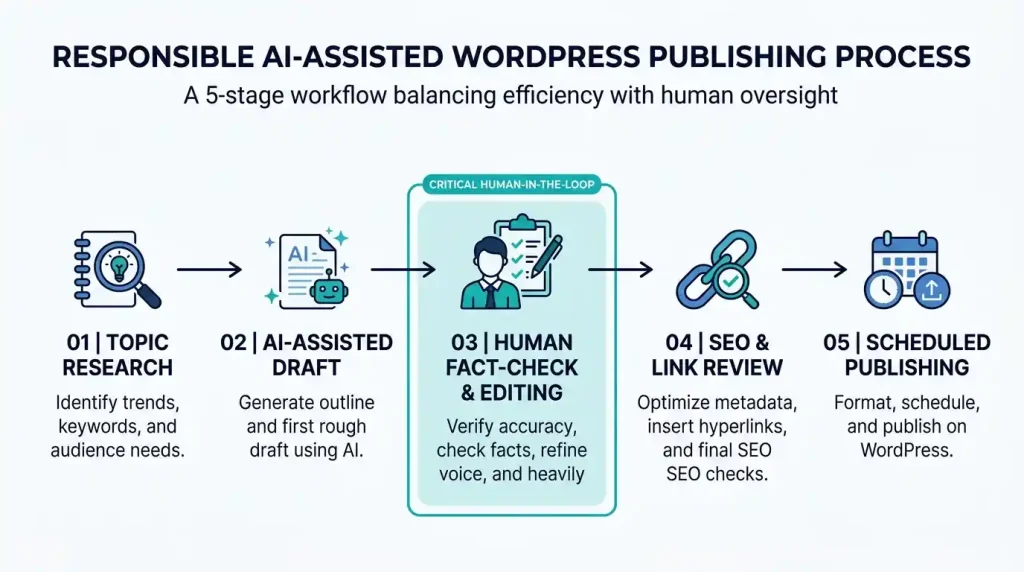
A basic automation workflow has five stages:
- Trigger: A supported WordPress event occurs.
- Input: The workflow collects the information needed for the task.
- Processing: An AI service generates a summary, classification, or draft.
- Output: The result is saved or sent to a review queue.
- Approval: A person checks the result before any important action.
For example, a workflow could generate a summary when an article is saved as a draft. The summary can then be reviewed before it is used on the website.
Start with one task and test it using sample content. Make sure the workflow does not publish articles unexpectedly, overwrite existing content, or send private information to an unapproved service.
7. Use AI to Plan Website Content and Troubleshoot Problems
AI can help you organize your content strategy and investigate common WordPress issues.
Suppose your website covers domains, hosting, WordPress, and SEO. You can provide your existing article titles and ask AI to suggest related topics, useful content clusters, and opportunities to link relevant pages together.
Before adding internal links, verify that the suggested pages actually exist and that their content supports the surrounding paragraph.
AI can also help explain WordPress error messages. You can provide the error text and ask for likely causes, safe diagnostic steps, and links to relevant official documentation.
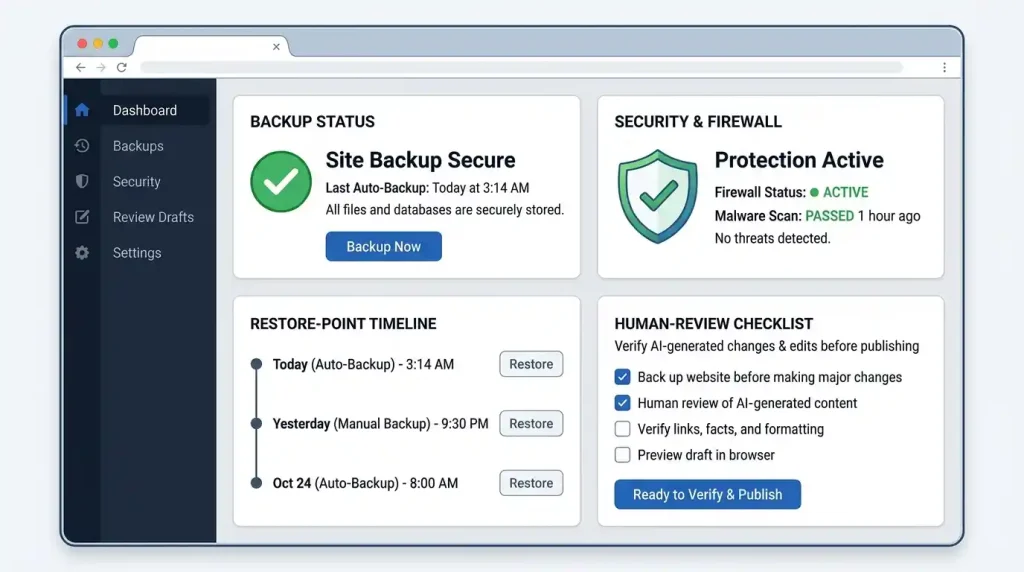
However, do not run unfamiliar commands or change database, security, or server settings without understanding the consequences. Back up your website before making significant technical changes.
If website performance is your concern, follow GlobalVior’s WordPress speed optimization guide for practical ways to improve loading performance.
How to Automate WordPress With AI: A Beginner Workflow
If you are new to automation, start with a small workflow that is easy to test.
Step 1: Choose One Repetitive Task
Identify a task you perform regularly, such as preparing post summaries or classifying contact form submissions.
Choose a task where an incorrect result can be detected and corrected easily.
Step 2: Select a Compatible Tool
Check whether a WordPress plugin supports the task directly. If it does not, look for an automation platform that supports WordPress and your chosen AI provider.
Review its documentation, permissions, API requirements, usage limits, and costs before connecting it to your website.
Step 3: Define the Trigger and Result
Write down what starts the workflow, what information it needs, and what should happen when the AI returns a result.
For example:
- Trigger: A new post is saved as a draft.
- Input: The post title and draft content.
- AI task: Generate a short summary.
- Output: Return the summary for editorial review.
- Approval: An editor checks the summary before publication.
A clearly defined workflow is easier to troubleshoot than one with too many connected actions.
Step 4: Test Before Going Live
Test the automation with sample content or on a staging website. Check the output, formatting, permissions, and failure behavior.
Make sure the workflow cannot publish content or modify important settings without the intended approval.
Step 5: Monitor the Workflow
Review the results after launch. Check whether the automation saves time, produces useful output, and handles errors properly.
Disable the workflow if it begins making unwanted changes or generating unreliable results.
Best Practices for WordPress AI Automation
Follow these practices to keep your website manageable and secure.
Keep human approval for important actions. Review AI-generated articles, customer replies, moderation decisions, and technical changes when mistakes could cause harm.
Protect API keys. Store credentials using the integration’s recommended secure method. Never publish private keys in posts, screenshots, or front-end code.
Check privacy requirements. Do not send customer information or confidential data to an AI service without appropriate authorization and safeguards.
Maintain backups. Keep a reliable backup before making significant changes, and test complex workflows on a staging site.
Avoid unnecessary plugins. Choose tools that meet your requirements and check for overlapping features that could cause conflicts.
Monitor costs and usage. Some AI services charge based on usage. Set appropriate limits and avoid workflows that repeatedly send the same information.
Follow Google’s content guidance. Google’s helpful, reliable, people-first content guidance recommends creating content that serves readers rather than content designed mainly to manipulate rankings.
AI-assisted content can be useful, but automated production does not guarantee quality. Review your content for accuracy, originality, and genuine value before publishing.
Common Mistakes to Avoid
Publishing AI Content Without Fact-Checking
AI can generate incorrect instructions, outdated information, and unsupported claims. Verify technical details and test important instructions before publication.
Automating Too Many Tasks at Once
Complex workflows can be difficult to troubleshoot. Start with one task, confirm that it works reliably, and add other steps gradually.
Installing Too Many AI Plugins
Overlapping plugins can make maintenance more complicated and may create compatibility problems. Review each plugin’s requirements and features before installing it.
Ignoring Search Intent
An article may be grammatically correct but still fail to answer the reader’s question. Research the topic, understand what the reader needs, and remove sections that do not help.
Giving AI Too Much Access
Only grant integrations the permissions they need. Pay particular attention to publishing permissions, customer data, site settings, and code changes.
For further guidance, review Google’s spam policies for Google Search. These policies explain why scaled content created primarily to manipulate search rankings can violate Google’s rules.
Frequently Asked Questions
1. Can I use AI in WordPress for free?
Yes. Some AI plugins and services offer free features, but others require a subscription, API access, or usage-based payments. Check current requirements and pricing before choosing a tool.
2. What is the best AI content generator for WordPress?
The right tool depends on your budget, language requirements, editor, and preferred workflow. Compare current features and compatibility, then test a tool with a draft before using it regularly.
3. Can I automate WordPress with AI without coding?
Yes. Some plugins and automation platforms provide visual interfaces for connecting applications. Advanced workflows may still require API configuration or custom development.
4. Can AI write a complete WordPress blog post?
AI can generate a full draft with headings, an introduction, and a conclusion. You should verify facts, improve the explanations, add relevant examples, and edit the content before publishing.
5. Does AI-generated content automatically rank on Google?
No. Using AI does not guarantee rankings. Content should answer the reader’s question, provide accurate information, and follow Google’s search policies.
6. Can AI improve WordPress SEO?
AI can assist with keyword brainstorming, editing, title ideas, meta descriptions, and content planning. Verify search data with suitable tools and do not treat AI-generated suggestions as ranking guarantees.
7. Is WordPress AI automation safe?
It can be safe when properly configured, but the risks depend on the permissions and data involved. Use trusted integrations, protect credentials, maintain backups, and review important actions.
8. Do I need an API key to use AI in WordPress?
Some tools require an API key or a configured AI connector, while others provide their own service or account connection. Check the selected plugin’s official documentation for its exact requirements.
Final Thoughts
Learning how to use AI in WordPress can help you prepare content drafts, improve existing articles, generate image descriptions, and automate selected website tasks.
Start with one practical use case, choose a compatible tool, and test it with draft content. Review the results before allowing them to affect your live website.
The best WordPress AI workflow is one that saves time while keeping your content accurate, your website secure, and your readers’ needs at the center of every decision.