
If you are wondering how to do WordPress SEO, you do not need to learn everything about SEO before getting started.
A few basic settings can make your WordPress website easier for search engines to crawl and understand. You also need useful content, clear page titles, good internal links, fast loading pages, and a website that works well on mobile devices.
In this guide, you will learn 15 practical WordPress SEO steps that beginners can follow.
What Is WordPress SEO?
WordPress SEO is the process of improving your WordPress website so search engines can understand its content and users can find the right pages through search.
This includes:
- Creating useful content
- Using clear page titles
- Writing helpful meta descriptions
- Creating clean URLs
- Adding internal links
- Optimizing images
- Improving website speed
- Making your website mobile-friendly
- Creating and maintaining an XML sitemap
WordPress already includes several features that support search optimization. You can also read the official WordPress SEO documentation for more information.
How to Do WordPress SEO: 15 Steps
1. Choose a Clear Focus Keyword
Start each important article with one main search topic.
For example, if you are writing about WordPress SEO, your focus keyword could be:
How to Do WordPress SEO
You can then use related phrases naturally throughout the article, such as:
- WordPress SEO tips
- WordPress SEO settings
- how to improve WordPress SEO
- WordPress SEO checklist
Do not force the keyword into every paragraph. Write for people first and use keywords where they make sense.
2. Write Useful Content
Good SEO starts with useful content.
Before publishing an article, ask:
- Does this answer a real question?
- Is the information easy to understand?
- Does it solve the reader’s problem?
- Is anything important missing?
- Can the reader take action after reading it?
Avoid writing a long article simply to increase the word count.
Google’s Search Central documentation explains how to create content that is useful and accessible to search engines and users.

3. Create a Simple SEO Title
Your SEO title should tell readers what the page is about.
For example:
How to Do WordPress SEO: 15 Easy Steps
is clearer than:
Everything You Need to Know About Websites
Keep the main keyword close to the beginning when it fits naturally.
Also avoid making every title look identical. Your title should describe the actual content of the page.
4. Write a Useful Meta Description
A meta description gives searchers a short summary of your page.
For example:
Learn how to do WordPress SEO with 15 simple steps covering titles, permalinks, content, images, links, sitemaps, speed, and more.
A good description should explain what the reader will find on the page.
Do not fill the description with keywords. Write it like a short explanation for a real person.
5. Use Clean WordPress URLs
Your URL should be short and easy to understand.
For example:
example.com/how-to-do-wordpress-seo/
is easier to understand than a URL containing random numbers or unnecessary words.
You can manage your permalink structure from:
Settings → Permalinks
WordPress provides several permalink options, including the Post name structure. You can learn more from the official WordPress permalink documentation.
If your website already has many published pages, avoid changing your URL structure without planning redirects.
6. Use H2 and H3 Headings
Break long articles into clear sections.
For example:
H1: How to Do WordPress SEO
H2: What Is WordPress SEO?
H2: How to Do WordPress SEO
H3: Choose a Focus Keyword
H3: Optimize Your Images
H3: Add Internal Links
Good headings make an article easier to scan and help readers find the information they need.
7. Add Internal Links
Internal links connect one page of your website to another.
For example, if you mention choosing hosting, you can link to our guide on how to choose web hosting.
If you are discussing website setup, you can read our guide on how to start a WordPress website.
If you are discussing website performance, you can also read our guide to WordPress speed optimization.
You can also learn more about WordPress SEO plugins if you want additional tools for managing SEO settings.
Internal links help visitors discover related content and give search engines additional paths to crawl your website.
Use descriptive anchor text instead of phrases such as “click here.”
8. Link to Useful External Resources
External links can help readers find additional information.
For WordPress SEO, useful resources include WordPress Documentation and Google Search Central.
You can also use Google Search Console to monitor search performance, indexing, and other website data.
Do not add external links just to increase the number of links on a page. The link should be useful to the reader.
9. Optimize Your Images
Large images can make a website slower.
Before uploading an image:
- Resize it to a suitable dimension
- Compress it
- Use an appropriate file format
- Give the file a descriptive name
- Add useful alt text
For example, instead of:
IMG1234.jpg
use something like:
wordpress-seo-settings.webp
Alt text should describe the image accurately. Do not stuff keywords into alt text when they do not describe the image.
Google provides additional guidance about image SEO and descriptive image information.
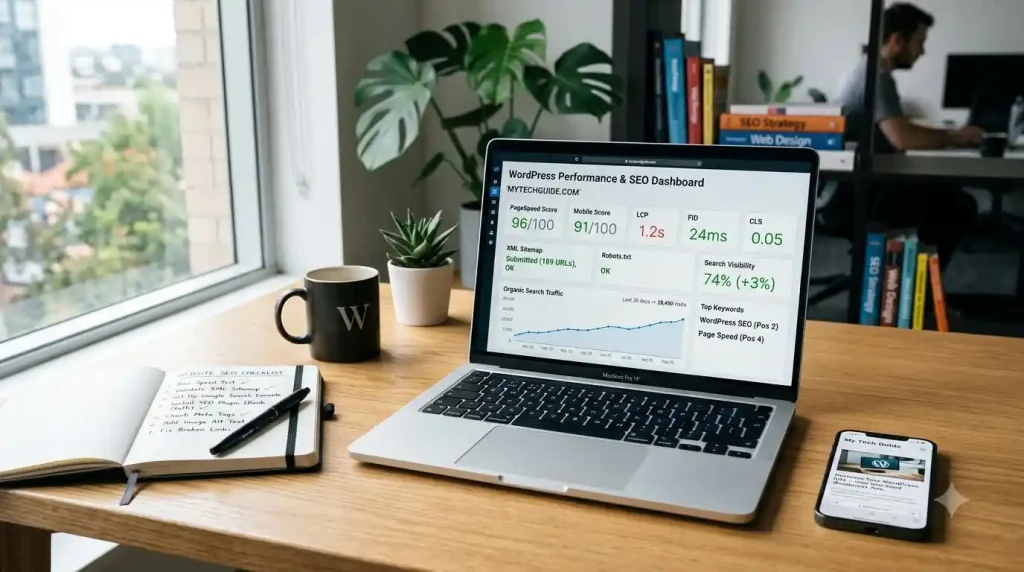
10. Make Your Website Fast
Website speed affects the user experience.
A slow page can make it harder for visitors to use your website, especially on mobile connections.
Some basic ways to improve WordPress performance include:
- Compressing images
- Using caching
- Removing unnecessary plugins
- Choosing suitable hosting
- Using a CDN when appropriate
- Keeping themes and plugins updated
For a more detailed guide, see our WordPress Speed Optimization guide.
If you are still deciding what type of hosting your website needs, our guide on how to choose web hosting can help you compare the basic options.
11. Make Your Website Mobile-Friendly
Many people browse websites using phones and tablets.
Check your website on different screen sizes and make sure:
- Text is easy to read
- Buttons are easy to tap
- Menus work correctly
- Images fit the screen
- Content does not overflow horizontally
- Important information is easy to find
A responsive WordPress theme can make this easier.
Google also provides guidance on mobile-friendly website practices.
12. Create and Check Your XML Sitemap
An XML sitemap helps search engines discover URLs that you want them to know about.
Modern WordPress includes a built-in XML sitemap feature. WordPress also supports additional sitemap functionality through SEO plugins.
You should still check that your important pages can be discovered and indexed.
You can use Google Search Console to monitor indexing and search performance.
13. Check WordPress Search Visibility
There is an important WordPress setting that beginners sometimes overlook.
Go to:
Settings → Reading
Check the Search engine visibility setting.
Make sure you have not accidentally selected the option that discourages search engines from indexing your site.
This setting is useful while a website is being developed, but you should review it before launching a public website.
You can also read this Learn WordPress SEO lesson for additional guidance.
14. Use an SEO Plugin Carefully
An SEO plugin can make many WordPress SEO tasks easier.
For example, an SEO plugin can help you manage:
- SEO titles
- Meta descriptions
- XML sitemaps
- Schema settings
- Social sharing information
- Redirects
- SEO analysis
You do not need to enable every feature just because a plugin provides it.
If you want to learn more about SEO plugins, read our WordPress SEO Plugin guide.
Since you are using an SEO plugin such as Rank Math, focus on the checks that actually improve the page instead of trying to make every score green.
A high plugin score does not automatically mean that an article is useful.
15. Monitor Your Website With Google Search Console
After publishing content, monitor how your website performs.
Google Search Console can help you understand how Google interacts with your website and can provide information about search visibility and indexing.
Check for things such as:
- Pages that are not indexed
- Search queries
- Search impressions
- Clicks
- Indexing problems
- Search performance changes
Use this information to improve existing content instead of publishing new articles without checking what your visitors actually need.
WordPress SEO Settings Beginners Should Check
Before publishing a new WordPress website, review these basic settings:
Site title: Make sure it clearly identifies your website.
Tagline: Use a short description that explains what your site is about.
Permalinks: Choose a clean URL structure.
Search engine visibility: Make sure you have not accidentally discouraged search engines from indexing your website.
Comments: Decide whether comments are useful for your website.
Homepage: Make sure your homepage displays the content you actually want visitors to see.
These settings are not a complete SEO strategy, but they provide a good starting point.
WordPress SEO Checklist
Before publishing an important article, use this quick checklist:
- Choose one main topic
- Research the search intent
- Use the focus keyword naturally
- Write a clear SEO title
- Write a useful meta description
- Create a clean URL
- Use H2 and H3 headings
- Add relevant internal links
- Add useful external links
- Optimize images
- Add descriptive alt text
- Check mobile usability
- Check page speed
- Review the article before publishing
- Monitor the page after publication
Common WordPress SEO Mistakes
Using Too Many Keywords
Repeating a keyword again and again does not make an article better.
Write naturally and use related terms where they help explain the topic.
Publishing Very Short Articles With Little Value
A short article can be useful if it completely answers the user’s question.
The problem is not simply the number of words. The content needs to be useful and relevant.
Changing URLs Frequently
Changing an established URL can create broken links and indexing problems.
Choose a good URL before publishing whenever possible.
Installing Too Many SEO Plugins
You usually do not need several plugins performing the same SEO tasks.
Choose one main SEO plugin and configure only the features you actually need.
Ignoring Internal Links
An article should not become an isolated page on your website.
When you publish a new article, look for older related articles that you can link to naturally.
Frequently Asked Questions
How do I do WordPress SEO as a beginner?
Start with the basics: create useful content, choose clear keywords, use descriptive titles and URLs, optimize images, add internal links, improve site speed, and make sure search engines can access your important pages.
Is WordPress good for SEO?
WordPress includes several features that support search-friendly websites, including customizable permalinks and a built-in XML sitemap. However, the quality of your content, website structure, performance, and technical setup still matter.
Do I need an SEO plugin for WordPress?
Not every WordPress website needs an SEO plugin for every task. WordPress already has some SEO-related features. An SEO plugin can be useful when you need additional controls for titles, descriptions, schema, redirects, sitemaps, or other features.
How long does WordPress SEO take to work?
There is no fixed timeframe. Search engines need to crawl and process your pages, and search visibility can change based on the topic, competition, content quality, website history, and many other factors.
What is the most important WordPress SEO step?
There is no single setting that guarantees better rankings. Start by creating useful content that clearly answers the searcher’s question, then make sure your website is easy to crawl, navigate, and use.
Final Thoughts
Learning how to do WordPress SEO does not have to be complicated.
Start with the basics. Create useful content, use clear URLs and titles, add relevant internal links, optimize your images, keep your website fast, and check whether important pages can be indexed.
Then use Google Search Console to monitor what happens after you publish.
SEO is an ongoing process. Instead of trying to optimize everything at once, improve your website one page and one problem at a time.