Best WordPress Migration Plugin: Free vs Paid Compared.
Moving a WordPress site to a new host is easy to describe and easy to break. Files, database, media and web addresses all have to arrive intact, and one failed upload can leave you staring at a white screen. The best WordPress migration plugin for you depends on how big your site is, what your new host allows, and how much you want to pay. This guide compares five popular plugins using their official listings and pricing pages, checked on November 20, 2026, so you can choose one before you start.
Honest note: GlobalVior hasn’t run these plugins on a test site. Every fact below comes from the official plugin pages named in the text. Plugin features and prices change, so check the current page before you buy.
Table of Contents
- Quick answer: which plugin should you pick?
- What a WordPress migration plugin actually does
- How to choose the best WordPress migration plugin
- The 5 best WordPress migration plugins compared
- WordPress migration plugin pricing
- How to migrate WordPress with a plugin, step by step
- Common plugin migration problems and fixes
- When a plugin is not the right tool
- FAQ
- Conclusion
Quick Answer: Which Plugin Should You Pick?
If you only want short version, read here:
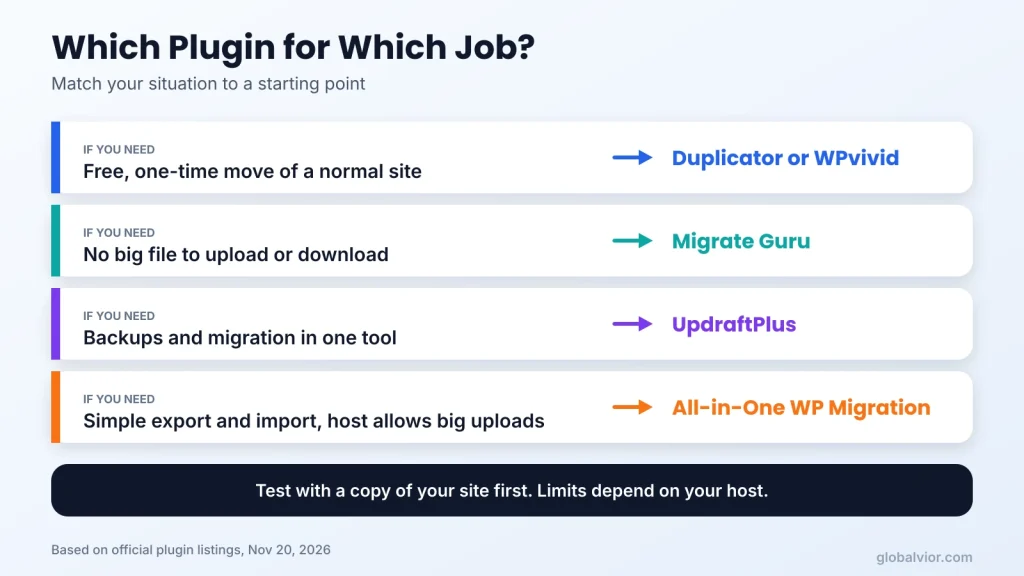
- Free, one-time move of a normal site: Duplicator or WPvivid. Both list migration in their free versions.
- You’d rather not handle a backup file at all: Migrate Guru, which runs the transfer from its own servers.
- You want backups and migration in one tool: UpdraftPlus, though its free version moves a site by hand.
- Simple export and import, and your host allows big uploads: All-in-One WP Migration.
None of these is the best WordPress migration plugin for every site. The sections below show where each one helps and where it gets in your way.
What a WordPress Migration Plugin Actually Does
A WordPress migration plugin copies your site’s files and database to a new place, then updates the web addresses stored inside that database. Doing this by hand is possible (our full guide to migrating a WordPress site covers the manual route), but a plugin handles the fiddly parts for you.
Plugins move the site in two main ways:
- Package tools build one backup file on the old site and unpack it on the new one. Duplicator, All-in-One WP Migration and UpdraftPlus work this way.
- Direct transfer tools send the site to the new location without you handling a big file. Migrate Guru runs its transfer on its own servers, and WPvivid has an Auto Migration feature.
One term worth knowing is serialized data. WordPress stores some settings in a format that saves the length of each piece of text next to the text itself. If you blindly replace the old address with the new one, those lengths go wrong and the setting breaks. The official WordPress handbook warns about this, and it’s one of the main reasons to use a plugin that handles search-and-replace properly.
How to Choose the Best WordPress Migration Plugin
Ask these five questions before you install anything.
- How big is the site? Large media libraries and databases are where most migrations fail. Check each plugin’s size claims and your host’s limits.
- What does the new host allow? All-in-One WP Migration says the upload limit on its import screen comes from your hosting company, not the plugin. Some hosts block changes to that limit.
- Where are you moving to? Migrate Guru needs WordPress installed at the destination and doesn’t support local-computer migrations. Duplicator’s package can start on an empty server.
- Is free enough? A one-time move often is. Paid tiers matter when you need cloud storage, scheduled backups, or a way past size limits.
- Do you also need backups? Several of these plugins are backup tools first. Migrate Guru isn’t: its listing says it doesn’t back up sites.
The 5 Best WordPress Migration Plugins Compared
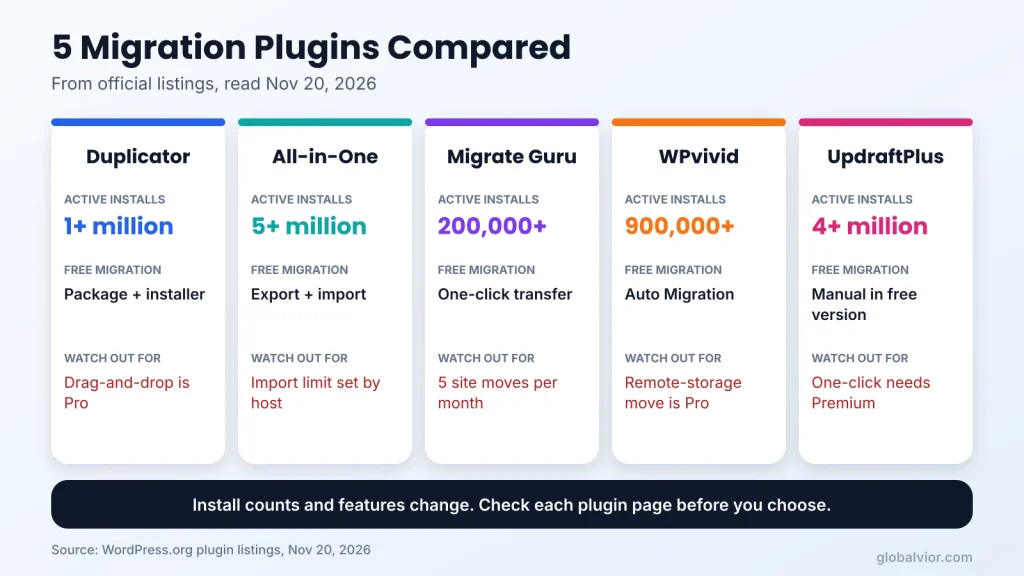
The table compares the best WordPress migration plugin candidates using each plugin’s official WordPress.org listing, read on November 20, 2026. Install counts and versions change often.
| Plugin | Active installs | Migration in the free version | Needs a paid plan | Watch out for |
|---|---|---|---|---|
| Duplicator | 1+ million | Package, installer, migration wizard, clone, 1-click restore | Drag-and-drop installs, server-to-server import, cloud storage, scheduled backups | Free version doesn’t support multisite |
| All-in-One WP Migration | 5+ million | Export, drag-and-drop import | Uploads that bypass host limits, one-click restore from Backups page | Import limit set by your host |
| Migrate Guru | 200,000+ | One-click transfer from the source site | No paid tier shown on the listing | 5 site migrations per user per month |
| WPvivid | 900,000+ | Auto Migration, one-click restore | Migrating via remote storage, restoring remote backups | Several advanced features are Pro-only |
| UpdraftPlus | 4+ million | Manual: download and upload files and database | One-click migration from the source site | Free migration takes more hands-on work |
Duplicator
Duplicator packages your files and database into one archive and an installer. You upload both to the new server and run the installer, which can work on an empty site without installing WordPress first. The free version also includes a migration wizard, a clone feature and one-click restore. Its listing asks for WordPress 6.2 or newer and PHP 7.4 or newer.
The catch is that drag-and-drop installs, server-to-server import from a URL, cloud storage and scheduled backups are Pro features. The listing says backups have no size limits, but it also lists a chunked engine for larger sites under Pro, so test with your own site size before you rely on that.
Good fit: a self-managed site moving to a host where you can upload files yourself.
All-in-One WP Migration
All-in-One WP Migration is the most installed plugin here. You export your site to a file, then import it on the new site by drag and drop, and it replaces URLs and paths for you. Export of sites of any size is listed as free.
The limit shows up on import. The plugin’s listing says the maximum upload size comes from your host. You can try raising limits in .htaccess or in Nginx settings, though some hosts override them. The paid Unlimited Extension is designed to get around this. A few recent one-star reviews on the listing complain that one-click restore from the Backups page also needs a paid extension, so read the current reviews before you commit.
Good fit: small and mid-size sites, or hosts with generous upload limits.
Migrate Guru
Migrate Guru works differently. You install it on the old site, install WordPress on the new one, choose the destination and start the transfer. The work runs on the plugin’s own servers, so you don’t download or upload a large file. The listing mentions sites up to 200 GB and automatic URL rewriting, and it says about 1 GB takes under 30 minutes, which it calls approximate.
The limits are worth reading. The listing says you get 5 site migrations per user per month, and each of those sites can be moved again as often as you like. Local migrations aren’t supported, and the plugin doesn’t back up your site. The listing shows no price, so confirm that on the plugin’s own site.
Good fit: a one-click move between two live hosts, especially for a larger site.
WPvivid
WPvivid is a backup, migration and staging plugin. Its free Auto Migration clones and moves a site to a new domain, including from a dev site to a live one. The listing says migration is free and that restores have no limits.
Migrating through remote storage, restoring remote backups, and pushing a staging site to live are Pro features. Plan around what the free tier covers, and read the current listing for anything you need.
Good fit: a free move that also gives you backup and staging tools afterward.
UpdraftPlus
UpdraftPlus is best known for backups. On the free version, migration is a manual job: you download the database, plugins and themes from the old site and upload them to the new one, and a built-in search-and-replace engine updates the old URLs. Premium runs the migration more directly from the source site and adds multisite support and WP-CLI control.
Good fit: people who already use UpdraftPlus for backups and want one tool for both.
WordPress Migration Plugin Pricing
Prices below come from each vendor’s own page (UpdraftPlus, Duplicator and the Unlimited Extension), checked on November 20, 2026. All amounts are in US dollars.
| Plugin | Paid plan that helps with migration | Price | Sites | What the page doesn’t say |
|---|---|---|---|---|
| All-in-One WP Migration | Unlimited Extension | $69 per year | Up to 50 | Support and update terms |
| UpdraftPlus | Personal | $70 per year | Up to 2 | Renewal price |
| UpdraftPlus | Business | $95 per year | Up to 10 | Renewal price |
| Duplicator Pro | Basic | $79, listed as “normally” | 2 | Billing term in the page text |
| Duplicator Pro | Plus | $199, listed as “normally” | 5 | Billing term in the page text |
| Migrate Guru | None shown | Not shown | n/a | Any paid tier |
| WPvivid | Pro (not checked) | Not checked | n/a | Pro pricing was not verified |
Two terms to read before you pay:
- Duplicator: the pricing page shows “normally” prices and says introductory pricing is used with renewals at full price. It also 14-day refund window.
- UpdraftPlus: the page says subscriptions renew automatically and includes 12 months of updates, but it doesn’t show renewal rates.
For a single move, paying for a year of any of these may cost more than you need. The best WordPress migration plugin for a one-time job is often the free one, so try that route first.
How to Migrate WordPress With a Plugin, Step by Step
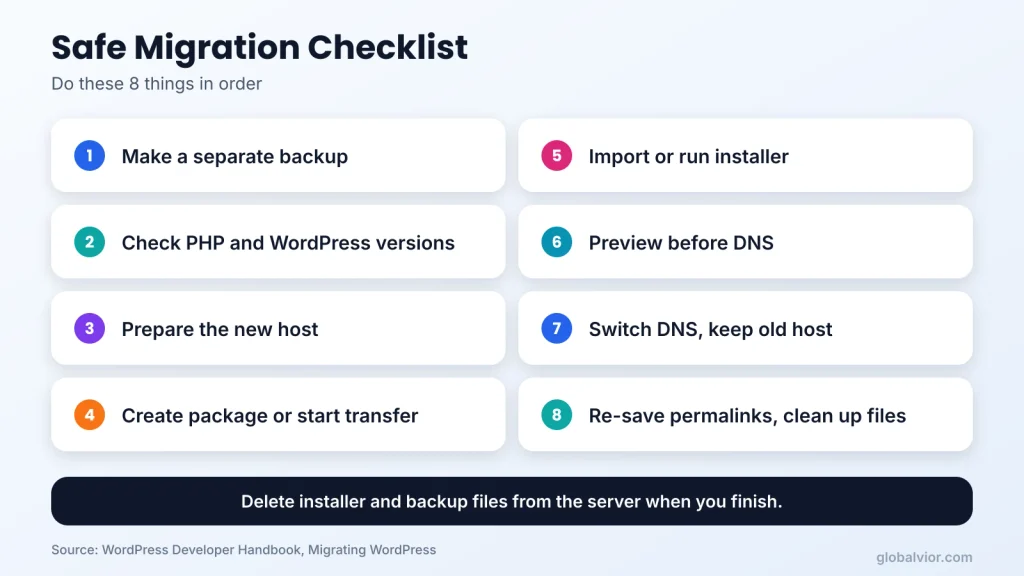
These steps work for whichever best WordPress migration plugin you end up choosing. Follow your chosen plugin’s own instructions for the exact buttons.
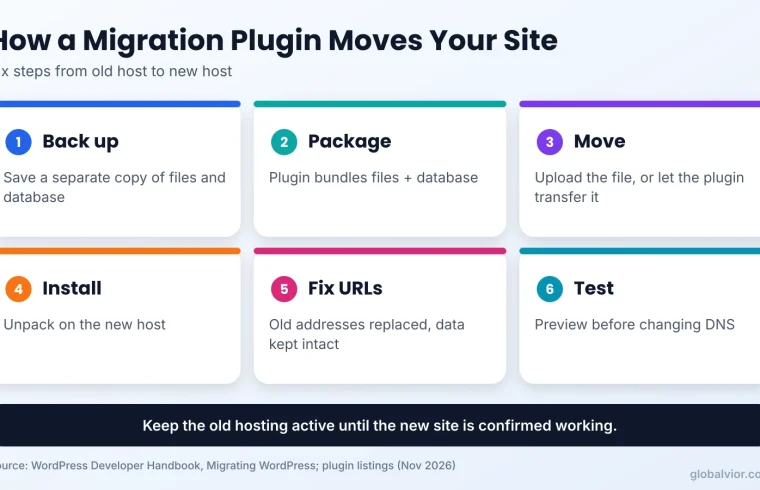
- Make a separate backup. Use your host’s backup or a different plugin. The WordPress handbook advises keeping a backup of the old site’s database until the new site is confirmed working.
- Check the new host. Confirm the WordPress and PHP versions meet the plugin’s requirements and note the upload limit.
- Prepare the destination. Migrate Guru needs WordPress installed first. Duplicator can start on an empty site.
- Create the package or start the transfer. Install the plugin on the old site and follow its wizard.
- Import or run the installer. Upload the file, or let the plugin push the site across.
- Preview before DNS. Many hosts give you a temporary URL, or you can edit your computer’s hosts file to see the new server first. Click through pages, forms, images and logins.
- Switch DNS and wait. Keep the old hosting active for a few days in case something was missed.
- Clean up. Re-save permalinks, test HTTPS, then delete leftover installer files and backup archives from the server, since they can expose site data.
Common Plugin Migration Problems and Fixes
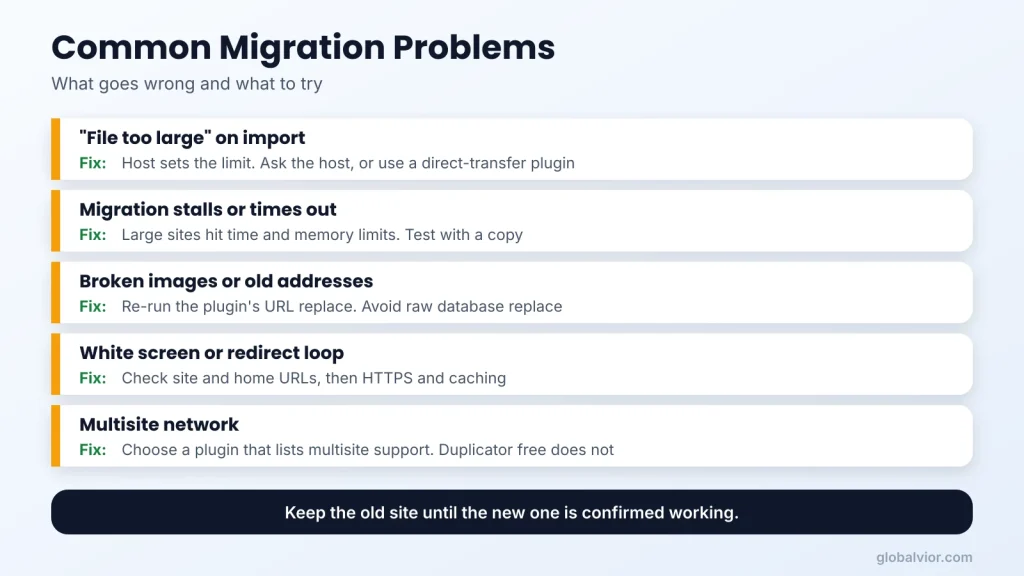
- “File too large” on import. The limit comes from the host. Ask the host to raise
upload_max_filesizeandpost_max_size, or switch to a plugin that doesn’t need a big upload, such as Migrate Guru. - The migration stalls or times out. Large sites can hit host time and memory limits. Ask the host about limits or try a direct-transfer plugin.
- Broken images or old addresses. This points to a failed search-and-replace. Run the plugin’s replace tool again, and avoid raw database replaces because of serialized data.
- Redirect loops or a white screen. Check the site and home URLs in Settings, then your HTTPS setup. Clearing any caching plugin after the move also helps.
- Plugin limits. Even the best WordPress migration plugin can stall on a very large site, so test with a copy first.
- Multisite sites. Duplicator’s free version doesn’t support multisite networks, so check this before you start.
When a Plugin Is Not the Right Tool
Choosing the best WordPress migration plugin starts with asking whether you need one at all. A plugin isn’t always the answer. If your host offers its own free migration or a built-in tool, ask about it before you buy a license. If the site is very small, moving it by hand is realistic, and the official handbook lays out the steps. If you haven’t picked a host yet, read our web host buying guide and our WordPress hosting comparison first, because a good host often makes the move easier. If you’re building a site from scratch, you can skip migration entirely and follow our guide to starting a WordPress website.
After the move, keep the site healthy with a regular routine. Our WordPress maintenance guide covers updates and backups, and our WordPress SEO plugin guide helps you confirm titles and sitemaps still work.
Frequently Asked Questions
What is the best free WordPress migration plugin?
For a one-time move, Duplicator and WPvivid list migration in their free versions, and Migrate Guru’s listing shows no paid tier. The right one depends on your site size and host. All-in-One WP Migration is free to use too, but its import limit depends on your host.
Is All-in-One WP Migration free?
The core plugin is free to install and export. Its listing says uploads are limited by your host, and the paid Unlimited Extension ($69 per year as of November 20, 2026) is built to bypass that limit.
Duplicator vs All-in-One WP Migration: which is better?
All-in-One WP Migration uses export and drag-and-drop import. If your host has a low upload limit, Duplicator’s file upload route may be easier to work around, but test with your own site.
Which is the best WordPress migration plugin for a large site?
There’s no single winner. Migrate Guru’s listing cites sites up to 200 GB and runs the transfer on its own servers, so you avoid big uploads. Duplicator’s listing mentions backups without size limits. Test either with a copy of your site, and check your host’s limits first.
Can I migrate WordPress without a plugin?
Yes. You copy the files, export and import the database, update wp-config.php, and fix URLs. The official WordPress handbook describes this process.
Will migrating WordPress hurt my SEO?
It shouldn’t if the web addresses stay the same and the new site loads correctly. Keep the old hosting live until DNS settles, check that your pages return normally, and set up redirects if any URL changes.
How long does a WordPress migration take?
It depends on the size of the site and the host’s speed. Migrate Guru’s listing says roughly 1 GB in under 30 minutes, calling that approximate. Plan extra time for testing and DNS changes.
Do I need a backup plugin as well?
A backup plugin is not required for the move itself, but you should always have a separate backup before you start. UpdraftPlus, Duplicator and WPvivid can do both jobs.
Conclusion
Which is the best WordPress migration plugin for you? It’s the one that fits your site size, your host’s limits and your budget. For most small sites, start with the free version of Duplicator or WPvivid. If you’d like a one-click move between two live hosts, try Migrate Guru. Whichever you pick, take a separate backup first and test the new site before you change DNS.
Next step: run your chosen plugin on a small test copy first, then do the real move once the test site loads correctly.