A slow WordPress website can frustrate visitors, reduce engagement, and make it harder to keep people on your pages. If your website takes too long to load, visitors may leave before they read your content or click your links.
WP Rocket is a premium WordPress plugin that helps improve website speed through caching and other performance features. It is designed to make website optimization easier, even if you do not have advanced technical skills.
In this guide, you will learn what WP Rocket does, how its main features work, how to set it up, and whether it is worth paying for. We will also compare it with other WordPress tools and explain how it can work alongside plugins such as All-in-One WP Migration, TranslatePress, and SEO tools.
What Is WP Rocket?
WP Rocket is a premium caching and website performance plugin for WordPress. It helps websites load faster by reducing the amount of work a server and browser need to do when displaying a page.
Caching means saving a ready-to-use version of a webpage so it can be delivered more quickly when someone visits it again. Without effective caching, WordPress may need to process PHP code and query the database for many page requests.
WP Rocket helps automate several optimization tasks through a settings dashboard. Website owners can improve loading performance without manually editing complex server files for every feature.
Who Should Use WP Rocket?
WP Rocket can be useful for several types of WordPress websites, including:
- Blogs that publish articles regularly.
- Business websites that need fast-loading service pages.
- Affiliate websites that depend on visitors reading product reviews.
- Online stores that use WooCommerce.
- Portfolio websites built with visual page builders.
- Content websites that attract visitors from search engines.
However, results depend on your hosting plan, website theme, plugins, images, and existing server configuration. Installing a caching plugin does not automatically make every website fast.
Why Website Speed Matters for WordPress
Website speed affects how easily visitors can use your site. A page that loads quickly helps readers reach the information they want without unnecessary waiting.
Speed also matters when evaluating the overall technical quality of a website. Google uses page experience signals, including Core Web Vitals, to help assess real-world user experience. These signals work alongside many other ranking factors, so faster loading alone does not guarantee higher rankings.
Here are some common problems caused by poor website performance:
- Mobile users may struggle with large images and heavy scripts.
- Product pages may feel slow during shopping.
- Search engine crawlers may spend more time processing a large site.
- Website owners may lose potential leads when important pages respond slowly.
WP Rocket can help address some of these problems by improving caching, file delivery, and other performance settings.
What Are Core Web Vitals?
Core Web Vitals are Google’s measurements of important parts of the user experience.
The three main metrics are:
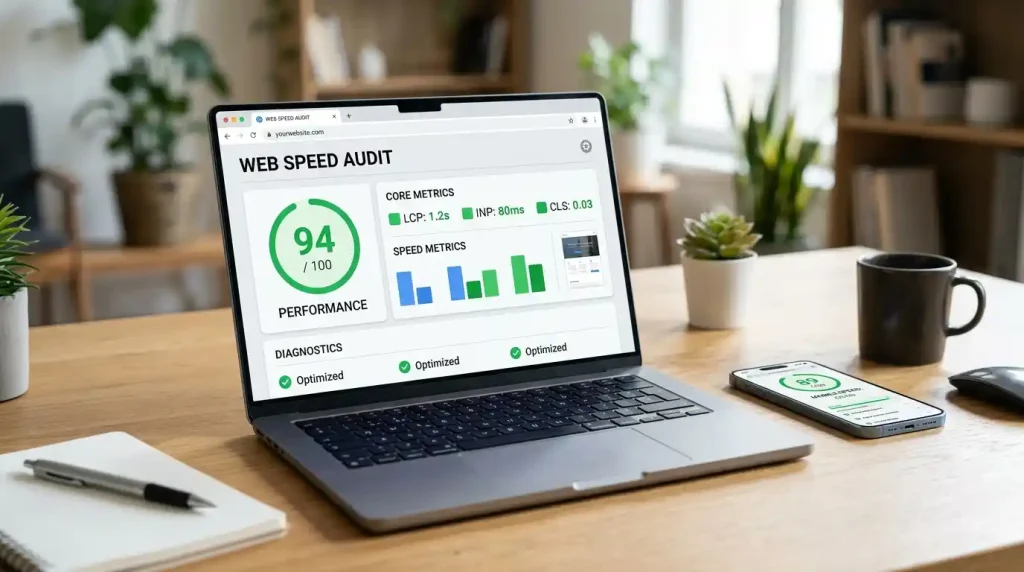
- Largest Contentful Paint (LCP): Measures how long it takes for the main content on a page to appear.
- Interaction to Next Paint (INP): Measures how quickly a webpage responds when users click, tap, or interact with it.
- Cumulative Layout Shift (CLS): Measures how much page elements move unexpectedly as a website loads.
WP Rocket can help improve some of these measurements, but the results depend on the cause of the problem. For example, caching may help server response time, while a large hero image may need separate image optimization.
Use Google PageSpeed Insights to check your website’s performance before and after making changes.
Main WP Rocket Features
WP Rocket brings several website performance settings together in a single WordPress dashboard. You can enable features individually and test their effects rather than changing everything at once.
1. Page Caching
Page caching is one of WP Rocket’s main features. It stores generated versions of pages so WordPress does not need to rebuild every page from scratch for each visitor.
This helps reduce server workload and can make your pages load faster.
Page caching is particularly helpful for blogs, business websites, and other sites where many visitors request the same content.
Dynamic pages, logged-in sessions, shopping carts, and checkout pages may need special handling. Follow the plugin’s recommended settings for your website type.
2. Browser Caching
Browser caching allows supported files, such as images, stylesheets, and JavaScript files, to remain in a visitor’s browser for a period of time.
When someone returns to your website, the browser may reuse those files instead of downloading them again.
This can reduce repeat loading time and data transfer. The exact behavior depends on the caching headers and server configuration.
3. CSS Optimization
CSS controls the appearance and layout of a website. Large or poorly delivered CSS files can delay the display of important content.
WP Rocket offers CSS optimization features that can help reduce the amount of CSS a browser must process.
Depending on the current plugin version, available options may include CSS minification and removing unused CSS.
Minification means removing unnecessary characters from a file without changing its intended function. Removing unused CSS means reducing styles that a particular page does not need.
Test these features carefully because some themes and plugins depend on specific styles to display correctly.
4. JavaScript Optimization
JavaScript adds interactive features to WordPress websites. It can also delay page rendering when scripts must load or run before important content becomes usable.
WP Rocket includes options to optimize JavaScript delivery. Depending on the settings and version, these can include minification, deferred loading, and delaying JavaScript execution.
These options may improve loading performance, but they can also affect menus, sliders, forms, analytics, and page builders.
Enable one setting at a time and check your website on desktop and mobile devices.
5. Lazy Loading for Images and Videos
Lazy loading delays the loading of certain images or embedded media until they are close to the visible part of the page.
This can reduce the amount of data a browser needs to download when someone visits a page for the first time.
For example, a long article with 20 images does not necessarily need to load every image immediately.
One important detail: avoid lazy-loading the main image that appears at the top of a page if it is the LCP element. That image may need to load early to improve perceived speed.
6. Database Optimization
WordPress stores website content, settings, and other information in a database. Over time, the database can accumulate revisions, trashed content, expired transient data, and other items that may be safe to clean up.
WP Rocket provides database cleanup tools to help manage some of this data.
Before running cleanup operations, create a backup. Database optimization is not a replacement for good hosting, and deleting unnecessary records will not always produce a noticeable speed improvement.
7. CDN Compatibility
A content delivery network (CDN) distributes website files through servers in different locations. This can help visitors download static files from a server closer to them.
WP Rocket can work with supported CDN services and provides settings to help deliver website assets through a CDN.
A CDN is particularly worth considering when your audience is spread across countries. Choose a service that fits your traffic, budget, and technical needs.
8. Preloading and Link Preloading
Preloading helps prepare certain resources or cached pages before they are requested in the usual way.
WP Rocket offers cache preloading and related features that can help pages become ready for visitors.
Some link-preloading features may start loading a page when a visitor interacts with a link. This can make navigation feel faster, but it should be tested on websites with limited server resources.
9. WooCommerce Compatibility
WooCommerce adds product pages, cart functionality, checkout forms, and customer account pages to WordPress.
WP Rocket can help optimize the surrounding website while supported dynamic WooCommerce pages receive special cache handling.
Never assume that every store page should be cached like a normal blog post. Incorrect cache settings can cause outdated cart information, confusing checkout behavior, or other problems.
WP Rocket Pricing: Is It Worth Paying For?
WP Rocket is a paid plugin. Its price, license limits, renewal terms, and included features may change, so check the official WP Rocket website before buying.
When comparing plans, consider more than the first payment.
Look at:
- How many websites the license covers.
- Whether the price is introductory or recurring.
- Whether updates and support are included.
- Whether your hosting provider already offers effective caching.
- Whether the plugin provides features you actually need.
When WP Rocket May Be Worth It
WP Rocket may be worth paying for if you manage a content-heavy WordPress site, want a straightforward settings dashboard, or need several performance features in one plugin.
It can also save time if you manage multiple client websites and prefer a consistent optimization process.
When You May Not Need It
A separate paid caching plugin may be unnecessary if your hosting company already provides effective server-level caching and your site performs well.
Some free plugins offer caching and optimization features too. The best choice depends on compatibility, available support, and how much manual configuration you are comfortable handling.
Do not purchase WP Rocket solely because a website speed score is low. First identify what is slowing your pages down.
How to Install WP Rocket on WordPress

WP Rocket is installed manually or through its supported installation process because it is a premium plugin. You generally download the plugin package from your WP Rocket account and upload it to WordPress.
Follow these steps.
- Visit the official WP Rocket website and choose a suitable license.
- Log in to your WordPress dashboard.
- Open Plugins → Add New Plugin → Upload Plugin.
- Select the downloaded ZIP file and click Install Now.
- Click Activate Plugin after installation.
- Visit your website in a private browser window to check that it loads correctly.
- Test the website with PageSpeed Insights and save the results for comparison.
Once activated, WP Rocket enables several features automatically. You do not need to switch on every available option to begin improving performance.
WP Rocket Knowledge Base
+1
What to Do Immediately After Installation
Before changing advanced settings, check the following:
- Your website has a recent backup.
- Your hosting provider’s caching system is understood.
- You have recorded your current speed test results.
- Your homepage, articles, menus, and contact forms work correctly.
- You know how to clear the cache if changes do not appear.
If your host already manages page caching, some WP Rocket caching features may be disabled or handled differently. Check the official compatibility guidance before changing server-level settings.
Best WP Rocket Settings for Beginners
There is no single configuration that works perfectly for every WordPress website. A simple blog may need different settings from a WooCommerce store or a site built with Divi Builder.
Start with the basic features, then test additional optimizations.
Step 1: Check the Cache Settings
Begin with the default caching configuration. WP Rocket handles important caching tasks automatically after activation.
If the dashboard provides mobile-specific cache options, check whether your theme serves different content or layouts to mobile visitors. Follow the plugin’s guidance for your setup.
Step 2: Optimize CSS Carefully
Open the file optimization settings and review the CSS options available in your version.
Removing unused CSS can reduce the styles a browser must process. However, it may affect page layouts when a theme or plugin loads styles dynamically.
Test these pages after making changes:
- Homepage
- Blog posts
- Category pages
- Contact page
- Product pages, if applicable
The official documentation recommends Remove Unused CSS as the preferred CSS optimization method in supported configurations, with asynchronous CSS loading used as an alternative when needed. These two options should not be enabled together.
Step 3: Enable JavaScript Optimization Gradually
JavaScript optimization can improve loading performance, but it may change when scripts run.
Enable one option at a time, clear the cache, and test the website.
Check the mobile menu, search box, cookie notice, forms, sliders, and interactive buttons. If a feature stops working, disable the latest setting and investigate the affected script.
Step 4: Configure Image Loading
Use lazy loading for images and embedded videos that appear farther down the page.
Make sure important content near the top of the page is not delayed unnecessarily. Compress large images and use modern formats such as WebP or AVIF when your image workflow supports them.
WP Rocket’s built-in media features and a separate image optimization tool may overlap. Avoid running multiple plugins that perform the same optimization unless their settings are compatible.
Step 5: Use Cache Preloading
Cache preloading helps generate cached pages before ordinary visitors request them. WP Rocket can use URLs found in compatible sitemaps to identify pages for preloading.
After publishing or updating an article, check that the updated content appears correctly. If the page still shows old information, clear the relevant cache and test again.
Step 6: Clean the Database Only When Needed
WP Rocket includes tools for cleaning certain database records, including old revisions and trashed items.
Create a backup before using database cleanup. Do not delete records simply to improve a score, and avoid running cleanup tools repeatedly without a reason.
WP Rocket and WordPress SEO
WordPress SEO involves making a website easier for search engines to discover, understand, and present in search results. It includes content quality, internal linking, site structure, indexing, and technical performance.
WP Rocket supports the technical side of WordPress SEO by helping improve page delivery and loading performance.
Website speed is one part of a complete SEO strategy. To improve other areas of your website, read our guide on how to do WordPress SEO, which covers keyword optimization, internal linking, metadata, and other useful SEO practices.
However, it does not replace a dedicated SEO plugin such as Rank Math or Yoast SEO.
Here is how these tools differ:
| Tool | Main purpose |
|---|---|
| WP Rocket | Caching and performance optimization |
| Rank Math SEO | SEO settings, metadata, sitemaps, and content analysis |
| Yoast SEO | SEO settings, metadata, and content guidance |
| Image optimization plugin | Image compression and related media tasks |
| CDN service | Delivery of supported files through distributed servers |
Can WP Rocket Improve Google Rankings?
It can help improve aspects of the user experience that matter to technical SEO. But there is no guarantee that installing it will move a page higher in search results.
For a website such as GlobalVior, a sensible workflow is to:
- Publish useful articles that answer a clear search question.
- Optimize titles, headings, meta descriptions, and internal links.
- Compress images and avoid unnecessary scripts.
- Use WP Rocket to improve caching and supported performance settings.
- Monitor important pages using PageSpeed Insights and Google Search Console.
This approach addresses content and performance separately. Both deserve attention.
WP Rocket Compatibility With Other WordPress Plugins
A WordPress plugin adds a feature or changes how a website works. Most plugins can coexist, but conflicts may happen when multiple tools change the same files, cache pages, or modify how scripts run.
WP Rocket is designed to work with many popular WordPress tools. Still, compatibility depends on the plugin versions and site configuration.
WP Rocket and All-in-One WP Migration
All-in-One WP Migration
All-in-One WP Migration helps users export and move WordPress websites between hosting environments. WP Rocket focuses on speed and caching, so the two plugins have different jobs.
If you are moving your website to a new hosting provider, follow our guide on how to migrate a WordPress site to a new host. It explains how to prepare backups, transfer website files and databases, and test your site after migration.
If you move your website to a new host, check your caching configuration after migration.
A useful process is to:
- Complete the website migration.
- Confirm that the homepage and important pages work.
- Check the WordPress URL and HTTPS settings.
- Review caching and optimization settings.
- Clear old cached files and generate fresh cache files.
- Test forms, images, and mobile layouts.
Do not treat a cached page as proof that a migration succeeded. Check the website’s content and database before making any changes.
WP Rocket and TranslatePress
TranslatePress helps website owners create multilingual WordPress sites. It allows visitors to access content in different languages, depending on the site’s configuration.
Multilingual websites may have separate URLs or language-specific versions of the same page.
When using WP Rocket with TranslatePress, check that:
- Each language version displays the correct content.
- Language switchers work.
- Translated URLs open the right pages.
- Cached pages do not display text from another language.
- SEO metadata and canonical URLs remain correct.
Clear the cache after significant translation or configuration changes, then test several pages in each language.
WP Rocket and WordPress Maintenance Mode
WordPress maintenance mode
Maintenance mode temporarily displays a notice or restricted page while you work on a website.
If you update a theme, change important settings, or rebuild a page, a maintenance mode plugin can help you show visitors a temporary message.
But maintenance mode can interfere with cache preloading because the preloader may receive the maintenance page instead of the normal website content. WP Rocket documents this limitation.
For a smoother process:
- Enable maintenance mode only when needed.
- Make your changes and test them.
- Disable maintenance mode when the site is ready.
- Clear the cache and verify the public pages.
Avoid leaving visitors stuck on an outdated maintenance notice because a cached page has not been cleared.
WP Rocket and Divi Builder
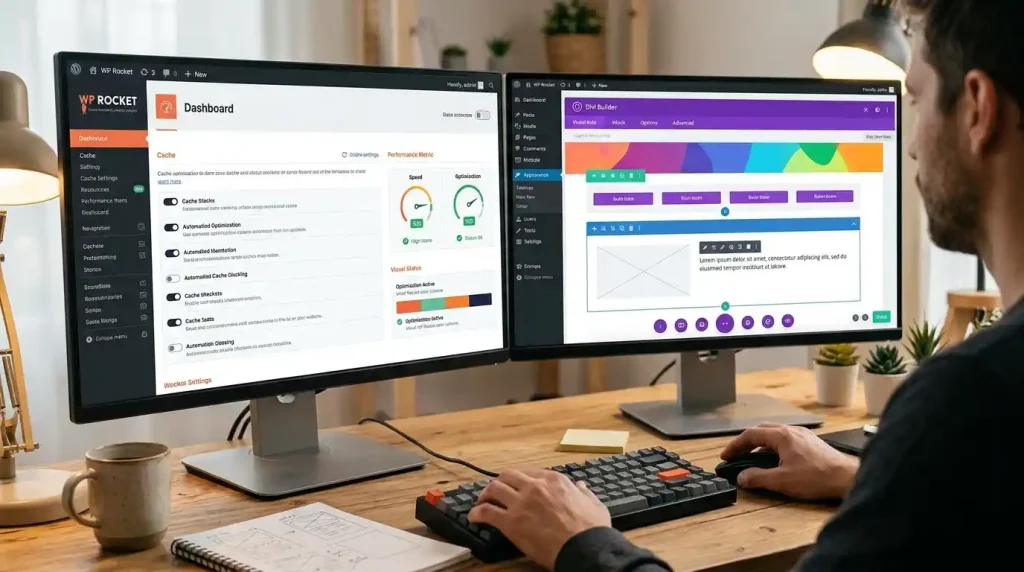
Divi Builder
Divi Builder is a visual page builder that lets users create WordPress page layouts without writing every part of the design in code.
Divi pages may use CSS and JavaScript for layouts, animations, menus, and interactive elements. Performance settings can sometimes affect how these features appear.
If a Divi page looks broken after enabling an optimization:
- Clear the WP Rocket cache.
- Clear any relevant Divi-generated CSS or layout cache.
- Temporarily disable the latest CSS or JavaScript optimization.
- Check the page on desktop and mobile.
- Re-enable settings one at a time to find the cause.
Do not assume Divi itself is the problem. A conflict may involve another plugin, a custom script, or the hosting environment.
WP Rocket vs. Other WordPress Caching Plugins
WP Rocket is one option for WordPress performance optimization. Other plugins may suit your budget or hosting setup better.
| Feature | WP Rocket | Other caching plugins |
|---|---|---|
| Cost | Premium | Free and paid options |
| Setup | Designed for simple setup | Varies by plugin |
| Page caching | Included where supported | Available in many options |
| CSS and JavaScript optimization | Available | Depends on the plugin |
| Hosting compatibility | Check supported configurations | Also varies by host |
| Best fit | Users who want an integrated paid tool | Users comparing price and control |
Popular alternatives include LiteSpeed Cache, W3 Total Cache, and WP Super Cache. Their features and compatibility differ, so compare them based on your server and website needs.
For example, LiteSpeed Cache can be a good option when your hosting environment supports its server-level caching features. If you use a different server, some of those features may not be available.
Caching plugins focus on website performance, while SEO plugins help manage search-related settings. If you need help choosing an SEO tool, read our guide to the best WordPress SEO plugin.
My recommendation: Choose one main caching solution. Running two plugins that both control page caching or rewrite CSS and JavaScript can create conflicts and make troubleshooting harder.
Three Practical Examples of Using WP Rocket
The following examples illustrate common situations. They are hypothetical scenarios, not measured customer results.
Example 1: A Blog With Large Images
A blogger publishes long articles with screenshots and featured images. The pages feel slow, particularly on mobile phones.
The blogger compresses large images, enables suitable caching settings, and uses lazy loading for images farther down the page.
The result to look for is a faster initial display and less unnecessary downloading. PageSpeed Insights can help show whether these changes improved the page.
Example 2: An Affiliate Website Built With Divi
An affiliate marketer uses Divi Builder to create product review pages with animations, buttons, and comparison tables.
After enabling JavaScript optimization, one of the buttons stops responding.
The marketer disables the most recent optimization, tests the page, and identifies the affected script before adjusting the configuration.
This example shows why you should test functionality after changing performance settings. A higher speed score is not useful if visitors cannot use the page.
Example 3: A Website Moving to New Hosting
A business owner uses All-in-One WP Migration to move a WordPress website to a new hosting provider.
After the migration, some pages display old content because cached files remain in the delivery process.
The owner verifies the migrated content, clears the relevant caches, and checks the website again in a private browser window.
The lesson is simple: test the website after migration and rebuild the cache only after confirming that the new site works correctly.
Common WP Rocket Mistakes to Avoid
Even a user-friendly caching plugin can cause problems when settings are changed without testing.
Enabling Every Option at Once
Changing several settings together makes it difficult to identify the cause of a problem.
Better approach: Change one setting, clear the cache, and test the affected pages before moving to the next option.
Using Multiple Optimization Plugins
Two plugins may both minify files, delay JavaScript, or optimize CSS.
This overlap can create broken layouts, duplicate processing, and confusing results.
Better approach: Review the features already provided by your theme, host, and existing plugins before adding another tool.
Ignoring Mobile Performance
A website may look fast on a desktop computer but perform poorly on a mobile device.
Large images, third-party scripts, and complex layouts can affect mobile loading and responsiveness.
Better approach: Test both mobile and desktop versions, especially the homepage and your most important articles.
Forgetting to Clear the Cache
After changing a page or design, you may continue seeing an older version.
Better approach: Clear the relevant caches and reload the page. If a CDN or hosting cache is active, check that layer too.
Expecting WP Rocket to Fix Every Problem
Caching cannot solve every performance issue. A slow database query, weak hosting plan, oversized image, or heavy third-party script may require a separate fix.
Better approach: Use performance reports to identify the actual problem before making changes.
Actionable Checklist: Getting the Most From WP Rocket
Use this checklist when setting up WP Rocket on a new or existing WordPress website.
WordPress speed checklist
0 of 12Create a full website backup before changing settings.Record baseline performance using PageSpeed Insights.Check whether the hosting provider already offers page caching.Install and activate WP Rocket from an authorized source.Test the homepage, posts, menus, and forms.Configure CSS and JavaScript optimization one setting at a time.Optimize large images and protect important above-the-fold images from unnecessary delays.Check compatibility with Divi Builder, TranslatePress, and other active plugins.Clear caches after major design changes or website migration.Test important pages on mobile and desktop.Review Core Web Vitals and repeat performance tests.Keep WordPress, themes, and plugins updated.
Your hosting provider also affects website performance. Before investing in additional optimization tools, compare your options in our guide to the best WordPress hosting services.
Conclusion
WP Rocket is a practical choice for WordPress website owners who want caching and several performance optimization features in one premium plugin. Its automatic settings can make setup easier, while its advanced options give users more control over how their websites load.
It can help blogs, affiliate websites, business sites, and many other WordPress projects. However, your results will depend on your hosting environment, theme, images, scripts, and other plugins.
For a website built with Divi Builder, or one that uses TranslatePress and All-in-One WP Migration, test your pages carefully after making changes. Keep your caching setup simple and measure performance before and after optimization.
If you manage a WordPress website, start by testing your most important pages with Google PageSpeed Insights. Then decide which problems WP Rocket can solve and which need a different fix.
FAQs About WP Rocket
1. Is WP Rocket free?
No. WP Rocket is a premium WordPress plugin. Check its official website for current pricing, license terms, and available features.
2. Is WP Rocket good for beginners?
Yes, it is designed to simplify website performance optimization. Many important features work automatically, although advanced settings should still be tested carefully.
3. Does WP Rocket improve WordPress SEO?
It can improve technical performance, which may support a better user experience. It does not replace an SEO plugin or guarantee higher Google rankings.
4. Can I use WP Rocket with Rank Math SEO?
Yes, they serve different purposes and can work together. Rank Math handles SEO features, while WP Rocket focuses on caching and performance. WP Rocket’s cache preloading supports compatible Rank Math sitemaps.
WP Rocket Knowledge Base
5. Does WP Rocket work with Divi Builder?
It can be used with Divi Builder, but some CSS and JavaScript settings may affect layouts or interactive features. Test your pages after changing optimization settings.
6. Can I use WP Rocket with TranslatePress?
They can be used together, but you should test translated pages, language switchers, and language-specific URLs after configuring caching.
7. Should I use WP Rocket with another caching plugin?
Usually, you should avoid running multiple plugins that perform the same caching and file optimization tasks. Check your host’s caching features and the documentation for each plugin before deciding.
8. How can I check whether WP Rocket is working?
Test your website before and after installation using PageSpeed Insights. You can also inspect the plugin’s cache status and follow the official troubleshooting documentation if pages are not being cached. Remember that a speed score alone does not prove that every optimization is working.