The Namecheap web hosting DNS helps you link your domain name to your hosting account so that you can load your website on the internet correctly.
DNS is very important if you purchased a domain or hosting from Namecheap. If this is not set up accurately, a site may not load, email may no longer be operating properly, or your domain may point to the incorrect server.
This post covers what Namecheap web hosting DNS is, how it works and how to set up Namecheap name servers as well as guides you to avoid getting into trouble too.
How Does Namecheap Web Hosting DNS Work?
Namecheap web hosting DNS is the Namecheap hosting account’s use of DNS setup for the domain name.
When referring to DNS, we mean the Domain Name System. It works like an address book on the internet. DNS tells the browser where your site files are hosted when they type in your domain name into a browser.
Instead of remembering a server IP address, visitors type your domain name. DNS sends them to the right hosting server.
If you are on Namecheap web hosting DNS, your domain uses the nameservers of Namecheap hosting, and usually you can manage your DNS from cPanel.
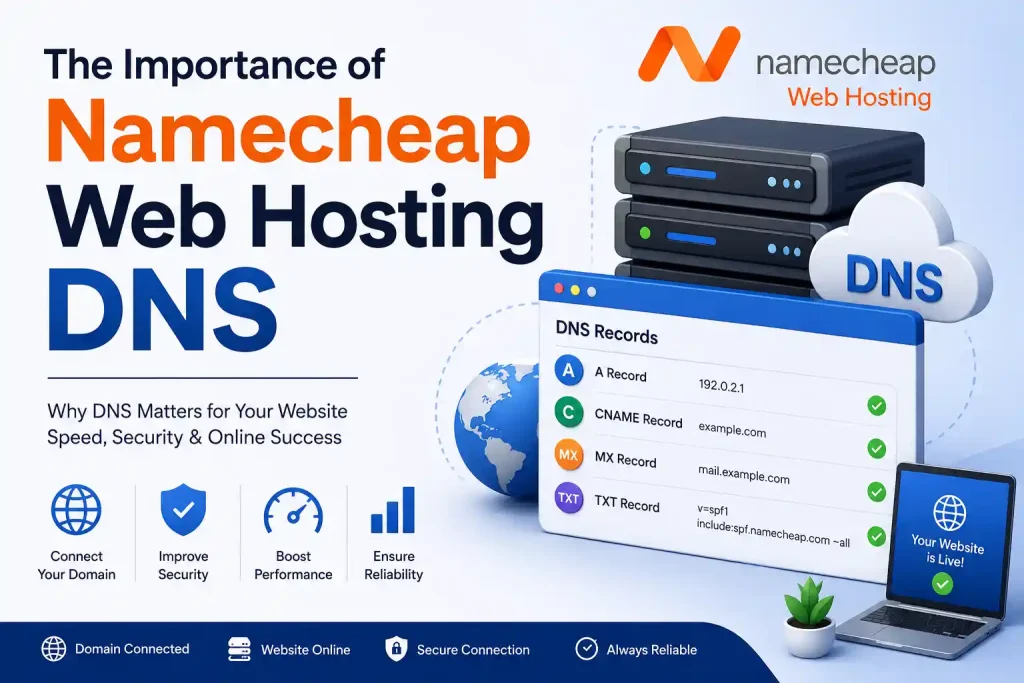
The Importance of Namecheap Web Hosting DNS
DNS is necessary for your website to function properly. So, you have a domain and hosting, but unless connected, your site will not load properly.
With that, It helps you with the Namecheap web hosting DNS
Set up your domain to point to your hosting account
Ensuring your online presence with site
Managing email records
Creating subdomains
Making your domain point at the right server.
DNS records management from cPanel
Preventing your website from going down due to improper DNS settings
Errors in your DNS could result in visitors only seeing things like “This site can’t be reached”, or your domain will still display a parked page.
Namecheap Default DNS vs Namecheap Web Hosting DNS
A lot of beginners confuse Namecheap default DNS with the Namecheap web hosting DNS.
Here is the simple difference:
| DNS Type | Best For | Where You Manage DNS |
|---|---|---|
| Namecheap Default DNS | Domain only, redirections, basic dns records | Namecheap Advanced DNS |
| Namecheap Web Hosting DNS | Domain connected to Namecheap hosting | cPanel Zone Editor |
| Custom DNS | External Hosting like Bluehost, Hostinger, SiteGround | Your hosting provider |
| PremiumDNS | Extra DNS performance and security | Namecheap DNS dashboard |
If Namecheap shared hosting and used their DNS, then Namecheap web hosting with FTP and DNS is usually the best one to set since it helps directly connect your domain with its main hosting account.
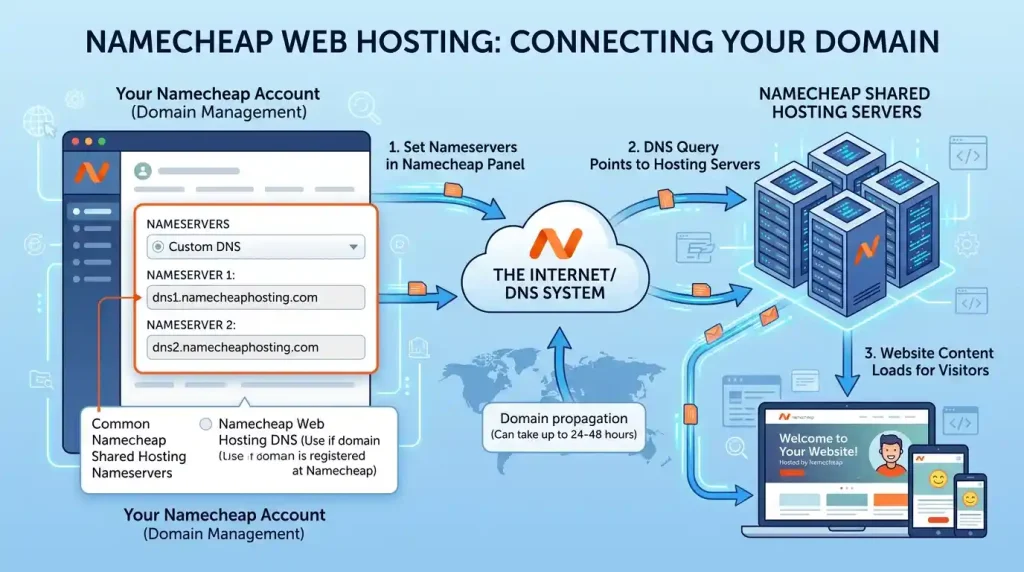
Namecheap Web Hosting Nameservers
It is either a common hosting nameserver for Namecheap shared hosting or
dns1.namecheaphosting.com
dns2.namecheaphosting.com
These nameservers indicate to the Internet to use your Namecheap hosting servers with your domain.
If the domain is registered on Namecheap, then you may also see an option for “Namecheap Web Hosting DNS” under the Nameservers section.
Guide to Configuring Namecheap Web Hosting DNS
If you have registered your domain names through Namecheap, then setting up DNS with their web hosting is a breeze.
Follow these steps:
- Signing into your Namecheap account
- Go to Domain List.
- Click on ‘Manage’ next to your domain name
- Find the Nameservers section.
- Select Namecheap Web Hosting DNS.
- Save the changes.
- Wait for DNS propagation.
Your domain will begin to point to your Namecheap hosting account automatically after saving the changes.
So how long before my Namecheap DNS updates?
DNS changes on Namecheap are not always instantaneous.
DNS changes often propagate (work) in a couple of minutes or hours in many cases; however, at times it could possibly take up to 24 hours (or more depending on your internet service provider, browser cache and global DNS propagation).
This is the time when your site might be open for a few and closed for others. This is normal.
Where to Configure your DNS Records Once You’ve Changed to using Web Hosting DNS
Moving your domain to the Namecheap web hosting DNS means that your DNS records are typically managed from cPanel rather than from the Advanced DNS section in your Namecheap domain dashboard.
To manage DNS records:
- Log in to Namecheap.
- Go to your hosting account.
- Open cPanel.
- Go to Zone Editor.
- Select your domain.
- Add, edit or delete DNS records.
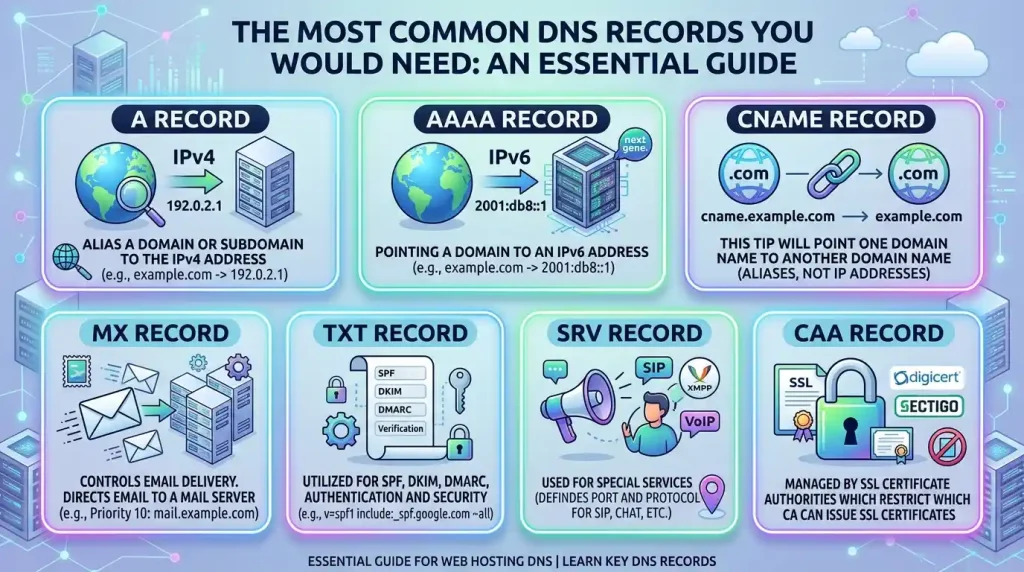
The Most Common DNS Records You Would Need
Below are the most popular records for Namecheap web hosting DNS
| DNS Record | Purpose |
|---|---|
| A Record | Alias a domain or subdomain to the IPv4 address |
| AAAA Record | Pointing a domain to an IPv6 address |
| CNAME Record | This tip will point one domain name to another domain name |
| MX Record | Controls email delivery |
| TXT Record | Utilized for SPF, DKIM, DMARC, authentication and security |
| SRV Record | Used for special services |
| CAA Record | Managed by SSL certificate authorities which restrict which CA can issue SSL |
For a simple website, the majority of common records are A records, CNAME records, MX records and TXT records.
DNS for WordPress websites powered by Namecheap Web Hosting
This is a necessary step for WordPress-based websites when they are being hosted on the Namecheap hosting server.
After you associate your internet domain with Namecheap internet hosting DNS, you can deploy WordPress from cPanel through Softaculous or another installer.
Having your correct DNS confirms that you load from the actual domain name of your WordPress website and not some temporary URL (i.e.
For example:
yourdomain.com
www.yourdomain.com
Make sure that both versions are pointing to the proper hosting account.
Namecheap Web Hosting DNS and Email
This is the shared hosting at NameCheap that contains its own name server records and MX mail servers.
DNS is also the authority over your business email.
If you are using cPanel email, then most of the time your settings are already done along with your host account at Namecheap.
If you make use of Namecheap Private Email, Google Workspace, Zoho Mail or different mail services, then you’ll add the proper MX, TXT, SPF, DKIM & DMARC reports there.
This is very important. This leads to problems like adding wrong email DNS records:
Emails not sending
Emails not receiving
Messages going to spam
Domain verification failure
Business email downtime
Make sure to check what email service you are using before changing DNS.
Important Warning Before Changing DNS
Note this before using Namecheap web hosting DNS
Using new nameservers can remove or even disable existing DNS records.
So if you have any custom records for email, verification, CDN, or third-party tools already set up, you might need to add them again inside the cPanel Zone Editor.
Download a copy of your current DNS records before switching nameservers.
You should especially copy:
MX records
TXT records
SPF record
DKIM record
DMARC record
Record to verify ownership of Google Search Console
CDN records
Subdomain records
This little step will save you from bigger problems with your site or email.
Troubleshooting Namecheap Web Hosting DNS Problems
The small mistakes which cause DNS problems for many users.
Here are common problems:
Website Not Loading
If the domain is not pointing to the proper nameservers or DNS propagation is not complete, this can take place.
Email Not Working
This occurs in case you have no MX records set or no email routeing in cPanel.
Advanced DNS Records Missing
As to whether you changed it from DNS records to hosting nameservers, the DNS records might not be managed from Namecheap’s Advanced DNS. I would like you to use cPanel Zone Editor
SSL Not Working
Your DNS may have resolved correctly but SSL might take some time to kick in. If the DNS is not available, you may fail on SSL validation.
Subdomain Not Working
Another possibility is that the given subdomain should have an A record or CNAME record in cPanel ZoneEditor.
Should I Free Test Namecheap Web Hosting DNS
There are different ways for you to check how your DNS setup is.
To begin with, open your domain in a browser and if you see that your website is loading
Second, clean your browser cache and retry.
Third, verify your domain from an alternative device or internet connection.
Fourth, check to see if their nameservers are updated globally with a DNS checker tool.
If your domain shows dns1.namecheaphosting.com and dns2.namecheaphosting. Now at the given location in your Namecheap domain settings, com is pointed to your WCPweb.
How To: Best Practices for DNS on Namecheap Web Hosting
This is how you can avoid issues by following these tips:
Backup Old DNS Records Before Updating Nameservers
Don’t keep changing it until the DNS has propagated.
Read cPanel Zone Editor after switching to hosting DNS+.
Do not delete MX records if you are unsure about your email setup
Set domain keys, SPF, and DMARC to improve inbox deliverability
Enable SSL after DNS propagation
Keep your domain and hosting on
If it is still not loading after a few hours of the period have expired, contact Namecheap support
It may sound technical, but DNS starts with a fairly user-friendly UI that helps you set records once you know where to go.
Who Should Use the Namecheap Web hosting DNS
Who is the Namecheap web hosting DNS for?
Newbies on Namecheap Shared hosting
WordPress website owners
Small business websites
Bloggers
Portfolio websites
Affiliate websites
Local business websites
Users who want domains and hosting all from one platform
If you have both your domain and hosting at Namecheap, it simplifies management to use Namecheap web hosting DNS.
Namecheap Hosting DNS vs Third-Party Hosting DNS
If you use Namecheap on your web hosting, then select Namecheap web hosting DNS.
Use that company’s nameservers if your site is hosted with another company.
If another provider is hosting for you, your DNS may need to point there. This is crucial as using incorrect nameservers can direct visitors to the wrong server.
So always know where your site files are hosted before changing the DNS.
Final Thoughts
In order to connect your domain name with your hosting account, we need DNS settings; that means the Namecheap web hosting you are using. It is the one that helps your site load properly, holds your domain with its DNS server, and lets you manage records from cPanel.
If you are on Namecheap shared hosting, the easiest approach to connecting your domain with your hosting is to transfer it to the Namecheap Web Hosting DNS.
Tip — Always back up existing records, especially email-related ones, before changing DNS. Once change has been made as well as DNS taken care of from cPanel Zone Editor, after that we can wait on the propagation procedure.
With correctly configured DNS, you will be spared website downtime, mail issues, and some forms of confusion.
FAQ
What is Namecheap web hosting’s DNS?
Namecheap web hosting DNS is the DNS that points at your Namecheap hosting accounts from your domain name.
What are Namecheap hosting nameservers?
Common Namecheap shared hosting nameservers: dns1.namecheaphosting.com and dns2.namecheaphosting.com.
Where do I manage my DNS once I change to Namecheap web hosting DNS?
When you change it to Namecheap web hosting DNS, normally we handle the DNS records from the cPanel zone editor.
Advanced DNS records do not appear in Namecheap
If your domain is pointing to hosting nameservers, the DNS records may not be managed from advanced DNS. They are managed from cPanel by you.
How long does it take for Namecheap DNS to propagate?
Propagation of DNS can take from a few minutes to several hours. This can take up to 24 hours or even longer in some cases.
How to know whether changing DNS will impact my email
Yes, if MX, SPF, DKIM or DMARC are not set correctly, changing DNS can break email.
How to Choose the Best DNS for HostingWithout Further Ado
Yes, it is helpful for WordPress sites hosted on Namecheap, as it links the domain with hosting.
Q2: Do I have to be technical to configure the DNS for Namecheap web hosting?
A basic knowledge of website development is useful from this point anyway, but these steps should be relatively easy for a beginner by following some simple steps that will be accessed through the Namecheap dashboard and cPanel.
Use Namecheap web hosting DNS or rely on the default?
Namecheap web hosting DNS: you should use this DNS if you are using Namecheap hosting to host your website. If you want to use only Namecheap Advanced DNS for managing your domain records, please select default DNS.
But what if, after changing DNS, the site becomes inaccessible?
Allow for propagation – clear the browser cache – test using nameservers, and check DNS records in cPanel (Zone Editor).