HP laptops are most commonly the best option for office work, online classes, freelancing, gaming, and daily routine activities.
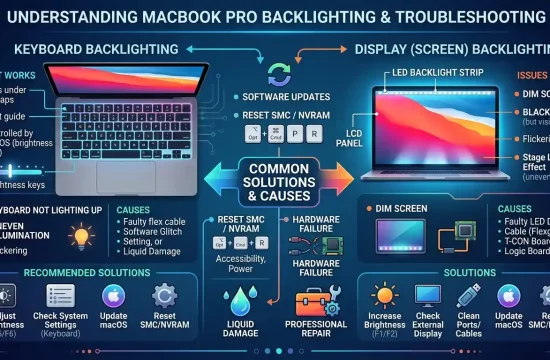
However, as with any laptop, your HP devices might also encounter display issues at times. Some common problems that users search for with Ishp laptop monitor problems are when the screen turns black, flickers, has blurry text, cannot connect to external monitors, or, in some cases, even displays strange lines.
The bright spot is that a good many of the monitor issues are not really hardware problems. In most of the cases, failing to cast can be due to a loose cable, an inappropriate display setting, or even a wrong graphics driver or resolution at that time, and sometimes, it can be as minor as a glitch in Windows itself. But few problems can also arise due to a broken screen, display cable problem, graphics chip issue, or backlight failure.
You are going to learn HP laptop monitor problems, causes, and step-by-step solutions.

Common HP Laptop Monitor Issues
It is essential to find out what kind of display issue you have before attempting any solution. Some typical HP laptops that get in touch with monitor issues are as follows.
| Issue | Possible Area |
|---|---|
| HP laptop black screen but running | Display, power, driver, or hardware |
| Screen flickering or blinking | Driver, refresh rate, cable, or hardware |
| BLURRY, STRETCHED, OR LOW-QUALITY DISPLAY | Resolution or display settings |
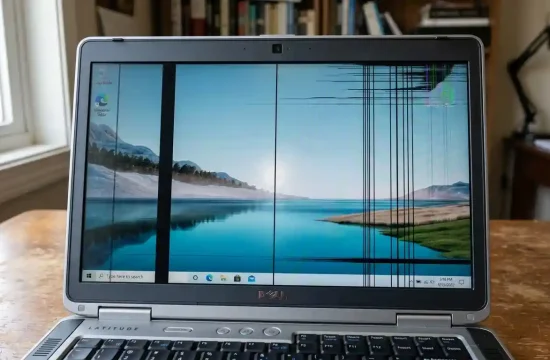
| Horizontal or vertical lines on screen | Display panel, cable, driver, or physical damage |
| External monitor not detected | Cable, port, input source, or Windows setting |
| Screen brightness not changing | Keyboard, display setting, or driver |
| The laptop screen only works at certain angles | Internal display cable or hinge area |
| The display freezes or becomes random colours. | Driver, system, or hardware |
| HDMI or USB-C Monitor Not Working | Cable, port, monitor input, or driver |
| The laptop screen turns off randomly | Power setting, driver, or hardware |
Hence, every problem has a separate cause for occurring; so do not hurry to change the screen before making sure that you have tried the basic fixes.
Restart Your HP Laptop
The first and simplest step is to restart your laptop. At times, there are temporary display issues caused by Windows or display drivers or background apps. A restart may refresh the system and get rid of minor screen-related issues.
To restart your HP laptop:
- Save your work
- Click the Start menu
- Select Power
- Click Restart
If it’s a black screen and nothing is visible but the computer is booting, press and hold the power button for a few seconds to switch it off. Then wait a little while and turn it back on.
Check Brightness and Display Settings
Your screen may appear black, or you may be too bright because the brightness is set low. Make use of the brightness keys on your HP keyboard. Brightness keys are also available on the top row of various HP laptops.
You can also adjust brightness from Windows.
- Open Settings by pressing Windows + I
- Go to System
- Click Display
- Adjust the brightness slider
Check if it is Night Light, HDR, or even power-saving settings messing with your display quality. If you are observing yellowish or suspect colours on the screen, disabling night light might help.

Fix Wrong Screen Resolution
Incorrect screen resolution may cause your HP laptop display to appear fuzzy, distorted and unclear This is especially common after a Windows update, driver change, or external monitor connection.
To fix screen resolution:
- Right-click on the desktop
- Select Display settings
- Find Display resolution
- Choose the recommended resolution
- Click Keep changes
For the best visualisation, always use the suggested resolution. If you are working with an external monitor, select it first and then the good resolution.
Update the graphics driver.
One of the reasons why HP laptops are experiencing monitor troubles is because of their old or damaged graphics drivers. A graphics driver is used to let Windows talk to your laptop screen and other external displays. An outdated driver may cause flickering, a black screen, dull colour, low resolution, or external monitor detection problems.
To update the graphics driver:
- Right-click the Start button
- Open Device Manager
- Expand Display adapters
- Right-click your graphics driver
- Select Update driver
- Choose Search automatically for drivers
Another option is to head over to the official HP support website and search for your model laptop in order to download the newest graphics driver. Download drivers only from official sources like HP, Intel, AMD, NVIDIA, or Windows Update for best results.
Check for Windows updates.
Windows updates are largely bundled with fixes for bugs, drivers, and display-oriented patches. If your HP laptop monitor issue surfaced out of nowhere, look for updates.
To update Windows:
- Press Windows + I
- Go to Windows Update
- Click Check for updates
- Install available updates
- Restart your laptop
Reboot your device, and see if that clears up the display issue.
Step: External Monitor Testing
Solution 3 — Connect an External Monitor If the HP laptop screen is black, flickering, or displaying lines, connecting it to such an external monitor can help you know whether the problem lies in the laptop screen itself or in the graphics system.
The connection itself is made via HDMI, USB-C (3.0 and 3.1), DisplayPort, or VGA depending on your model, but know that a monitor could be connected to your laptop whatever the screen size! Then press:
Windows + P
Choose Duplicate or Extend.
Now check the external monitor:
| External Monitor Result | Meaning |
|---|---|
| This means that if an external monitor works without a hitch | Either the laptop screen itself or its display cable or backlight may have issues |
| If the exact same problem on the external monitor appears | The problem is related to graphics driver, Windows settings or the graphics hardware |
This test is useful before choosing to repair the laptop.
HP Laptop external monitor not detected Fix
When it comes to connecting an HP laptop to an external monitor, many users encounter issues. The monitor shows “No Signal”, is black, or does not show as a display in Windows.
Try these fixes:
Check the cable
Please check the cable (HDMI/USB-C/VGA/DisplayPort) is also properly connected. If possible, try another cable.
Select the correct monitor input
The inputs you can expect to find in an external monitor are HDMI 1, HDMI 2, DisplayPort, USB-C, or VGA. Select the correct input source using monitor buttons
Press Windows + P
Use the shortcut Windows + P and select Extend or Duplicate. Sometimes Windows is already set to “PC screen only”, so the external monitor will remain black.
Detect the monitor manually
- Open Settings
- Go to System
- Select Display
- Click Multiple displays
- Click Detect
Restart both devices
Switch off the laptop and display. Disconnect the cable. Give it a little break, reconnect everything, and turn them back on.
Screen Flickering on HP Laptop
There are many reasons for the screen flicker to occur on a computer, including driver problems, refresh rate mismatches, loose display cables, incompatible apps, and hardware issues.
Try these steps:
- Restart the laptop
- Update the graphics driver
- Change the refresh rate
- Uninstall recently installed apps
- Check Windows updates
- Test with an external monitor
To change refresh rate:
- Go to Settings
- Click System
- Select Display
- Click Advanced display
- Choose a supported refresh rate
1] If flickering occurs only on your laptop display and not on the external monitor, then either your laptop display panel or internal cable needs to be professionally checked.
Black Screen on HP Laptop
A black screen can occur for multiple reasons. The laptop is turned on, but you can hardly see anything displayed. You might hear the fan, keyboard backlighting, or startup chime.
Try these solutions:
Hard reset the laptop
- Turn off the laptop
- Disconnect the charger
- Detach USB drives and the mouse as well as the keyboard and, additionally, the outside screen.
- Press and hold the power button for approximately 15 seconds
- Connect the charger again
- Turn on the laptop
Inspect the power and charging lights.
If you have literally no light, it could either be a power issue, charger issue, battery issue, or motherboard problem.
Connect an external monitor
If the external monitor is functioning properly, then you may be having a problem with your internal display. If the external monitor stays black too, the issue is possibly deeper (graphics chip or mobo).
Lines on HP Laptop Screen
A horizontal or vertical line on an HP laptop screen could be caused by a display panel issue, a loose internal display cable, a graphics driver issue, or the physical damage as well.
You can try:
- Restarting the laptop
- Updating the graphics driver
- When using a BIOS, can you see if you can even boot?
- Connecting an external monitor
If you start experiencing the lines even during the pre-boot environment or even before Windows loads, it is more probable that this is a hardware issue. If the lines are not present on an external monitor, then either the laptop screen or display cable must be fixed.
Un-powered by Design (at Specific Angles)
Usually, the hardware problem is indicated when your HP laptop screen only works in an open lid at a certain angle. The internal display cable may not be seated properly, get damaged, or be worn out at the hinge location.
In this case, do not open and close the lid too many times. Save your important data, and bring it to a service centre or technician you trust as much.
Test BIOS and HP Hardware Diagnostics
Usually HP laptops have diagnostic tools. These tools can be used to test whether a hardware issue is causing the issue.
HP diagnostics are often available immediately after powering on the laptop by repeatedly hitting Esc and then launching the diagnostics from the startup menu. The key may differ across models.
If the display issue started with a BIOS update or failed update, advanced support may be required. BIOS is serious business, and a wrong step can spawn more issues than it solves.
When to Visit a Technician
If the answer was ‘yes’ to any of these questions, then you need to go visit a technician or HP service centre.
| Situation | Action |
|---|---|
| The screen is physically cracked | Visit a technician or HP service centre. |
| It shows lines even before Windows boots | Visit a technician or HP service centre. |
| The screen only works in certain angles | Visit a technician or HP service centre. |
| The laptop goes on but none of the internal or external displays turn on | Visit a technician or HP service centre. |
| You smell burning, the device is overheating, or is displaying liquid damage | Visit a technician or HP service centre. |
| You updated drivers and settings already but the problem still persists | Visit a technician or HP service centre. |
| The laptop is under warranty | Visit a technician or HP service centre. |
If you are not an experienced person, do not try to open the laptop manually. Screens, hinges, display cables, motherboard parts — these all play a role in laptop fragility.
Here Are Few Ways You Can Prevent HP Laptop Monitor Problems
If you take care of your laptop, this will help reduce display issues.
- Keep Windows and drivers updated
- Never ever download drivers from third-party websites
- Never pull the lid to force it either backward or forwards
- Utilize HDMI or USB-C wire of top quality
- Avoid spills on the laptop
- The laptop can be prevented from overheating if it is used on a flat surface
- Do not put heavy things in addition to the laptop
- Bring it along in a laptop bag
- Wipe the screen with a fluffy microfiber cloth
- Make sure that the laptop is either shut down properly or is put into sleep mode before you carry it.
Frequently Asked Questions
Why is my HP laptop screen black and running?
When the PC is booting, everything is working as normal, but the display turns black. It’s due to display driver issues, low brightness settings, sleep mode malfunction issues, damage to the screen, backlight problems, or destroyed graphics hardware. Reconnect an external monitor to test the display option; you can restart and hard reset your system if needed.
Why is the screen of my HP laptop blinking?
The screen flickering issue frequently appears due to outdated graphics drivers, wrong refresh rate settings, Windows display settings, incompatible software, or even hardware-related performance issues. It can help if you update the graphics driver and check for refresh rate.
Solution 2: Troubleshooting the External Monitor not Working on HP Laptop
Ensure that the cable is properly connected, ensure the correct monitor input has been selected on screen, use Windows + P to select either “Extend” or “Duplicate” as needed, and finally go into the Windows Display settings and click the “Detect” option. If the monitor is still not detected. Then Update the graphics driver also
An HDMI cable would not cause a monitor-related issue.
Yes. A black screen, no signal error, flickering, no picture or image in a low resolution, followed by random disconnection, can arise from a damaged HDMI cable or an HDMI 2.1, which you may be using for connecting the TV and the home entertainment systems to have high video quality. Try another cable to confirm.
Is it worth replacing my HP laptop screen?
Do not just go to replace the screen! So basically I was testing with an external monitor, updated drivers, double-checked display settings, and restarted the laptop. In case the issue only exists on the laptop screen and basic solutions do not work, then it is time to replace or repair the cable.
Final Thoughts
Laptop monitor problems can be annoying, especially when you need your laptop for work, study, or surfing. However, to troubleshoot most issues, it simply requires a little reboot, brightness checkup, resolution fix-up, graphics driver update, Windows + P, or an external monitor.
If it is the result of a software problem, you might be able to do it yourself at home. In case the screen has lagging lines, physical damage, or blacklight malfunctions and even if this only works at a certain angle, you might want to choose professional repair, a safer choice.
Steps to take before buying any replacement part: Start with the basics. This will do wonders for you in terms of saving time, reducing repair costs, and understanding the real culprit with your HP laptop monitor issue.