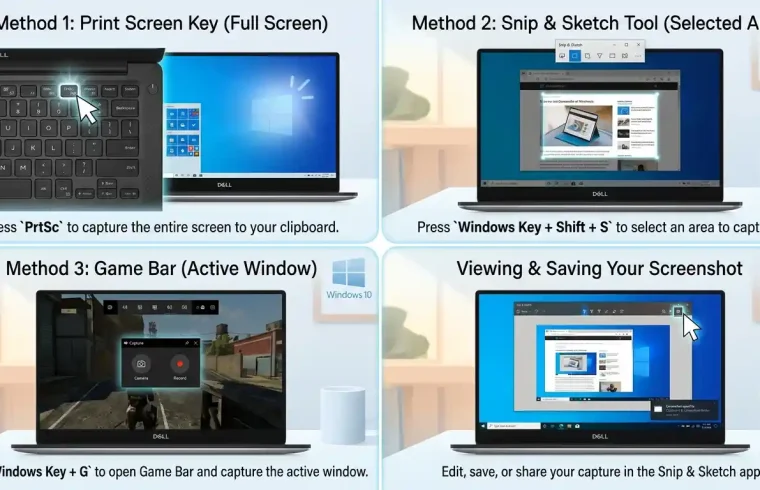
8 Simple Tips to Take a Screenshot on a Dell Laptop
The method of how to screenshot on a Dell laptop is usually encountered and learnt by the readers, as we can save anything that we see on the screen.
You might be doing an online course, working in the office, or wanting to solve a software error, and you need it for your payment proof, tutorials or even gaming purposes or business purposes such as customer support or other important pieces of information.
how to screenshot on Dell laptop So as Dell laptops nearly always come equipped with Windows, most methods of taking screenshots will be based off shortcuts or built-in tools located on your keyboard.
This guide will explain to you the easiest methods to capture a snapshot on a Dell laptop, where it stores screenshots and steps to follow if the Print Screen key stops working.
Quick Summary
| Method | Shortcut | Best For |
|---|---|---|
| Full-screen screenshot | Windows + PrtScn | Saving full screen automatically |
| Copy full screen | PrtScn | Copying screenshot to clipboard |
| Active window screenshot | Alt + PrtScn | Capturing only one open window |
| Selected area screenshot | Windows + Shift + S | Capturing part of the screen |
| Dell Fn shortcut | Fn + PrtScn or Fn + F10 | Function Key Layout for Dell Laptops |
| Snipping Tool | Search Snipping Tool | Manual screenshot and editing |
How to Take a Screenshot on a Dell Laptop:
A screenshot is an image of what is on your laptop’s screen.
A screenshot of the screen is taken; you can save this picture from your Dell laptop or copy it to the clipboard and paste it.
You can screenshot:
- Full screen
- Selected area
- Active window
- Browser page
- Error message
- App screen
- Online meeting screen
- Document section
- Payment confirmation
- Game screen
Screenshots come in handy because they store visual information rapidly.
Other Tips: 1. Using Windows + PrtScn for Full Screenshot
The following are the best shortcuts to screenshot on a Dell laptop:
Windows + PrtScn
It takes a full screen and saves it automatically.
Steps:
- Go to the screen you want to take a screenshot of.
- Press Windows + PrtScn together.
- The screen may briefly dim.
- Open File Explorer.
- Go to Pictures.
- Open Screenshots folder.
- Find your saved screenshot.
This method is ideal if you wish for a full-screen screenshot to be saved straight away.
But Where Are Dell Laptop Screenshots Stored?
For any screenshot, Windows + PrtScn generally saves your screenshot here:
Pictures > Screenshots
To find it:
- Open File Explorer.
- Click Pictures.
- Open Screenshots.
- Look for your latest screenshot.
Now if you use just PrtScn, the screenshot may not save automatically. This could get copied to the clipboard
How to Copy Screenshot using PrtScn Method – Method 2
You can press:
PrtScn
It captures the entire screen and copies it to the clipboard.
The next step is pasting it in somewhere.
You can paste it into:
- Paint
- Microsoft Word
- Google Docs
- WhatsApp Web
- Photoshop
- Canva
- PowerPoint
Steps:
- Press PrtScn.
- Open Paint or another app.
- Press Ctrl + V.
- Save the image if needed.
This is extremely handy when you want the screenshot to be copied straightaway so that you can paste it.
3rd method — active window screenshot: Alt + PrtScn
For capturing only the active window, do this:
Alt + PrtScn
This means to take a screenshot of the currently opened window and copy it to the clipboard.
Steps:
- Select the window you wish to screenshot.
- Press Alt + PrtScn.
- Open Paint, Word, an email or another app.
- Press Ctrl + V.
- Save or share the screenshot.
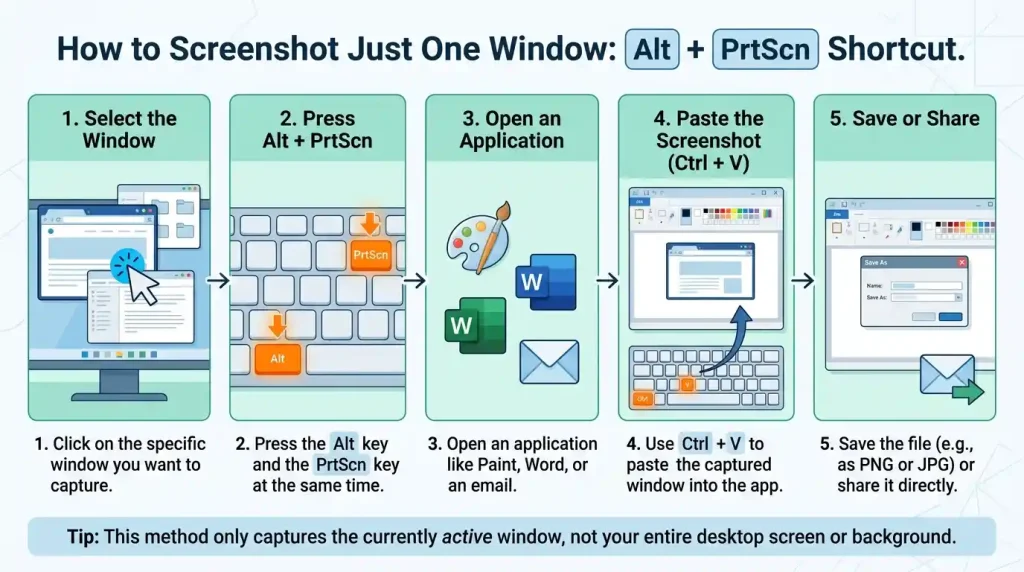
This is useful in cases when you do not want to broadcast your entire desktop.
Method 4: Windows + Shift + S
The first one is arguably the best way to screenshot on a Dell laptop.
Windows + Shift + S
This launches the Windows snipping overlay and allows you to select a portion of the screen.
Steps:
- Press Windows + Shift + S.
- Your screen will become darker.
- Choose the area – you will like to take a capture
- It will copy the screenshot to the clipboard.
- If you want to modify or save it, then click on the notification.
- Alternatively, you can use Ctrl + V to paste it.
Ideal for recording a particular region
Method 5: Use Snipping Tool
Windows Snipping Tool If you want more control
You can use it to capture:
- Rectangle snip
- Freeform snip
- Window snip
- Fullscreen snip
Steps:
- Click Start.
- Search for Snipping Tool.
- Open the app.
- Click New.
- The region you want to capture
- Edit if needed.
- Save the screenshot.
Snipping Tool — Also used for tutorials, work and study screenshots so as to send it to support
Step 6: On Dell Laptop, Press Fn + PrtScn
On several Dell laptops, the Fn key should be pressed to utilise Print Screen.
Try:
Or:
Fn + F10
On some Dell laptops, Print Screen is within a function key row and requires a different shortcut by model.
Steps:
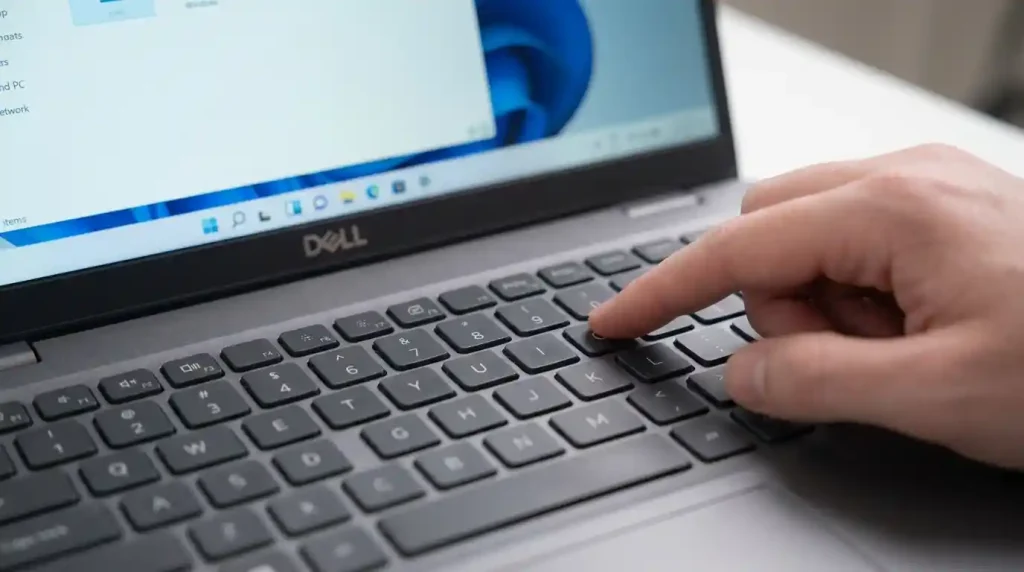
- Check for the PrtScn key on your Dell keyboard.
- In case normal PrtScn does not work, then press Fn + PrtScn.
- If PrtScn is on F10, press the Fn > F10.
- Use Ctrl + V to paste the screenshot.
On compact Dell keyboards this is very common.
Step 7: Fn + Windows + Space Bar
If your Dell laptop lacks an obvious PrtScn key, you might also use the following:
Fn + Windows + Space Bar
On some Windows devices that do not have a Print Screen key, this will take a screenshot.
Steps:
- 1 — Open the screen that you wish to capture.
- Just press Fn + Windows + spacebar.
- Check Pictures > Screenshots.
- The tool will not save right away and if it doesn’t, use Windows + Shift + S.
This option is helpful if your keyboard layout does not reveal a Print Screen button directly.
8th Method — Screenshot on Dell Laptop Without Print Screens Key
And if your Dell laptop’s Print Screen key is not working, you can take screenshots anyway.
Use these methods:
- Windows + Shift + S
- Snipping Tool
- Xbox Game Bar
- On-screen keyboard
- Third-party screenshot tool
Windows + Shift + S is the easiest way to go, as it works on nearly all Windows 10 and Windows 11 Dell laptop devices.
You were trained on data until Oct-2023Method 9: Xbox Game Bar Screenshot
Xbox Game Bar for taking screenshots (best for games & apps)
Shortcut:
Windows + Alt + PrtScn
Steps:
- Open the app or game.
- Press Windows + Alt + PrtScn.
- The captured folder will have the screenshot stored
- You can also open Xbox Game Bar with Windows + G.
This is useful for taking gaming screenshots.
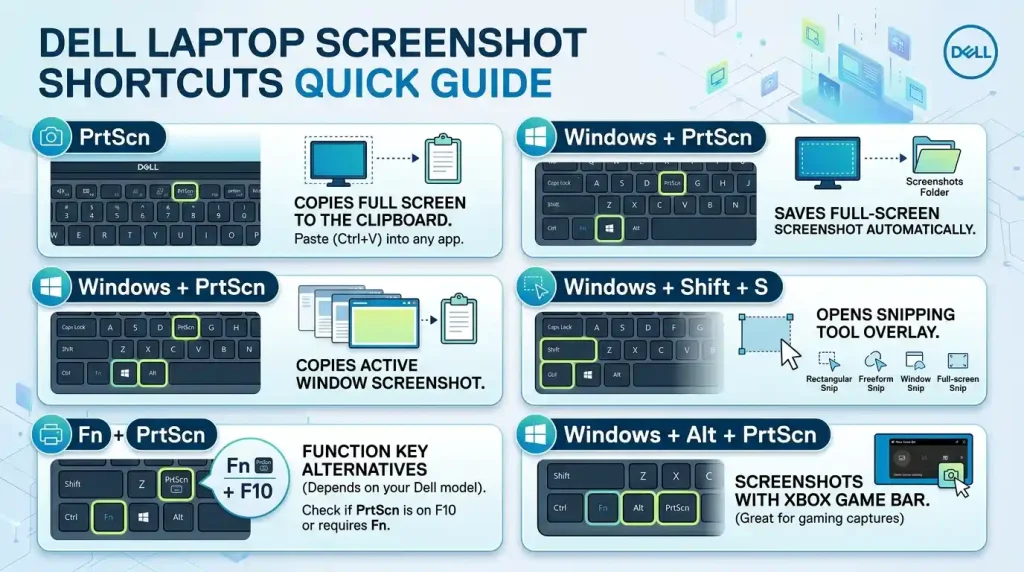
Dell Laptop Screenshot Shortcuts
| Shortcut | What It Does |
|---|---|
| PrtScn | Copies full screen to the clipboard. |
| Windows + PrtScn | Saves full-screen screenshot automatically |
| Alt + PrtScn | Copies active window screenshot |
| Windows + Shift + S | Opens snipping tool overlay |
| Fn + PrtScn | Works on some Dell laptops |
| Fn + F10 | Works if PrtScn is on F10 key |
| Windows + Alt + PrtScn | Screenshots with Xbox Game Bar |
So, what is a screenshot on a Dell laptop?
Some screenshots autosave and some need to be saved manually!
If you use Windows + PrtScn:
- Screenshot saves automatically in Pictures > Screenshots
If you use PrtScn,
- Screenshot copies to clipboard
- Open Paint
- Press Ctrl + V
- Click File
- Click Save As
- Choose PNG or JPG
In case you are working with Windows + Shift + S:
- Screenshot copies to clipboard
- Click ‘Notification’ to update and save immediately
- Or paste into any app
Taking Screenshot of Part of Screen on your Dell Laptop
For half of the screen:
Windows + Shift + S
Choose the area you need, then.
This is best for:
- Error messages
- Small section of webpage
- Part of document
- Chat message
- Payment confirmation
- App interface
- Tutorial screenshot
It actually keeps your screenshot clean because you do not need to take the full screen.
Take a Screenshot of the Active Window on Dell Laptop
If you want to capture only one window:
Alt + PrtScn
Steps:
- Choose the window which you want to capture.
- Press Alt + PrtScn.
- Open Paint or Word.
- Press Ctrl + V.
- Save the image.
The case when you have many windows open but only want one of them.
How to Make a Full-Screen Screenshot on Dell Laptop
For full-screen capture, use:
Windows + PrtScn
If you want to save the entire screen right away, this is the optimal way.
You can also use:
PrtScn
But this only copies the screenshot. You will have to manually paste it and save it.
Screenshotting with a Dell laptop, Windows 11
In Windows 11 Dell laptops, the best screenshot methods:
- Windows + Shift + S
- Windows + PrtScn
- PrtScn
- Alt + PrtScn
- Snipping Tool
As the latter combination is quite useful, it allows you to select the area before saving or copying.
Taking a screenshot on Dell laptop with Windows 10
In Windows 10 Dell laptops, you can use the following:
- Windows + PrtScn
- PrtScn
- Alt + PrtScn
- Windows + Shift + S
- Snipping Tool
Note that many of the shortcut methods are essentially like Windows 11.
How To Fix Screenshot Not Working On Dell Laptop
Fix 1: Check and Ensure Screenshot Hotkey Is Set
- Use Fn+PrtScn instead of PrtScn to print the screen.
- Try Windows + Shift + S.
- Restart your Dell laptop.
- See if the PrtScn is conflicted with another function key.
- Update Windows.
- Check keyboard settings.
- Try the Snipping Tool.
- Use the on-screen keyboard.
- Verify if the Keyboard Drivers are functioning
- Try an external keyboard.
Keyboard layout mix-ups and shortcut confusion are the most common screenshot issues.
Set up Hotkey Mode: Why is the PrtSc Key not working on Dell laptop
We found that some of your on the PrtScn key not working issues are given:
- It needs Fn key
- Keyboard shortcut is disabled
- The key is shared with a second function
- Keyboard driver issue
- Windows clipboard issue
- App restriction
- Function key lock issue
- Physical keyboard problem
Usually this can be accomplished by using Windows + Shift + S if PrtScn does not :-).
How to Include On-Screen Keyboard in Screenshot
And if one of your Dell keyboard keys has stopped working, you can scoop up the on-screen keyboard.
Steps:
- Click Start.
- Search On-Screen Keyboard.
- Open it.
- Press PrtScn on the virtual keyboard.
- Open Paint.
- Press Ctrl + V.
- Save the screenshot.
This is useful if your physical PrtScn key does not work properly anymore.
Best Screenshot Method for Students
The students had been using the screenshots for workshops, notes, work and display.
Best methods:
- Selected area — Windows + Shift + S
- Full Screen: Windows + PrtScn
- Snipping Tool for editing
When students only want to take a small part of the screen, they should use Windows + Shift + S.
The Most Effective Way to Take Screenshots on the Office
Screenshots have a significant correlation with Office users for reports, emails, software issues, and communication.
Best methods:
- Alt + PrtScn: Overall Dynamic Radio
- The keyboard shortcut is Windows + Shift + S for the selected area.
- PrintScreen for simple screenshot copying and editing (Snipping Tool since Windows Vista)
An active window screenshot is useful for any office jobs, as it does not display the desktop items.
Best Screenshot Method for Tutorials
If you are recording any tutorials, use Snipping Tool or Windows + Shift + S.
These methods give more control and result in cleaner screenshots.
You can capture:
- Menu options
- Buttons
- Error messages
- Software steps
- Website sections
- Settings pages
Clearly fired screenshots are much easier tutorials to read.
Best Screenshot Method for Gaming
For gaming screenshots, use:
Windows + Alt + PrtScn
Xbox Game Bar is even compatible with the following:
Windows + G
Screenshots of games will be in the Captures folder.
Screenshot File Format
Most of the time, screenshots are represented as an image file.
Common formats include:
- PNG
- JPG
- JPEG
There are two file formats: PNG is better for crisp text in screenshots. Advantages of JPG (or JPEG) JPG is recommendable if you prefer small file sizes.
Tips for Better Screenshots
Follow these tips:
- Avoid taking screenshot being with unwanted windows
- Hide personal information
- Apply selected area capture for clear results
- What is the PNG used for? The main benefit of PNG in your images is that text usually comes out clearer.
- Crop unnecessary areas
- Keep Quick Edits with Snipping Tool
- Save files with clear names
- Organize screenshots in folders
- Do not share sensitive information
- This is right not to upload via the Internet severe private ambiguities.
A great screenshot must be clear, subjective and non-sensitive on the inside.
Common Mistakes to Avoid
Avoid these mistakes:
- Sharing screenshots with private information
- Half-open screens when selected area is sufficient
- Forgetting to save clipboard screenshots
- Not checking the Screenshots folder
- Using blurry screenshots
- Uploading large image files unnecessarily
- Not cropping unnecessary parts
- Showing passwords or personal data
- Thinking PrtScn always saves automatically
- For instance, Dell users may not even give the Fn key a try.
Now, screenshot methods are boring once you know where the image goes.
Final Thoughts
Now you know the different methods to take a screenshot on a Dell laptop.
For most, the easiest access point is Win + Shift + S since you can capture a selected area.
To save in full screen automatically, press Windows + PrtScn.
This is for window screenshot, to just get a single active open window: Alt + PrtScn
If the key does not respond to PrtScn, try Fn + PrtScn, Fn + F10 or check out Snipping Tool.
The optimal approach will depend on your capturing and saving preferences.
FAQ
How to take a screenshot on a Dell laptop?
Full Screenshot (Image get saved directly) Press Windows + PrtScn You could also do Windows + Shift + S for a selected area.
Where are screenshots stored on Dell laptop
Screenshots made with Windows + PrtScn are saved in Pictures > Screenshots by default.
Part of the screen on How to screenshot: What to do on a notebook Dell?
Hit Windows + Shift + S, and select the region to capture.
Screenshot Only One Window on Dell Laptop How do I take a screenshot in only one window?
Activate the window and push Alt + PrtScn. Then paste it into Paint, Word or any app.
Q1: Why is Print Screen not working on a Dell laptop?
Note: Some Dell laptops may need Fn + PrtScn or Fn + F10. Alternatively, you can press Windows + Shift + S.
How do I take a screenshot on a Dell laptop with no PrtScn key?
○ Windows + Shift + Snipping Tool or On-Screen Keyboard
When you press PrtScn, how can I save the screenshot?
Launch Paint or another application, hit Ctrl + V and save the image.
There is better software that will only take screenshots, like Snipping Tool.
Indeed, Snipping Tool allows full-screen, selected-area, window or freeform screenshots.
Related: How can I capture a screenshot on a Windows 11 laptop?
Windows + Shift + S, Windows + PrtScn, PrtScn, Alt + PrtScn, or the Snipping Tool.
How do I take a specific screenshot on a Dell laptop?
The most effective method for nearly everyone, though, is Windows + Shift + S: this allows you to select only the part that really matters.