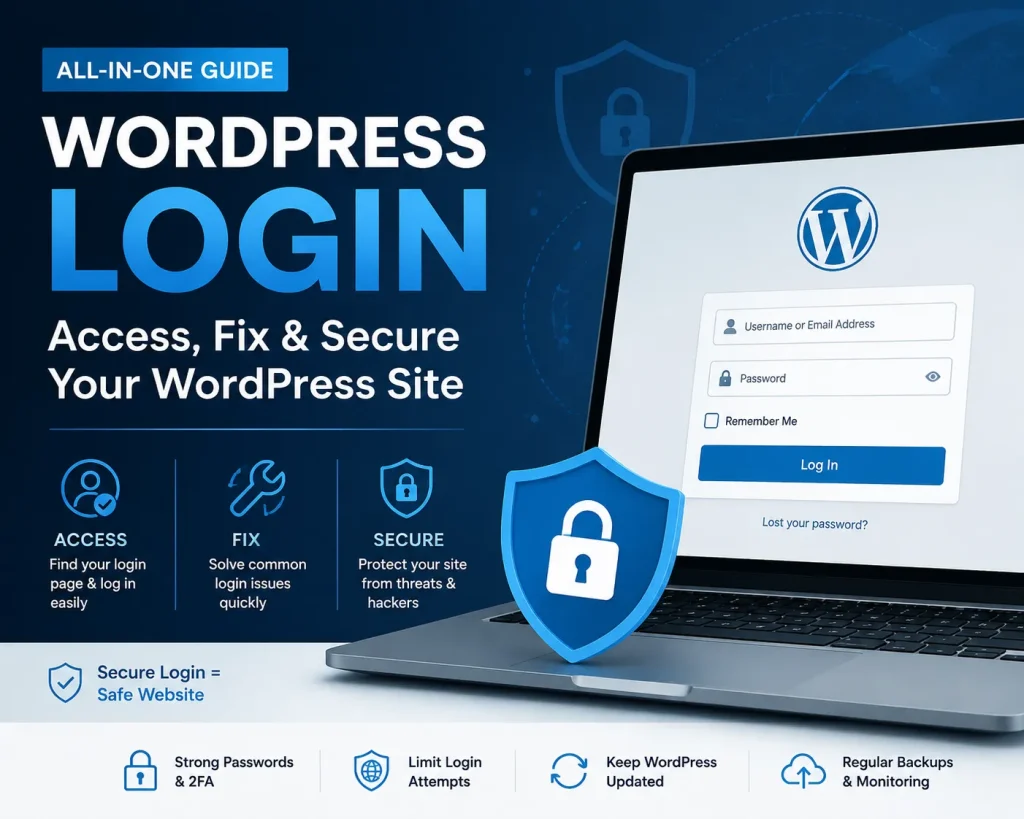
WordPress login is usually a simple process, but it can become confusing when you are using WordPress for the first time or when the normal login page does not open.
Whether you have just installed WordPress or have been managing a website for years, knowing how the login system works can save you time when something goes wrong.
In this guide, you will learn how to find the WordPress login page, sign in safely, recover a forgotten password, and troubleshoot some of the most common login problems.
What Is the WordPress Login Page?
The WordPress login page is the gateway to your website’s administration area.
After signing in, you can access the WordPress dashboard and manage things such as:
- Posts and pages
- Themes
- Plugins
- Media files
- Website settings
- Users
- Comments
- Site customization
For a standard WordPress installation, the login page is normally available through your website’s main domain.
For example:
or:
Replace example.com with your own domain name.
How to Log In to WordPress
The easiest way to access your WordPress dashboard is through the /wp-admin/ address.
Step 1: Open Your WordPress Login URL
Enter your website address followed by:
/wp-admin/
For example:
If WordPress is installed correctly, you should be taken to the login screen or redirected to the dashboard if you are already signed in.
Step 2: Enter Your Username or Email
Type the username or email address associated with your WordPress account.
Make sure there are no extra spaces before or after the information.
Step 3: Enter Your Password
Enter your WordPress password.
If you cannot remember it, do not keep guessing repeatedly. Use the password recovery option instead.
Step 4: Click Log In
Select Log In.
If your credentials are correct, WordPress will take you to the administration dashboard.
What Is the Difference Between wp-admin and wp-login.php?
You may see two common WordPress login addresses:
/wp-admin/
and
/wp-login.php
They are related, but they serve slightly different purposes.
The /wp-login.php file handles the WordPress authentication process.
The /wp-admin/ address is used to access the administration area. If you are not logged in, WordPress normally sends you to the login screen.
For everyday use, you can simply remember:
Forgot Your WordPress Password?
Forgetting your password is one of the most common WordPress login problems.
Fortunately, you normally do not need to contact your hosting company or edit your database.
On the WordPress login page, select Lost your password?
Enter the username or email address associated with your account and follow the instructions sent to your email.
After creating a new password, return to the login page and sign in with your updated credentials.
What If the Password Reset Email Does Not Arrive?
Sometimes the password reset email may not appear immediately.
Check these things first:
Check Your Spam Folder
Look in your spam, junk, promotions, or other filtered folders.
Confirm the Email Address
Make sure you are using the email address connected to the WordPress account.
Wait a Few Minutes
Email delivery can occasionally take some time.
Check Your Website Email Configuration
If your WordPress website cannot send emails correctly, password reset messages may not arrive.
In that situation, your hosting provider or website administrator may need to check the site’s email configuration.
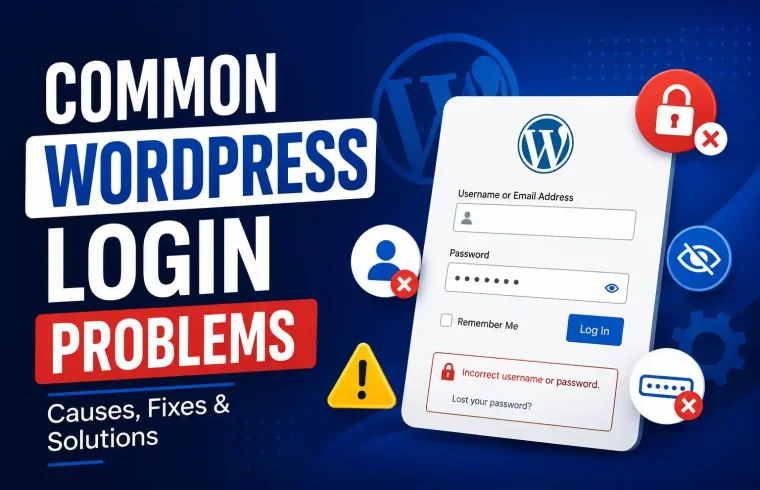
Common WordPress Login Problems
Not every login problem is caused by an incorrect password.
Here are some common situations and what you can try.
“Error Establishing a Database Connection”
If WordPress cannot connect to its database, the problem is usually not related to your username or password.
Possible causes include:
- Database server problems
- Incorrect database credentials
- Hosting issues
- A damaged database
- Server configuration problems
If the problem continues, check your hosting account or contact your hosting provider.
WordPress Login Page Keeps Refreshing
If the login page repeatedly reloads without allowing you to enter the dashboard, browser cookies or a plugin/theme conflict may be involved.
Try:
- Clearing your browser cache and cookies.
- Opening the login page in a private/incognito window.
- Trying another browser.
- Temporarily checking whether a recently installed plugin caused the problem.
“Too Many Failed Login Attempts”
Some security plugins limit repeated login attempts to protect websites from automated attacks.
If your IP address has been temporarily blocked, wait for the lockout period to finish or use the security plugin’s approved recovery method.
Do not keep trying random passwords during a lockout.
“Error: Cookies Are Blocked or Not Supported”
WordPress uses cookies during the login process.
If cookies are disabled or corrupted, you may have trouble signing in.
Try enabling cookies for your website and clearing existing cookies for the domain.
White Screen After Login
A blank page after signing in can sometimes be caused by:
- A plugin conflict
- A theme problem
- PHP memory limitations
- A failed update
- Server configuration issues
If the problem started immediately after installing or updating something, that recent change is worth investigating first.
How to Log In to WordPress on Mobile
You can access the WordPress dashboard from a mobile browser.
Open your website’s:
/wp-admin/
address and enter your login details.
For regular website management, a modern mobile browser is usually enough for basic tasks such as editing posts, checking comments, or making small changes.
For larger design or configuration tasks, a desktop browser may provide a more convenient experience.
How to Stay Safe When Logging In to WordPress
Your WordPress login credentials protect your entire website, so basic security precautions are important.
Use a Strong Password
Avoid passwords based on your name, website name, birthday, or other information that someone could easily guess.
Use a unique password that you do not reuse on other websites.
Enable Two-Factor Authentication
If your security setup supports two-factor authentication, consider enabling it.
It adds another verification step in addition to your password.
Keep WordPress Updated
Keep WordPress core, themes, and plugins updated when compatible updates are available.
Outdated software can contain security weaknesses.
Use HTTPS
Make sure your website uses HTTPS so your connection with the website is encrypted.
You can usually confirm this by checking whether your website address begins with:
https://
Avoid Logging In on Untrusted Computers
Do not save your WordPress password on public or shared computers.
If you must use one, sign out completely when you finish.
What Should You Do If You Cannot Access wp-admin?
If it /wp-admin/ does not work, first determine whether the problem affects only your account or the entire website.
Try opening the website’s homepage.
If the homepage also fails, the problem may be related to hosting, DNS, server configuration, or the website itself.
If the homepage works but the login page does not, investigate recent plugin, theme, security, or configuration changes.
If you recently changed something, reversing that change may help identify the cause.

Can You Change the WordPress Login URL?
Some WordPress security plugins can change or hide the standard login URL.
This can reduce exposure to automated login attempts, but it should not be treated as a complete security solution.
If you change the login URL, keep a secure record of the new address. Losing it can make accessing your own website unnecessarily difficult.
WordPress Login vs Hosting Login
Your WordPress login and hosting account login are not necessarily the same thing.
WordPress Login
Used to access your WordPress dashboard and manage the website.
Hosting Login
Used to access your hosting provider’s account, where you may manage domains, server resources, email, backups, databases, and other hosting services.
For example, changing your WordPress password does not normally change the password for your hosting account.
Keeping these accounts separate can also improve security.
When Should You Contact Your Hosting Provider?
You may need help from your hosting provider when the login problem is caused by the server rather than WordPress itself.
Contact your host if:
- Your website is completely unavailable.
- The server is returning persistent errors.
- Database connectivity is failing.
- DNS or hosting configuration appears incorrect.
- You have lost access to the hosting account.
- A server-level security system is blocking legitimate access.
Before contacting support, note the exact error message and when the problem started. This can make troubleshooting faster.
Frequently Asked Questions
What is the default WordPress login URL?
For many standard WordPress installations, you can access the login page through /wp-admin/ it.
Why can’t I log in to WordPress?
The problem could be caused by an incorrect password, browser cookies, a plugin conflict, a security lockout, server issues, or other configuration problems.
How do I reset my WordPress password?
Select Lost your password? on the WordPress login page and follow the password-reset instructions.
Can I log in to WordPress from my phone?
Yes. You can use a mobile browser to access the WordPress dashboard.
Is wp-admin the same as wp-login.php?
They are related but serve different purposes. /wp-login.php handles the login process, while /wp-admin/ is the normal address used to access the administration area.
How can I make WordPress login more secure?
Use a strong unique password, enable two-factor authentication where available, keep your WordPress installation updated, use HTTPS, and protect your hosting account with strong credentials.
Final Thoughts
WordPress login problems can look complicated when you first encounter them, but most common issues have a straightforward explanation.
Start by checking your login address and credentials. If you forgot your password, use the built-in recovery option instead of repeatedly guessing it. If the problem continues, look at browser cookies, plugins, themes, security settings, and hosting issues.
More importantly, treat your WordPress login as an important part of your website’s security. A strong password, regular updates, HTTPS, and additional authentication can significantly improve the protection of your administration area.
A reliable WordPress website starts with secure access to the dashboard. Keep your credentials protected, maintain your software, and troubleshoot login problems systematically instead of making several changes at once.