How to Flush DNS Cache on Windows 11
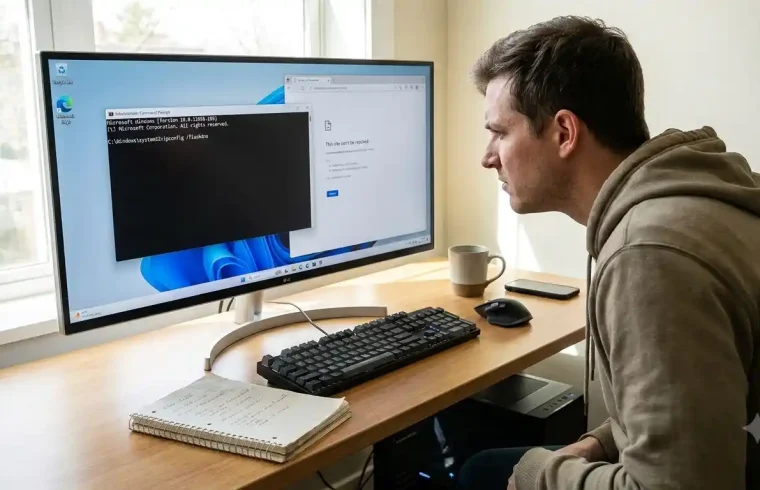
If a website suddenly stops loading on your Windows 11 PC, the problem may be related to DNS. Your internet connection can still work while one or more websites fail to open.
One simple troubleshooting step is to clear the local DNS cache.
In this guide, you will learn how to flush DNS cache on Windows 11, what the ipconfig /flushdns command does, when you should use it, and what to try if clearing the cache does not solve the problem.
What Is a DNS Cache?
DNS stands for Domain Name System. It helps your computer find the IP address connected to a domain name.
For example, when you type a website address into your browser, your computer needs to find the server associated with that domain before the website can load.
Windows temporarily stores some DNS information in a local cache. This can reduce the need to look up the same information repeatedly.
The problem is that cached information can sometimes become outdated. This can happen after a website changes its DNS records, moves to another hosting provider, or changes its server configuration.
If your computer is using an old DNS response, clearing the local cache can be a useful troubleshooting step.
For a beginner-friendly explanation of DNS, see our guide on What Is DNS and How Does DNS Work.
How to Flush DNS Cache on Windows 11
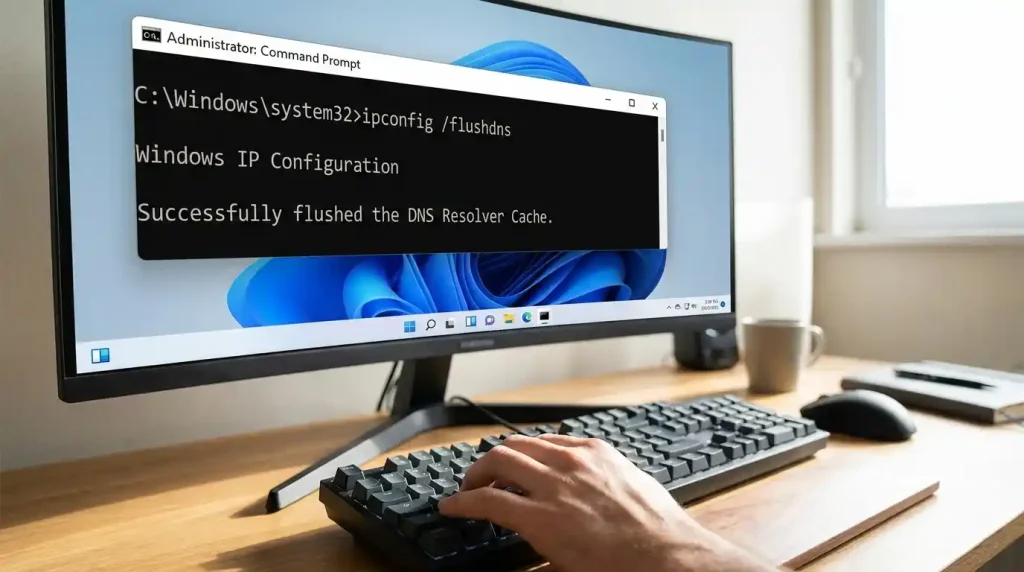
The quickest way to flush the DNS cache on Windows 11 is with Command Prompt.
You do not need to install another program.
Step 1: Open Command Prompt as Administrator
Click the Start button or press the Windows key.
Search for:
Command Prompt
Right-click Command Prompt and choose:
Run as administrator
Windows may ask for permission. Select Yes.
Microsoft also recommends opening Command Prompt as administrator when running network troubleshooting commands such as ipconfig /flushdns.
Step 2: Run the Flush DNS Command
In Command Prompt, type:
ipconfig /flushdns
Then press Enter.
Windows should display a message saying that the DNS Resolver Cache was successfully flushed.
That means the local DNS cache has been cleared.
Step 3: Try the Website Again
After flushing the cache, close Command Prompt.
Open your browser and try visiting the website again.
If the website loads normally, the old cached DNS information may have been part of the problem.
If the website still does not load, continue with the troubleshooting steps below.
Flush DNS Windows 11 Command
The main command you need is:
ipconfig /flushdns
It is the standard Windows command for flushing the DNS resolver cache.
You do not need to run several commands just to clear the DNS cache.
However, if you are dealing with a broader network problem, Microsoft also lists commands such as ipconfig /release, ipconfig /renew, netsh winsock reset, and netsh int ip reset as possible troubleshooting steps.
It is better to use those commands only when they are relevant to the problem you are trying to solve.
How to Clear DNS Cache on Windows 11 With PowerShell
If you prefer PowerShell, you can also manage DNS-related settings there.
Open Windows PowerShell or Windows Terminal as administrator and use the appropriate DNS client commands for your system.
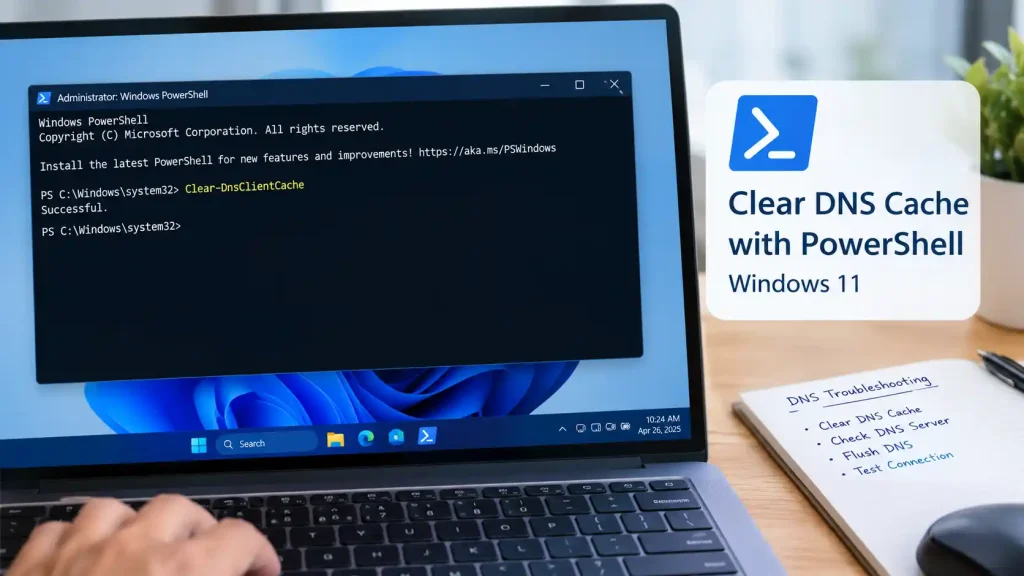
For most beginners, however, Command Prompt is simpler.
If your only goal is to clear the Windows DNS resolver cache, ipconfig /flushdns is the easiest option.
How to Flush DNS Cache in Chrome
Clearing the Windows DNS cache and clearing browser-related DNS information are different things.
If a website works in another browser but still has problems in Chrome, the browser may have cached information that is separate from the Windows DNS cache.
Start by closing Chrome completely and opening it again.
You can also clear Chrome’s browsing data through its settings.
Before changing several settings, test the same website in another browser such as Microsoft Edge or Firefox.
If the website works elsewhere, the problem may be related to Chrome rather than your Windows DNS cache.
For browser-specific help, you can also use Google Chrome Help.
When Should You Flush the DNS Cache?
You may want to flush the DNS cache when:
- A website recently changed its DNS records
- A website moved to a new hosting provider
- You changed nameservers
- A domain recently changed servers
- A website works on another device but not your PC
- You are seeing a DNS-related connection error
- Your computer appears to be using outdated DNS information
Flushing the cache is a troubleshooting step. It does not automatically fix every DNS problem.
For example, if the domain has incorrect DNS records, clearing your local cache will not correct those records.
DNS Cache Not Clearing on Windows 11
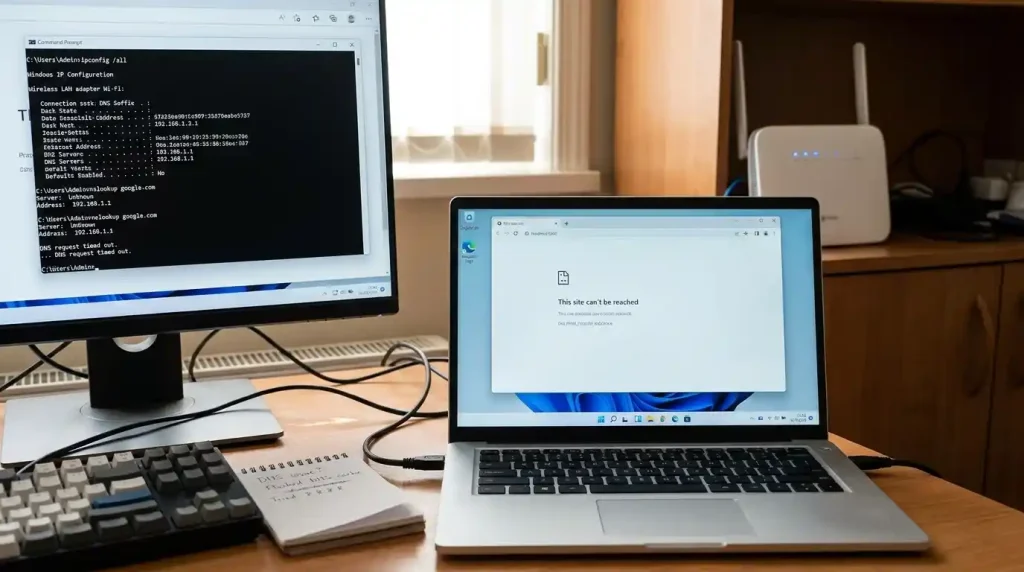
Sometimes users run the command and still have the same problem.
If the DNS cache is not clearing on Windows 11, first make sure you opened Command Prompt with administrator permissions.
Then run:
ipconfig /flushdns
again.
If Windows reports that the DNS Resolver Cache was successfully flushed but the website still does not open, the problem may be somewhere else.
Try these checks.
Restart Your Browser
Close the browser completely and open it again.
Then test the website.
Restart Your Computer
A normal restart can clear temporary network problems and reload network services.
Restart Your Router
If several devices on the same network have trouble opening the same website, restart your router and test again.
If the problem affects only one computer, focus your troubleshooting on that computer.
Try Another Network
Connect your Windows 11 computer to another network if possible.
For example, you could test the website through a phone hotspot.
If the website works on another network but not your normal connection, the issue may involve your router, ISP DNS resolver, or local network.
Microsoft also recommends testing network connections and checking DNS server information when troubleshooting Windows connectivity problems.
DNS Server Not Responding on Windows 11
A DNS server problem is different from a local DNS cache problem.
If you see a message such as DNS server not responding, your computer may be having trouble communicating with its configured DNS server.
You can check your DNS server information by opening Command Prompt and running:
ipconfig /all
Look for the DNS Servers section.
Microsoft recommends checking whether a DNS server is listed and whether it can be reached when troubleshooting Windows network problems.
If the DNS server itself is having problems, flushing your local cache may not be enough.
How to Change DNS Server on Windows 11
If you continue to have DNS resolution problems, you can test another DNS resolver.
Windows lets you configure DNS servers through your network settings.
Some public DNS services include Google Public DNS and other third-party providers.
For example, Google Public DNS documents the addresses:
8.8.8.8
and
8.8.4.4
You can read Google’s Public DNS documentation before changing DNS settings.
Do not change DNS settings simply because a website is slow. First determine whether DNS is actually causing the problem.
What If Flushing DNS Does Not Fix the Problem?
If ipconfig /flushdns does not solve the issue, the problem may not be your local DNS cache.
Check these areas:
Check the Website Address
Make sure the domain name is correct.
A simple spelling mistake can produce a DNS error.
Check the Domain’s DNS Records
If you own the website, check its DNS records with your domain registrar or DNS provider.
Incorrect A, AAAA, CNAME, or nameserver settings can prevent a domain from resolving correctly.
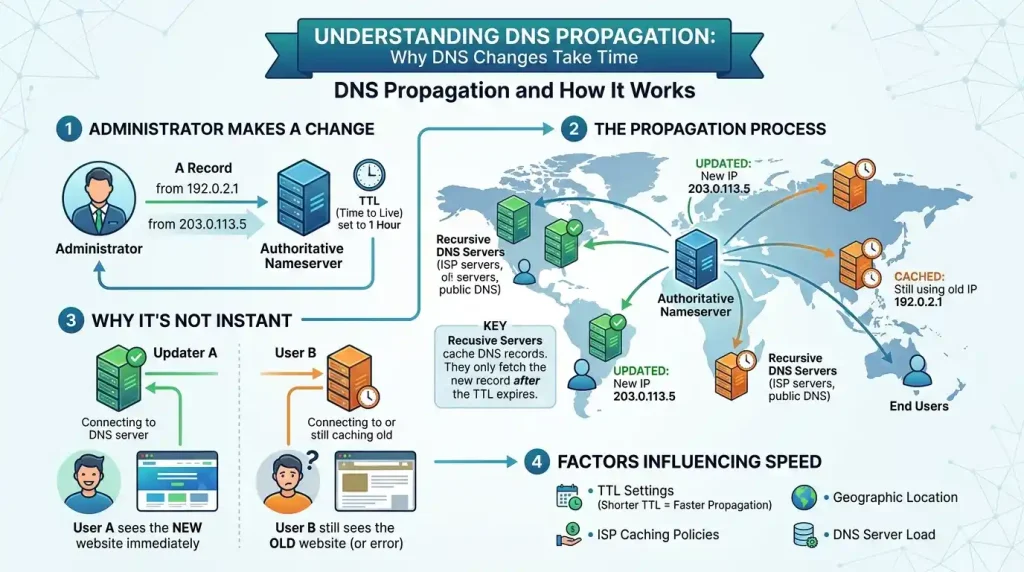
Check DNS Propagation
If you recently changed nameservers or DNS records, different DNS resolvers may temporarily have different cached information.
Our guide on DNS propagation and how it works explains why DNS changes may not appear everywhere at the same time.
Check for an NXDOMAIN Error
If Chrome shows:
DNS_PROBE_FINISHED_NXDOMAIN
the problem may involve DNS resolution rather than your browser installation.
We have a separate guide covering how to fix DNS_PROBE_FINISHED_NXDOMAIN.
That guide covers local DNS cache, DNS servers, nameservers, DNS propagation, and other possible causes.
Is It Safe to Flush DNS Cache?
Yes. Flushing the local DNS cache is a normal Windows troubleshooting step.
The command removes cached DNS information from the local resolver cache. Windows can request DNS information again when needed.
It does not delete your website, domain, hosting account, or DNS records.
If you recently moved a website or changed DNS records, flushing the local cache can help your computer stop relying on an outdated local DNS response.
Does Flushing DNS Improve Internet Speed?
Usually, you should not expect a major internet-speed increase simply from flushing DNS.
The purpose of flushing the cache is to remove stored DNS information so Windows can perform fresh DNS lookups.
If your internet connection itself is slow, the cause may be your network, router, ISP, Wi-Fi signal, server response time, or website performance.
Flushing DNS is mainly a troubleshooting step.
Frequently Asked Questions
What is the command to flush DNS on Windows 11?
The command is:
ipconfig /flushdns
Open Command Prompt as administrator, enter the command, and press Enter.
How often should I flush DNS cache?
There is no need to flush DNS cache on a regular schedule.
Use it when you are troubleshooting a DNS-related problem or when you have a specific reason to clear cached DNS information.
Does flushing DNS delete saved passwords?
No. Flushing the Windows DNS cache does not delete your browser passwords or saved login information.
Does flushing DNS change my DNS server?
No. The ipconfig /flushdns command clears the local DNS resolver cache. It does not change the DNS server configured on your computer.
Can flushing DNS fix DNS_PROBE_FINISHED_NXDOMAIN?
It can help when an outdated local DNS cache is contributing to the problem.
However, NXDOMAIN can also be caused by incorrect DNS records, nameservers, domain problems, or DNS propagation. Clearing the cache will not fix those problems.
Final Thoughts
If you need to know how to flush DNS cache on Windows 11, the process is simple.
Open Command Prompt as administrator and run:
ipconfig /flushdns
Then test the website again.
If the problem remains, do not keep running the same command repeatedly. Check your DNS server, network connection, domain settings, nameservers, and DNS propagation.
For a more serious DNS error such as DNS_PROBE_FINISHED_NXDOMAIN, use a broader troubleshooting approach to find where the DNS lookup is failing.