How to Fix DNS_PROBE_FINISHED_NXDOMAIN Error
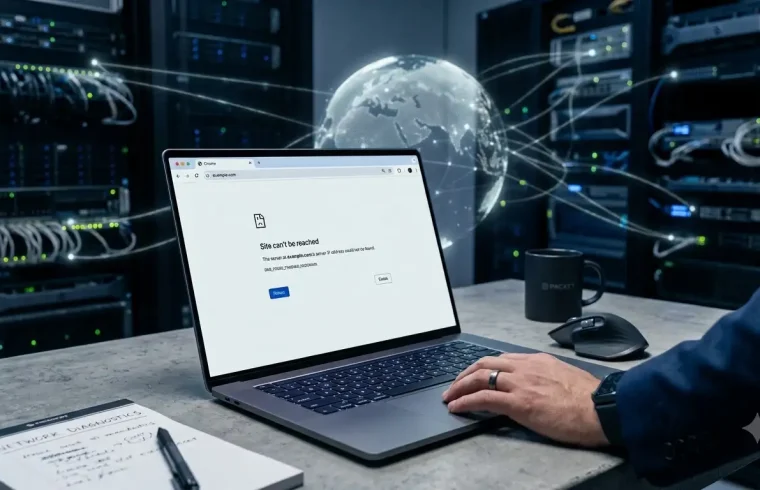
Have you ever tried to open a website in Chrome only to see the DNS_PROBE_FINISHED_NXDOMAIN error?
This error usually means that your browser could not find the domain through DNS. Your internet connection may still work normally, while a particular website refuses to load.
In this guide, you’ll learn what DNS_PROBE_FINISHED_NXDOMAIN means, why it happens, and 10 practical ways to troubleshoot the problem.
What Does DNS_PROBE_FINISHED_NXDOMAIN Mean?
DNS stands for Domain Name System. Its job is to translate human-readable domain names, such as example.com, into IP addresses that computers and servers can understand.
When you type a website address into your browser, your device needs to find the correct IP address before it can connect to the website.
The term NXDOMAIN generally means that the DNS system could not find the requested domain or DNS record.
So, when Chrome displays DNS_PROBE_FINISHED_NXDOMAIN, it means the browser’s DNS lookup could not find the destination it was trying to reach.
This does not automatically mean that your website hosting account is down.
The problem could be caused by your local DNS cache, DNS server, incorrect domain settings, nameserver problems, DNS propagation, or an issue with the domain itself.

Why Does DNS_PROBE_FINISHED_NXDOMAIN Happen?
There isn’t just one reason for this error. Several different problems can produce the same message.
Common causes include:
- The website address was typed incorrectly
- Your computer has an outdated DNS cache
- Your router has cached old DNS information
- Your DNS server is having problems
- The domain’s DNS records are incorrect
- Nameservers were recently changed
- DNS propagation is still in progress
- The domain has expired
- A VPN or proxy is interfering with DNS resolution
- The website’s DNS configuration has been removed or changed
Before making major changes, it’s useful to determine whether the problem affects only you or everyone trying to access the website.
How to Fix DNS_PROBE_FINISHED_NXDOMAIN Error
Try the following solutions one at a time. After each step, refresh the website and check whether the problem has been resolved.
1. Check the Website URL
Start with the simplest possibility: make sure the domain name is correct.
A small typing mistake can cause an NXDOMAIN response.
For example, if the correct address is:
example.com
but you enter:
examp1e.com
the DNS system may not find the domain.
Check the spelling carefully and try opening the website again.
If possible, copy the domain directly from a trusted source instead of typing it manually.
2. Restart Your Router
Your router may temporarily store DNS information.
Restarting it can force your network connection to establish a fresh DNS lookup.
To do this:
- Turn off your router.
- Wait around 30 seconds.
- Turn it back on.
- Wait until your internet connection is restored.
- Try opening the website again.
This is a simple step, but it can solve temporary network and DNS-related problems.
3. Flush the DNS Cache on Windows
Windows stores DNS information locally to make future website requests faster.
Sometimes that cached information becomes outdated.
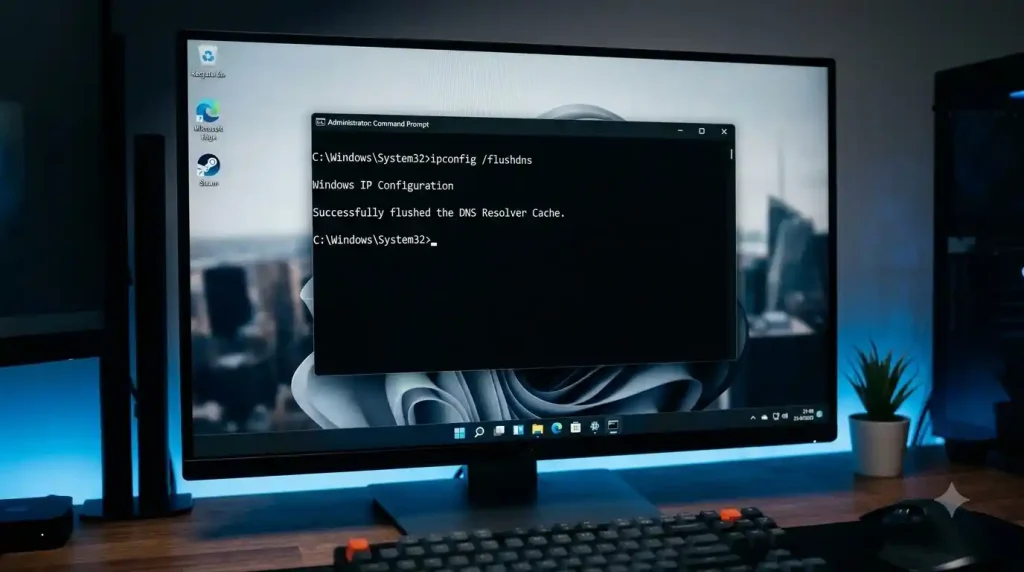
You can clear it using Command Prompt.
Open Command Prompt as Administrator and run:
ipconfig /flushdnsYou should see a message indicating that the DNS Resolver Cache was successfully flushed.
Then close and reopen your browser and try the website again.
Flushing DNS is particularly useful after changing DNS records or moving a website to a different hosting provider.
4. Restart the DNS Client
Windows also uses a DNS Client service to handle DNS resolution.
If you suspect the service is temporarily having problems, restarting it may help.
Press:
Windows + R
Then enter:
services.mscFind DNS Client in the list.
If the option is available, restart the service and then test the website again.
Depending on your Windows configuration, some service controls may be restricted. If you cannot restart the service, simply continue with the other troubleshooting steps.
5. Change Your DNS Server
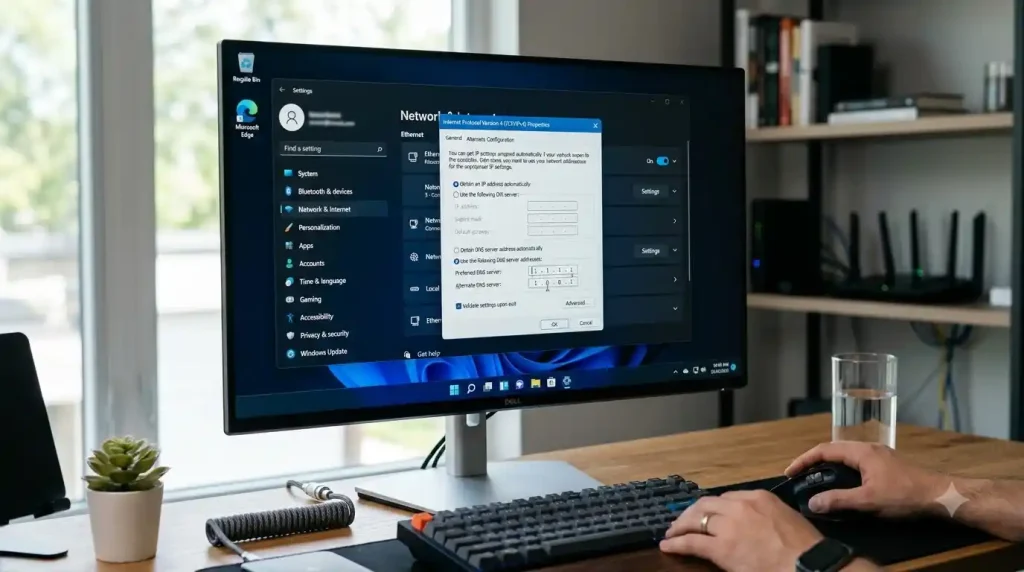
Your internet provider normally assigns DNS servers automatically. However, those DNS servers can sometimes experience temporary problems or return outdated information.
You can test the connection by switching to a different public DNS service.
For a deeper explanation of NXDOMAIN and DNS troubleshooting, see the Cloudflare DNS troubleshooting guide.
Popular options include:
- Google Public DNS
- Cloudflare DNS
- Quad9
For example, Cloudflare provides:
1.1.1.1
and
1.0.0.1
You can also review Google’s Public DNS documentation when troubleshooting DNS resolution problems.
Google Public DNS provides:
8.8.8.8
and
8.8.4.4
After changing the DNS server, reconnect to your network and test the website again.
If the website starts working, your previous DNS resolver may have been part of the problem.
6. Temporarily Disable VPN or Proxy
VPNs and proxy services can sometimes change how your device handles DNS requests.
If you are using a VPN, disconnect from it temporarily and try opening the website again.
If you are using a proxy, disable it temporarily as well.
If the website works after disconnecting the VPN or proxy, reconnect later and check its DNS or network settings.
You should not permanently disable security software simply because of an NXDOMAIN error. The goal is to temporarily isolate the source of the problem.
7. Check Your Domain DNS Settings
If you own the website that is showing the error, log in to your domain registrar or DNS management panel.
Check whether the domain has the expected DNS records.
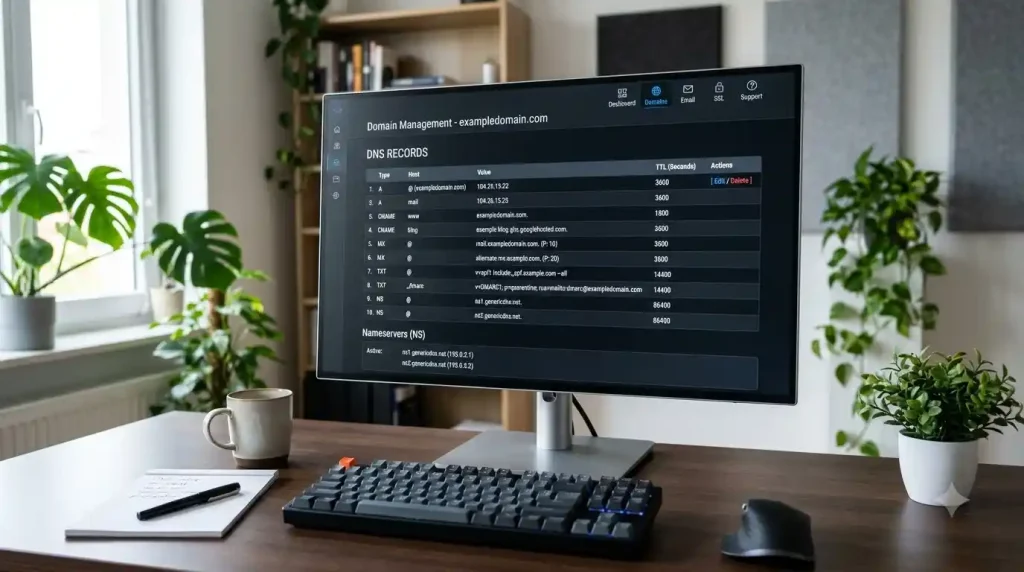
Depending on how your website is configured, you may see records such as:
- A record
- AAAA record
- CNAME record
- MX record
- TXT record
For a typical website, the important records need to point toward the correct server or hosting destination.
An accidental DNS change can make a previously working website unreachable.
If you recently moved your website to another hosting provider, verify that your DNS configuration matches the new hosting instructions.
8. Check Your Nameservers and DNS Propagation
Nameservers tell the internet where your domain’s DNS information is managed.
If you recently changed your nameservers, the new settings may take some time to become visible across different DNS resolvers.
During this period, some people may be able to access the website while others may still receive DNS errors.
You can use a reputable DNS-checking service to compare DNS results from different locations.
This is especially important after:
- Changing hosting providers
- Moving a domain
- Changing nameservers
- Updating A records
- Changing DNS providers
If you want to understand DNS in more detail, see our guide on what DNS is and how it works.
9. Clear Browser Cache and Restart the Browser
Sometimes your browser can retain old information even after the DNS situation has changed.
Close your browser completely and reopen it.
You can also clear cached browsing data from the browser settings.
After clearing the cache, enter the website address manually and try again.
Testing the website in another browser can also help.
For example, if the website fails in Chrome but works in Firefox or Edge, the problem may be related to your browser rather than the website itself.
For additional browser troubleshooting, you can also check Google Chrome Help.
10. Contact Your Domain or Hosting Provider
If you’ve tried the previous steps and the problem continues, contact your domain registrar or hosting provider.
Give them useful information instead of simply saying that the website does not work.
Tell them:
- The exact domain name
- The DNS_PROBE_FINISHED_NXDOMAIN error
- When the problem started
- Whether the domain was recently moved
- Whether nameservers were changed
- Whether the website works from another network
- Whether other people can access it
Your provider can check the domain’s DNS zone, nameservers, server configuration, and account status.
How to Know Whether the Problem Is on Your Side
One of the easiest ways to troubleshoot an NXDOMAIN error is to test the website from another connection.
For example, if you’re connected to home Wi-Fi, try using mobile data.
You can also ask someone in another location to open the same website.
Consider these situations:
The website works on mobile data but not Wi-Fi
The problem may be related to your router, ISP DNS resolver, or local network.
The website fails everywhere.
The problem may be related to the domain, DNS configuration, nameservers, hosting setup, or domain status.
The website works for some people but not others.
DNS propagation or resolver caching could be involved, particularly after a recent DNS change.
Testing from multiple networks can therefore provide useful clues before you change anything.
DNS_PROBE_FINISHED_NXDOMAIN on Windows 10 and 11
Windows users can start with a few simple commands.
Open Command Prompt as Administrator and run:
ipconfig /flushdnsYou can then renew your network configuration:
ipconfig /releasefollowed by:
ipconfig /renewFinally, you can test whether the domain resolves by using:
nslookup example.comReplace example.com with the domain you are troubleshooting.
The result can help determine whether your computer is receiving a DNS response.
If nslookup cannot find the domain, investigate the DNS configuration, nameservers, and domain status rather than repeatedly reinstalling your browser.
why your website may be down: Read more
When Should You Contact Your Hosting Provider?
You should consider contacting your provider when:
- Your domain worked previously but suddenly stopped resolving
- You recently moved your website
- Nameservers were changed
- DNS records were accidentally deleted
- Your domain has expired
- DNS changes are not appearing as expected
- The problem occurs from multiple networks
- You cannot access your DNS management panel
- You suspect the hosting configuration is incorrect
If the issue is caused by the domain or DNS configuration, your hosting provider may need to work with your domain registrar or DNS provider to resolve it.
Frequently Asked Questions
Is DNS_PROBE_FINISHED_NXDOMAIN a hosting problem?
Not necessarily.
The error indicates that DNS resolution failed. The underlying cause could be your computer, network, DNS resolver, domain configuration, nameservers, or hosting setup.
How long does an NXDOMAIN error last?
There is no single fixed duration.
If the problem is caused by a local DNS cache, it may disappear after clearing the cache or changing DNS resolvers. If DNS records or nameservers were changed, you may need to wait for the changes to propagate.
Can changing DNS fix NXDOMAIN?
It can, especially when the DNS resolver you’re currently using has outdated or incorrect information.
However, changing DNS will not fix an incorrectly configured domain or missing DNS records.
Does DNS propagation cause NXDOMAIN?
It can contribute to temporary DNS resolution problems after a domain’s DNS settings or nameservers have been changed.
However, not every NXDOMAIN error is caused by propagation.
Should I reinstall Chrome to fix this error?
Usually, no.
The error is generally related to DNS resolution rather than the browser installation itself.
Try checking the URL, flushing DNS, testing another network, and checking the domain’s DNS settings before reinstalling the browser.
Final Thoughts
The DNS_PROBE_FINISHED_NXDOMAIN error can look complicated, but the underlying problem is often related to DNS resolution.
Start with the simple solutions: check the URL, restart your router, flush the DNS cache, and test the website from another network.
If the problem affects everyone, investigate the domain’s DNS records, nameservers, propagation status, and domain registration.
The most important thing is to identify where the failure occurs before making major changes. That approach can save time and prevent you from changing settings that were already working correctly.