Why Is Your WordPress Website Slow? 15 Easy Ways to Speed It Up
A slow WordPress website can be frustrating for both you and your visitors. Pages take longer to load, images appear late, and users may leave before they even see your content.
The good news is that you don’t always need complicated coding to improve your website speed. WordPress speed optimization often starts with simple changes such as image compression, caching, better hosting, fewer unnecessary plugins, and a lightweight theme.
In this guide, you’ll learn 15 practical ways to speed up a WordPress website and improve its overall performance.
Why Is My WordPress Website Slow?
There isn’t always one single reason for a slow WordPress website.
Common causes include:
- Large or unoptimized images
- Slow or overloaded hosting
- No page caching
- Too many plugins
- A heavy WordPress theme
- Unnecessary JavaScript and CSS
- Too many external scripts
- Poor mobile optimization
- Too many font files
- An unoptimized database
Before making major changes, test your website first. This helps you find the problems that are actually affecting your pages.
How to Check Your WordPress Website Speed
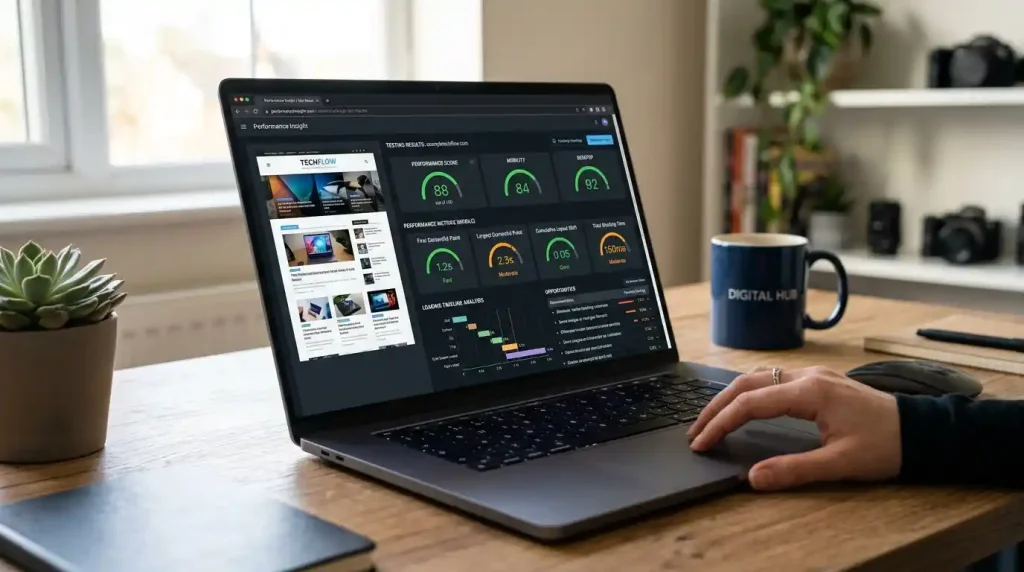
One of the easiest ways to check your website performance is Google PageSpeed Insights.
Test your homepage as well as a few important posts and pages. Don’t focus only on the final score. Read the recommendations and look for problems that could have a real effect on visitors.
For example, if large images are slowing down your page, optimizing those images may be more useful than changing several minor settings.
WordPress Speed Optimization: 15 Ways to Speed Up Your Site
1. Choose Reliable WordPress Hosting
Your hosting environment has a direct effect on website performance.
A small blog with low traffic may work well on shared hosting, while a growing website may eventually need more server resources.
When choosing hosting, consider:
- Server resources
- Storage
- Server location
- Server technology
- Caching options
- Support
- Upgrade options
If you’re unsure which hosting type is suitable for your website, read our guide on how to choose web hosting.
Good hosting won’t fix every performance problem, but poor hosting can make optimization much harder.
2. Enable Page Caching
Caching is one of the most useful parts of WordPress speed optimization.
Without caching, WordPress may need to process a request and generate a page whenever someone visits it. A page cache can store a ready-to-serve version of a page, reducing the work required from the server.
WordPress provides detailed information about caching in its official performance documentation.
Many WordPress caching plugins are available. Some hosting companies also provide server-level caching.
If your hosting already includes caching, check its settings before installing another caching system.
3. Optimize Your Images
Large images are one of the most common causes of slow-loading pages.
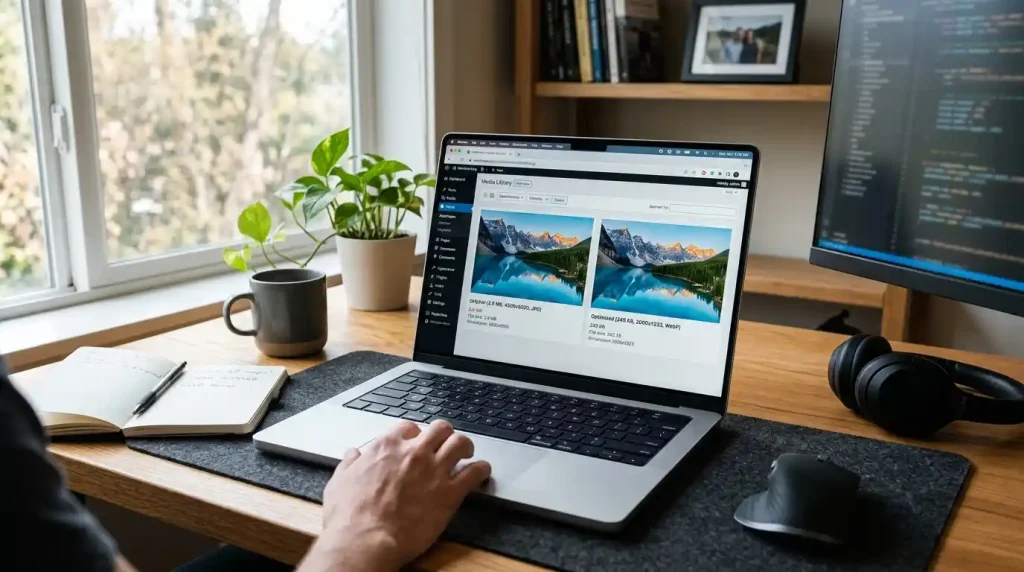
Before uploading an image to WordPress, resize it to the dimensions you actually need and compress it.
For example, there’s little benefit in uploading a huge camera photo when the image will only appear at a much smaller size on your blog.
Good image optimization means:
- Resize images before uploading
- Compress large files
- Use suitable image formats
- Avoid unnecessary images
- Keep image quality acceptable
WordPress also recommends optimizing image files as part of website performance improvements. You can read more in the WordPress performance optimization guide.
4. Use WebP for Suitable Images
WebP is a modern image format that can produce smaller files while maintaining good visual quality.
Using smaller image files means visitors may have less data to download when opening your pages.
For many blogs, WebP is a practical choice for photographs and other visual content.
However, don’t convert images blindly. Check the final quality and make sure important images still look good.
5. Remove Plugins You Don’t Need
Having many plugins doesn’t automatically mean your website will be slow.
The more important question is what those plugins actually do.
A plugin may load additional scripts, styles, database queries, or external resources. If you no longer need a plugin, deactivate it and remove it from your website.
Also avoid installing several plugins that perform the same task.
For example, using multiple plugins for the same caching or optimization function can create unnecessary complexity.
6. Choose a Lightweight WordPress Theme
Your WordPress theme can have a noticeable effect on page performance.
A theme that loads many animations, sliders, scripts, fonts, and design elements can make your pages heavier.
When choosing a theme, look for:
- Clean design
- Responsive layout
- Regular updates
- Good plugin compatibility
- Features you actually need
If you’re creating a new site, our guide on how to start a WordPress website can help you with the basic setup.
You don’t need dozens of visual effects to make a website look professional. A simple design can often be easier to maintain and faster to load.
7. Keep WordPress, Themes, and Plugins Updated
Keeping WordPress, themes, and plugins updated is important for security, compatibility, and website maintenance.
Updates can include bug fixes and improvements. You should also remove old themes and plugins that you no longer use.
Before making major updates, keep a recent backup of your website.
If you want to learn more about keeping a WordPress website maintained, see our guide on WordPress Website Maintenance.
8. Reduce Unnecessary JavaScript and CSS
JavaScript and CSS are necessary for modern websites, but loading unnecessary files can increase page weight.
Depending on your setup, you may be able to:
- Minify CSS
- Minify JavaScript
- Remove unused CSS
- Delay non-critical JavaScript
- Reduce unnecessary files
Be careful with aggressive optimization settings.
Some scripts are required for menus, forms, sliders, checkout systems, or other website functions. Always test your website after changing these settings.
9. Use Lazy Loading for Images
Lazy loading allows suitable images to load closer to the point when visitors need them.
This can reduce the amount of content that has to load immediately, especially on long pages containing many images.
WordPress includes built-in image loading features and continues to improve image performance. You can read about its image loading improvements in the WordPress developer documentation.
Lazy loading isn’t a replacement for image compression. You should still upload properly sized and optimized images.
10. Use a CDN
A Content Delivery Network, commonly called a CDN, can serve static website resources from locations distributed across different regions.
This can be useful when your visitors are located far away from your main hosting server.
A CDN can help deliver resources such as images, CSS, JavaScript, and other static files more efficiently.
However, a CDN isn’t a magic solution for every slow website. Fix major hosting, image, caching, and plugin problems first.
11. Clean Up Your WordPress Database
Your WordPress database can accumulate unnecessary information over time.
Depending on your website, this may include:
- Old post revisions
- Spam comments
- Trashed content
- Temporary data
- Unused data left by plugins
Before making database changes, create a backup.
Database cleanup should be done carefully because removing the wrong data can cause problems.
You don’t need to clean your database every day. Review it occasionally and only remove data you know isn’t needed.
12. Reduce External Scripts
Third-party scripts can add useful features, but they can also increase page requests and loading work.
Examples include:
- Analytics tools
- Advertising scripts
- Social media widgets
- Chat tools
- Tracking systems
- Embedded content
Review the external services running on your website.
If you no longer use a service, remove its script.
The WordPress HTTP API performance documentation also explains how external requests can affect application performance.
13. Limit Fonts and Font Weights
Fonts can add extra files that the browser needs to download.
If your website loads several font families and many font weights, the total amount of data can increase.
For a typical blog, you usually don’t need many different fonts.
Consider using one primary font family with only the weights you actually need.
Also check whether your theme or plugins are loading fonts that you don’t use.
14. Optimize Your Website for Mobile
Your website may feel fast on a desktop computer but slow on a mobile phone.
Mobile devices can have slower connections and less processing power, so page size matters.
Check your website on a real mobile device and look at:
- Image loading
- Font size
- Navigation
- Buttons
- Forms
- Layout shifts
- Large background images
- Unnecessary animations
A responsive website should be easy to use without zooming or horizontal scrolling.
15. Test Core Web Vitals
Core Web Vitals are performance measurements that focus on loading, responsiveness, and visual stability.
You can use Google’s Core Web Vitals documentation to understand what these measurements mean and how they relate to page experience.
Don’t try to fix every warning at once.
Start with the biggest problems and test again after making changes.
A useful approach is to test important pages, make one improvement, and then compare the results.
How Fast Should a WordPress Website Be?
There isn’t one loading time that is perfect for every website.
Performance depends on your hosting, page size, images, theme, plugins, visitors’ devices, and network conditions.
Instead of chasing a perfect score, focus on improving the experience of real visitors.
A practical approach is:
- Test important pages
- Find the biggest problems
- Fix one problem at a time
- Test again
- Compare the results
This makes WordPress speed optimization easier to manage.
Common WordPress Speed Optimization Mistakes
Installing Too Many Optimization Plugins
Installing more optimization plugins doesn’t automatically make a website faster.
Plugins with overlapping features can sometimes cause conflicts.
Choose the tools you actually need and understand what each one is doing.
Enabling Every Optimization Setting
Caching and optimization plugins often have advanced settings.
Don’t enable everything without testing.
JavaScript delay, CSS removal, minification, and other aggressive settings can sometimes break website features.
Ignoring Your Hosting
Frontend optimization can’t always solve a server-side problem.
If your website is consistently slow even after basic optimization, check whether your hosting account has enough resources.
If you’re comparing hosting options, our guide to VPS vs Shared Hosting explains the main differences between the two.
Optimizing Only the Homepage
Your homepage may be fast while your blog posts remain slow.
Test several important pages instead of relying on one URL.
Chasing a Perfect PageSpeed Score
A performance score is useful, but it shouldn’t be your only goal.
Your website also needs to be readable, functional, stable, and easy to use.
Frequently Asked Questions
Why is my WordPress website slow?
Large images, slow hosting, missing caching, heavy themes, plugins, external scripts, and unoptimized CSS or JavaScript can all contribute to slow performance.
The best approach is to test your website and identify the biggest problem first.
How can I speed up WordPress without coding?
Start with basic WordPress speed optimization steps such as image compression, caching, plugin cleanup, lightweight themes, and suitable hosting.
Many improvements can be made without writing code.
Does caching make WordPress faster?
Caching can reduce the amount of work required to generate pages repeatedly.
The exact improvement depends on your website, hosting environment, caching method, and type of content.
Can too many plugins slow down WordPress?
They can, depending on what the plugins do.
The number of plugins isn’t the only factor. Plugin quality, database activity, external requests, and the amount of code loaded on each page also matter.
Is WebP good for WordPress?
WebP can reduce image file sizes while maintaining good quality, making it useful for many WordPress websites.
Always check the final image quality before publishing.
Should I change my hosting if WordPress is slow?
Not immediately.
First, test your website and identify the actual bottleneck.
If your hosting consistently has resource limitations or poor server performance, then upgrading your plan or evaluating another hosting option may be worth considering.
Final Thoughts
WordPress speed optimization doesn’t require changing everything on your website at once.
Start with the basics: use suitable hosting, optimize images, enable caching, remove unnecessary plugins, choose a lightweight theme, and test your important pages.
After that, you can work on more advanced areas such as JavaScript, CSS, CDN configuration, database cleanup, and Core Web Vitals.
Make one change at a time and test the result. That way, you’ll know which improvements are actually helping your WordPress website.