
If you are new to WordPress, learning how to start a WordPress website can make the setup process much easier. Publishing a WordPress website can feel like the finish line, but it is really the starting point.
Once your site is live, things begin to change. WordPress releases updates, plugins receive new versions, images and articles are added, links become outdated, and your website gradually collects files and settings that you may no longer need.
Most of these changes happen quietly. Your website may look perfectly normal while small maintenance problems are building in the background.
That is why a simple WordPress website maintenance routine is worth having.
You do not need to be a developer or spend every day working on your website. A regular check can help you find problems early, protect your content, and keep the site pleasant for visitors.
This checklist walks through the most useful maintenance tasks and explains why each one matters.
Why Does a WordPress Website Need Regular Maintenance?
WordPress is relatively easy to manage, but it is not a “set it and forget it” platform.
Your website depends on several components working together, including WordPress itself, your theme, plugins, hosting environment, database, media files, and third-party services.
A change in one area can sometimes affect another.
For example, a plugin update may change how a form works. A new image may make an important page considerably heavier. An old link may lead visitors to a page that no longer exists.
Regular maintenance gives you a chance to catch these issues before they become serious.
It can help you:
- Protect important website data
- Keep software reasonably up to date
- Find broken functionality
- Improve the visitor experience
- Reduce unnecessary website clutter
- Monitor technical and SEO problems
- Keep your website easier to manage
1. Make Sure You Have a Recent Backup

If something goes wrong, a backup can be the difference between a quick recovery and a major headache.
A useful WordPress backup normally includes your website files and database. Depending on your setup, backups may be created by your hosting provider, a backup service, or a WordPress plugin.
Your website depends on several components working together, including WordPress itself, your theme, plugins, hosting environment…
Do not simply assume that a backup exists because your hosting company says backups are available.
Check when the most recent backup was created and, if possible, make sure you know how restoration works.
For an important website, keeping a separate copy outside your hosting account is also worth considering.
2. Update WordPress Core
WordPress receives regular updates for security, bug fixes, improvements, and new functionality.
Open your dashboard periodically and check whether a new version is available.
Before a major update, make sure you have a recent backup. After updating, visit the website and test a few important functions.
You do not need to refresh the dashboard every hour. The important thing is not allowing critical updates to remain ignored for long periods.
3. Keep Plugins Updated
Plugins are one of the most useful parts of WordPress, but they also require attention.
An outdated plugin may eventually become incompatible with a newer version of WordPress or another plugin.
Before updating several important plugins at once, make sure you have a backup.
After updating, test the parts of your website that depend on those plugins.
For example, if you update a contact-form plugin, send a test message. If you update an ecommerce plugin, check the product and checkout pages.
4. Keep Your Theme Updated
Your theme deserves the same attention as your plugins.
Check for available updates and read the developer’s notes when they are provided.
If your theme has been heavily customised, be particularly careful. Custom code added directly to theme files can potentially be overwritten during an update.
A child theme or another appropriate customisation method can make long-term maintenance easier.
5. Remove Plugins You No Longer Use
It is easy to install a plugin for a one-time task and then forget about it.
Take a look through your plugin list and remove anything you genuinely no longer need.
For example, you may have tested three different SEO plugins before settling on one. There is little reason to keep all three installed.
Fewer unnecessary components generally mean fewer things to maintain.
Before deleting a plugin, make sure it is not required by your theme or another part of your website.
6. Clean Up Unused Themes
The same principle applies to themes.
You may have installed several themes while experimenting with different designs. If you have settled on one, you probably do not need a long list of unused themes.
Keep only themes you have a reason to retain.
Never delete the theme currently being used by your website.
7. Test Your Website on a Phone
Desktop testing alone is not enough.
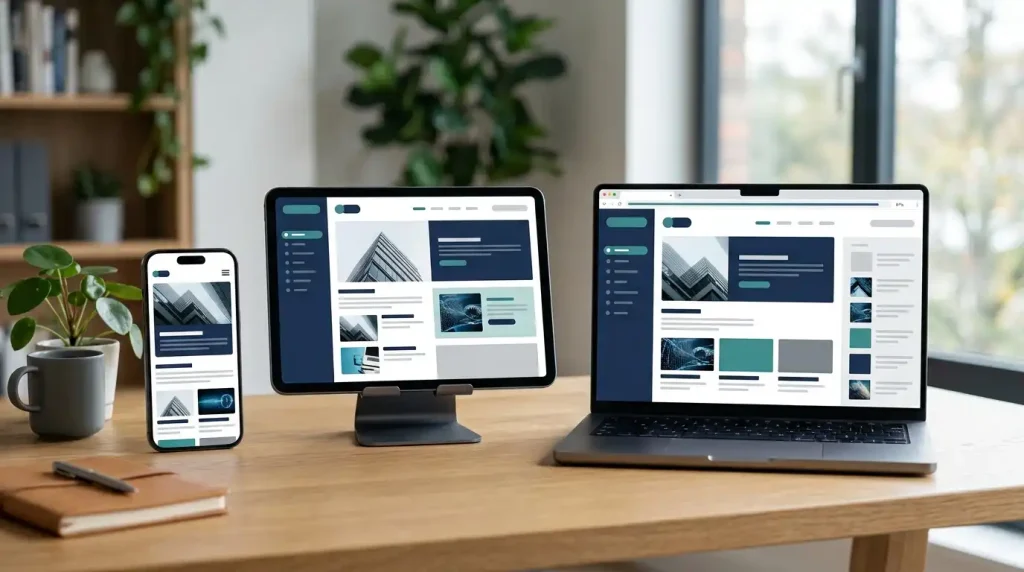
Take your phone and browse through your website as a normal visitor would.
Open the menu. Read an article. Tap a button. Try a form. Scroll through pages containing images or tables.
Look for things such as:
- Text that is difficult to read
- Buttons that are too small
- Menus that do not open correctly
- Images extending beyond the screen
- Uncomfortable spacing
- Overlapping elements
A five-minute mobile check can reveal problems that are easy to miss on a desktop computer.
8. Send a Test Through Your Contact Form
If your website has a contact form, test it occasionally.
A form can appear normal while messages are no longer reaching the intended inbox.
Send yourself a test submission and verify that the message arrives.
Also check the confirmation message shown to the visitor.
If your website depends on enquiries or leads, this should be one of your higher-priority checks.
9. Look for Broken Links
Websites change constantly, and external pages disappear.
An article you linked to last year may now return an error. An internal page may have been renamed or moved.
Review important links regularly.
Pay special attention to:
- Navigation menus
- Important articles
- Affiliate links
- Resource pages
- Contact pages
- Calls to action
When you find a broken link, replace it with a useful alternative or remove it.
10. Review Your Most Important Content
Not every article needs to be rewritten every month.
Instead, identify the pages that matter most to your website and check whether the information is still accurate.
Look for:
- Outdated prices
- Expired promotions
- Old screenshots
- Discontinued products
- Incorrect links
- Outdated statistics
- Old recommendations
For example, an article about a hosting provider can become inaccurate if its plans or features change.
Updating useful content is often more valuable than publishing another article that adds little new information.
11. Check Website Performance
Your website can become slower without you noticing immediately.
New images, plugins, scripts, embeds, and advertising elements can gradually increase the amount of work a page needs to do.
Test several important pages from time to time.
If a page becomes noticeably slower, investigate what changed rather than immediately blaming your hosting provider.
Check recent plugins, large media files, third-party scripts, caching settings, and page content.
12. Optimise Your Images
Large images are a common source of unnecessary page weight.
Before uploading an image, consider whether its dimensions are appropriate for where it will actually appear.
You can also compress images and use modern image formats when they are suitable for your website.
Do not upload a 5000-pixel-wide image if visitors only see it at a much smaller size.
For accessibility and organisation, use descriptive filenames and appropriate alternative text where needed.
13. Review Your Security Settings
Website security should not be something you think about only after an attack.
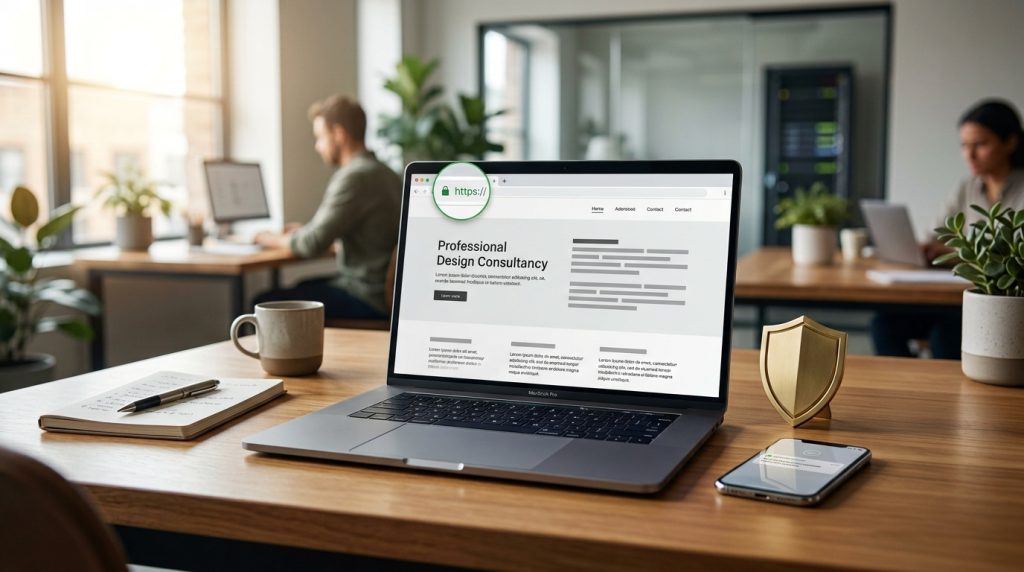
At a basic level, make sure your WordPress installation, theme, and plugins are maintained.
Also review:
- Administrator accounts
- Password strength
- Two-factor authentication options
- Suspicious login activity
- Security notifications
- Backup availability
You do not necessarily need a dozen security plugins.
A smaller setup that you understand and maintain properly can be more useful than a complicated collection of overlapping tools.
14. Check WordPress User Accounts
If you have ever given someone access to your website, review your user list.
Ask whether each account is still necessary.
If someone no longer works on the website, remove their access.
Also check user roles. Not everyone needs administrator privileges.
Giving each person only the permissions they actually need is a sensible security practice.
15. Review Your Media Library
Over time, your WordPress media library can become surprisingly messy.
You may find:
- Duplicate images
- Old documents
- Multiple versions of the same graphic
- Images that were uploaded but never used
Cleaning the library can make future content management easier.
However, do not delete files simply because they look unused. An image may be referenced somewhere you have not checked.
Confirm that a file is no longer needed before removing it.
16. Check Your SEO Basics
A monthly maintenance routine is a good opportunity to review your important pages from an SEO perspective.
You can check whether:
- The page has a useful title
- The main heading accurately describes the content
- Important pages are internally linked
- Broken links have been fixed
- Images have appropriate alt text
- Search engines can access important pages
- Outdated information has been refreshed
Avoid changing content simply to satisfy an SEO plugin’s score.
A page should first be useful to the person who reads it.
17. Review Google Search Console
If you use Google Search Console, check it periodically for important problems.
Pay attention to issues involving:
- Indexing
- Security
- Search performance
- Page experience
- Manual actions
Not every excluded URL represents a problem. Search engines may intentionally exclude duplicate, redirected, or otherwise unsuitable URLs.
Instead of trying to make every Search Console number look perfect, focus on problems affecting pages you actually want people to find.
18. Review Your Analytics
Analytics can tell you how visitors are finding and using your website.
Once a month, look at the bigger picture rather than obsessing over individual daily fluctuations.
Useful things to review include:
- Organic search traffic
- Top pages
- Traffic sources
- Visitor trends
- Pages receiving less traffic than before
If an important page suddenly loses a significant amount of traffic, investigate why.
There may be a technical issue, a change in search demand, stronger competition, or simply a need to refresh the content.
19. Check Your Legal and Contact Information
Your website information should remain accurate.
Review pages such as:
- About Us
- Contact
- Privacy Policy
- Terms and Conditions
- Affiliate Disclosure
Make sure email addresses and other contact details still work.
If you participate in affiliate marketing, keep your disclosure information clear and up to date.
This is a small maintenance task, but it helps your website look more trustworthy and professional.
20. Review Your Content Plan
The final task is less technical but just as useful.
Look at your website as a whole.
Which topics are attracting visitors? Which useful questions have you not answered yet? Are older articles still accurate? Do your important pages connect naturally through internal links?
You can use this review to create your next content plan.
Instead of publishing articles randomly, build new content around genuine gaps that your existing audience may have.
A Practical Monthly Maintenance Schedule
Trying to complete all 20 tasks at once can make maintenance feel like a chore.
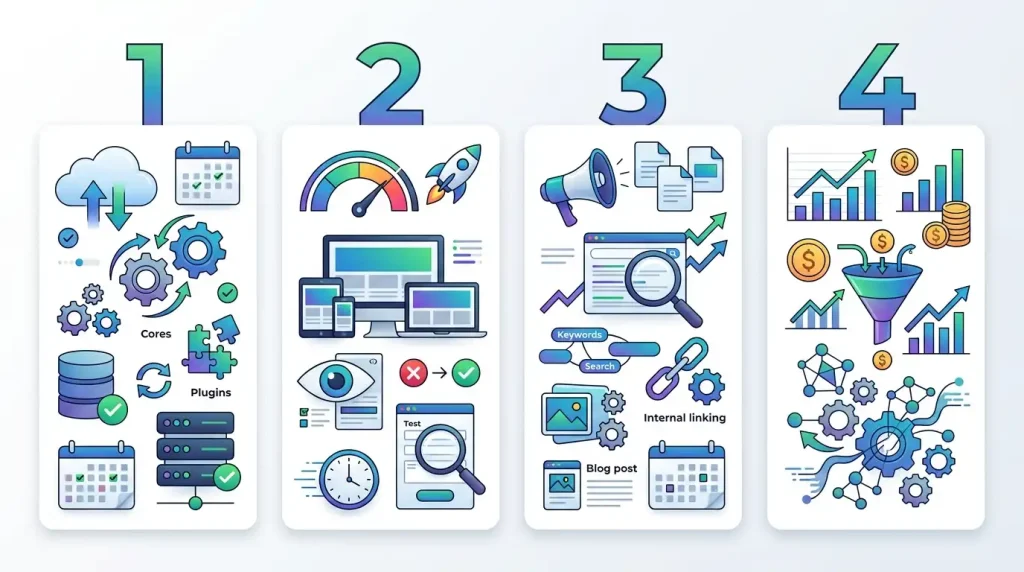
A simple schedule is easier to follow.
Week 1: Backups and Updates
- Check your backup
- Update WordPress
- Update plugins
- Update your theme
- Review user accounts
Week 2: Website Experience
- Test the site on mobile
- Test contact forms
- Check important navigation
- Review website performance
Week 3: Content and SEO
- Check important articles
- Fix broken links
- Review internal links
- Check Search Console
- Update outdated information
Week 4: Business and Planning
- Review analytics
- Check legal pages
- Review important affiliate links
- Clean up unnecessary website components
- Plan upcoming content
This gives you a repeatable system without turning maintenance into a full-time job.
What Should You Do Before Making Major Changes?
Before changing your theme, installing a major plugin, or making another significant modification, create a fresh backup.
If your hosting provider offers a staging environment, consider testing the change there first.
After making the change, do not stop at checking the homepage.
Test the areas visitors actually use:
- Navigation
- Forms
- Important articles
- Login
- Mobile layout
- Ecommerce features, if applicable
If something breaks, you will have a much better chance of identifying what caused it.
How Often Should You Maintain a WordPress Website?
The ideal schedule depends on the type of website.
A small blog that changes occasionally may need less hands-on attention than an online store that processes orders every day.
As a general starting point, perform a broader maintenance review once a month and handle important updates or security issues when they arise.
The key is consistency.
A short monthly review is much easier than discovering a major problem after ignoring the website for a year.
Frequently Asked Questions
Is WordPress Website Maintenance Really Necessary?
Yes. Regular maintenance helps you keep the website updated, secure, functional, and easier to manage. It also gives you an opportunity to discover problems before visitors report them.
How Often Should I Back Up My Website?
It depends on how frequently your website changes. A site that publishes several times a week may benefit from more frequent backups, while a rarely updated site may need less frequent backups.
Can Too Many Plugins Make WordPress Slow?
They can, but simply counting plugins does not tell you how fast a website will be. Plugin quality, functionality, scripts, hosting, caching, and configuration can all affect performance.
Should I Update Every Plugin?
You should generally keep actively maintained plugins updated, but take appropriate precautions for important websites. Maintain a recent backup and test critical functionality after significant updates.
Do I Need a Maintenance Plugin?
No. You can perform many maintenance tasks directly through WordPress, your hosting account, and services such as Google Search Console. A maintenance plugin can automate selected tasks, but it is not mandatory.
What Is the Most Important Maintenance Task?
Reliable backups, software updates, security checks, and regular testing are all important. There is no single task that protects a website from every possible problem.
Can I Maintain WordPress Without Technical Knowledge?
Yes. Many routine tasks are straightforward. You can update software, test forms, review content, check links, and monitor your website without being a developer. For complicated server or security problems, professional assistance may be appropriate.
Final Thoughts
Good website maintenance is mostly about staying organised.
You do not need to constantly redesign your WordPress website or install another plugin every time you find a problem. Instead, build a simple routine around backups, updates, security, performance, content quality, and user experience.
Start with the tasks that protect your website most directly. Then gradually add SEO, analytics, content reviews, and other checks.
The goal of WordPress website maintenance is not to make your website perfect every day. It is to keep small problems from turning into expensive or frustrating ones.
A little regular attention can make your website easier to manage today and much easier to maintain as it grows.