Find My iPhone is a critical feature for any person who uses an iPhone.
It can be a frustrating experience to lose a phone because your iPhone may contain personal photos, contact information, messages, payment apps, emails, documents and sensitive information. A missing mobile phone is more than just a device issue. It might easily turn into a privacy and security concern.
The good news is that Apple has a built-in tool called Find My that helps users discover their iPhone, secure their information and take important steps if the device is lost or stolen. Whether your iPhone is under a sofa, at work, in the wrong taxi or possibly stolen, using Find My iPhone can help you react quickly.
This guide explains how Find My iPhone works, what you should do when your iPhone is missing, how to use Lost Mode, when to erase your device and what mistakes to avoid.
Quick Guide: What Find My iPhone Can Do
| Action | What It Does | Best Time to Use |
|---|---|---|
| Locate Device | Shows the location of your device on a map | When you believe the iPhone is lost or somewhere nearby |
| Play Sound | Makes the iPhone play a sound | When the phone is near but hidden |
| Mark as Lost | Locks your iPhone and secures your data | If your phone is lost or stolen |
| Display Message | Displays a message on the lock screen | When you need someone to contact you |
| Track Location | Helps monitor location updates | When the device is moving |
| Erase iPhone | Removes your personal data remotely | When you think the phone is unrecoverable |
| Activation Lock | Helps prevent others from using the device | When Find My is enabled |
| Family Sharing Location | Helps locate family devices | When family location sharing is enabled |
What Is Find My iPhone?
‘Find My iPhone‘ is the common phrase people usually search for when their iPhone is missing. Apple includes this feature inside the Find My app. The Find My app provides ways to find Apple devices, supported accessories and shared items.
Find My iPhone is mainly designed to help you know where your iPhone is, make it play a sound, lock the phone, show a message or erase all data if needed. This means that if a phone is lost, the user has more control.
Find My should be used only for devices you own or devices that have been set up through family settings. It is not a tool for tracking someone else without permission.
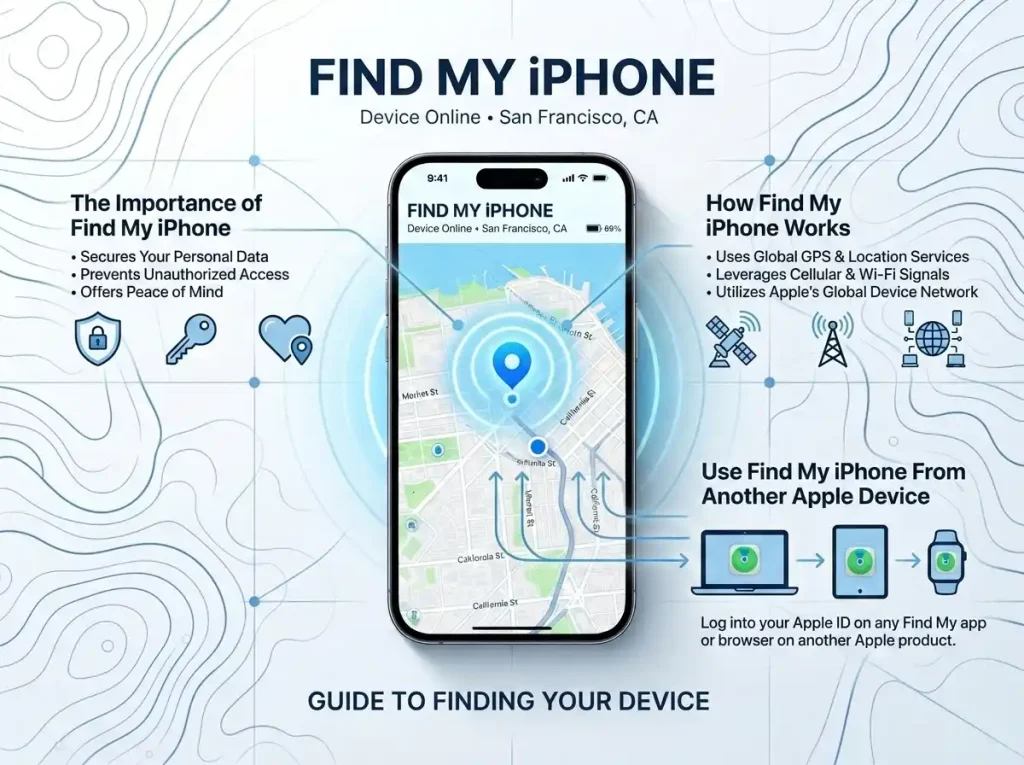
The Importance of Find My iPhone
A missing iPhone can cause a lot of problems. If someone gets access to your phone, they may access your messages, photos, social media accounts or payment apps. You might feel anxious about your private data, even if the phone is locked.
Find My iPhone helps because it gives you options. You can attempt to find a device, play a sound, lock the phone or erase it. Following these steps can protect your personal data and improve the chance that your device is returned to you.
Find My is among the most useful iPhone security features for many users because it works both before and after the phone goes missing.
How Find My iPhone Works
The way Find My iPhone works is simple. Your iPhone connects with your Apple account through the Find My service. With the feature enabled, the iPhone can show up in the Find My app or within iCloud Find Devices.
You can track your phone location according to device status, connection and network settings. You can play a sound if the phone is nearby. If it is not close, you can mark it as lost and include a message.
If the phone is offline, Find My may display the last known location or continue to update it when the device connects again.
Basic Requirements to Use Find My iPhone
| Requirement | Why It Matters |
|---|---|
| Apple Account | Connects the device to your account |
| Find My Enabled | Allows location and Lost Mode features |
| Internet Connection | Helps update location and receive commands |
| Location Services | Helps show device location |
| Battery Power | The device needs enough charge to communicate |
| iCloud Access | Helps you use Find Devices from a browser |
| Device Ownership | Protects privacy and prevents misuse |
Use Find My iPhone From Another Apple Device
If you have another Apple device, it is possible to find your iPhone using the Find My app. This could be an iPad, Mac or another iPhone that you are logged into or have Family Sharing access to.
Open the Find My app, then tap on Devices. Choose the missing iPhone from the list. The map may show the device position if it is available. You will then see options to play sound, get directions, mark as lost or erase this device.
This is particularly helpful when you own several Apple devices or if family members with an Apple device are helping you locate the lost phone.
Using Find My iPhone From iCloud
If you do not have another Apple device around, open iCloud Find Devices in a web browser. This is useful if your iPhone is lost and you need access from a computer, Android phone or public device.
Sign in with your Apple account and choose the missing iPhone from the device list. You can see where it is, play a sound, mark it as lost or erase it if needed.
If you are using a shared or public computer, remember to sign out when you are done. This helps keep your Apple account secure.
What to Do First When Your iPhone Is Missing
The number one rule is to stay calm and think about where you used your phone last. In fact, many lost phones are simply misplaced at home, in the office, at school, in the car or at a nearby shop.
First, call your number from another phone. If the phone is near, you may hear it ring. If that fails, use Find My iPhone to track the location and play a sound.
If the location is in an area you are familiar with, attempt to recover it safely. Do not start a confrontation at a location that seems strange or unsafe. If needed, use Lost Mode and reach out to local authorities.
Step-by-Step Lost iPhone Action Plan
| Step | Action | Purpose |
|---|---|---|
| 1 | Call your iPhone | Check if it is nearby |
| 2 | Use Find My | View the location or last-known location |
| 3 | Play Sound | Search nearby for the phone |
| 4 | Mark as Lost | Secure data through device locking |
| 5 | Add Contact Message | Help an honest finder get in touch with you |
| 6 | Change Important Passwords | Protect accounts if needed |
| 7 | Contact Carrier | Suspend SIM or prevent misuse |
| 8 | Report to Police | Important if stolen |
| 9 | Erase Device | Use when recovery seems impossible |
Play Sound Feature
Play Sound is useful if your iPhone is close but out of sight. This could mean it is under a pillow, in a bag, beneath a car seat or in another room.
If you select Play Sound, your iPhone will beep so that you can find it. It is one of the easiest methods to trace a hidden phone at home or in office locations.
Play Sound is most effective for short-distance searches. If the device is out of reach or potentially stolen, proceed to use Mark as Lost.
Mark as Lost
‘Mark as Lost’ is one of the best Find My iPhone features. Putting your device in Lost Mode can lock the phone, which helps keep you and the information on your phone safe.
You can also show a message on the lock screen. For example, you can display that the phone is lost with a contact number. An honest person can return the device with help from this message.
Lost Mode can be useful when you are unable to recover the iPhone quickly. It gives you time to secure your data while still giving you an opportunity for recovery.
Message to Show on Find My iPhone
Use short and clear descriptions with Lost Mode. Avoid adding too much personal information. A short message is generally all you need.
| Good Lost Mode Message | Why It Works |
|---|---|
| This iPhone is lost. Please call this number. | Simple and direct |
| Lost iPhone. Reward if returned. Please contact me. | Encourages return |
| Please return this iPhone. The owner can be reached here. | Polite and clear |
| This device is locked and tracked. Please contact the owner. | Helps discourage misuse |
Never put your home address, full personal details or sensitive personal information. Normally, a phone number or email is enough.
Erase iPhone Remotely
Erasing an iPhone is an important option. This remotely wipes personal data on the device. This is helpful when you think your device is lost or stolen permanently and you want to secure your personal data.
However, you should not erase the device too quickly if there is still a good possibility of getting it back. After a device is erased, some tracking options may become limited depending on the status and settings of the device.
Use remote erase when protecting your data is more important than recovering the mobile device.
Activation Lock
If your iPhone is lost or stolen, Activation Lock makes it more difficult for someone else to use it without your permission. Activation Lock helps continue the association of your Apple account with your device as long as Find My is turned on.
That means if someone wipes the device, they may still need the proper Apple account information to use the iPhone again. This feature is designed to help prevent unauthorised use and discourage theft.
This is why you should have Find My turned on before any of this occurs. Once a phone is lost, it is much more difficult to protect it if Find My was not turned on.
What to Do When Find My iPhone Is Offline
Find My may sometimes show your iPhone as offline. This can happen if the battery is dead, the phone is switched off, there is no internet connection or the device cannot communicate with Apple services.
If the phone is offline, the last known location might still be visible. You can also choose to mark the device as lost, and that action may apply when the device comes back online.
If the phone shows offline, there is no need to panic. Keep checking for updates and use security measures such as changing critical passwords if necessary.
What If Your iPhone Was Stolen?
Never attempt to take the matter into your own hands if you believe your iPhone has been stolen. Your safety is more important than the device.
Use Find My iPhone to put the device in Lost Mode. After that, call your mobile phone service provider and report the stolen phone. Ask about SIM protection options. You can also report the issue to local authorities.
Protect your Apple account and never share your Apple account password with anyone. Thieves could attempt to trick users into disabling activation lock. You must be confident that it is safe before removing the device from your account.
Find My iPhone Safety Tips
| Safety Tip | Why It Matters |
|---|---|
| Enable Find My before losing the phone | It helps find and secure the device |
| Use a strong passcode | Prevents easy access |
| Enable two-factor authentication | Protects your Apple account. |
| Do not share your Apple Account password | Prevents account takeover |
| Do not share verification codes | Avoids scams |
| Use Lost Mode quickly | Helps protect data |
| Do not confront thieves | Protects your personal safety |
| Contact your carrier | Helps block SIM misuse |
| Keep proof of purchase | Useful for reports and support |
Common Mistakes to Avoid
One common mistake is using Find My iPhone too late. Acting quickly boosts your chances of recovering the device and safeguarding your data.
Another mistake is deleting the iPhone too early. If you are near the phone or if any hope of recovery remains, Lost Mode may make more sense as a first step.
There are also people who neglect career support. If the SIM card was in your lost phone, contact your carrier so no one can misuse it.
A very serious mistake is sharing Apple account details with strangers. Do not share your password or verification code if someone messages you saying they found your phone and need a verification code or passcode.
Steps to Take Before Your iPhone Gets Lost
Find My iPhone is something to set up before the phone gets lost. Open your iPhone settings and make sure Find My is enabled. Use the strongest passcode you can and keep your Apple account information up-to-date.
You should also know your Apple account email and password. This will make it easier to recover your device if you lose it during an emergency.
It is also useful to keep your phone updated because security and Find My features may improve over time.
Find My iPhone for Family Members
If you are a Family Sharing user, you can locate a device belonging to one of your family members. This is handy for parents, partners or family members who have access to each other’s location.
However, privacy matters. You should not find a family member’s device without their consent, except when it is part of a trusted family setup.
Find My is designed to be a device protection tool, not a people-tracking tool.
Find My iPhone or Tracking Apps
Some users ask if they require third-party tracking apps. For the majority of iPhone owners, Apple’s Find My is already more than capable of finding a device and protecting it from being used when lost.
Third-party apps can provide additional functionality, but they need permissions and may create privacy concerns. Find My is part of Apple’s ecosystem and is generally one of the safest options for iPhone users.
Best Practices After Recovering Your iPhone
If you manage to get your iPhone back, examine it closely. Verify that the device is not damaged. Check your apps, accounts and settings. If you used Lost Mode, disable it after safely regaining possession of the phone.
If it was lost for a longer time, you should check your important passwords, including email, banking, social networks and Apple accounts.
Also check if any unrecognised changes were made to your device or accounts.
Final Thoughts
Find My iPhone is a must-have feature for every iPhone user. It helps you find a device, play a sound, mark it as lost, block access to information or wipe your device if recovery is not possible.
The best strategy is preparation. Before your phone is lost or stolen, enable Find My, use a strong passcode, keep your Apple account secure and prepare for the actions to take when you lose the iPhone.
Move quickly but cautiously if you ever lose your device. Use Find My, mark the phone as lost, call your carrier if needed and never share your Apple account password or verification codes. With the right steps, Find My iPhone protects your device and your information from falling into the wrong hands.
FAQs About Find My iPhone
What is Find My iPhone?
‘Find My iPhone’ is commonly used to describe Apple’s Find My feature, which helps you find your lost or stolen iPhone, lock it, secure it or erase all data.
Can I use Find My iPhone from another phone?
Yes, you can use another Apple device with Find My or the iCloud Find Devices web tool.
What can I do first if I lose my iPhone?
Call your phone first and check nearby places. Then use Find My to locate it, play a sound or mark it as lost.
What does Mark as Lost do?
Mark as Lost locks your iPhone and helps secure your personal information. You can also display a message on the lock screen.
Can I remote wipe my iPhone?
Yes, if you suspect your device is gone for good, you can erase your iPhone remotely. This helps protect your personal data.
What if my iPhone is offline?
You may still see the last known location of your iPhone even if it is offline. When the device comes online, Lost Mode or erase commands may be executed.
What should I do if Find My shows my iPhone location?
If you suspect theft or feel the location is unsafe, do not confront anyone. Contact local authorities instead.
Can Find My iPhone work without a battery?
If the battery is dead, you may not be able to track it live. You might still be able to see the last known location based on settings and device status.
I have marked my iPhone as Lost. Can someone else still use it?
Mark as Lost secures the device and protects your information. Activation Lock also helps prevent others from using the device without your Apple account.
Is Find My iPhone free?
Yes, Find My is an Apple built-in feature supported by specific Apple devices.