Buying Guide: How to Choose a Laptop?
There are a multitude of models in terms of how the laptop could be confused by a processor, screen, storage capacity, and price with each option. Laptops are made for basic daily tasks, and others have a more specialized function—gaming, work, programming, and creative projects.
You do not need to buy the most expensive laptop. The more practical method is to identify activities for which you would need the laptop and then choose hardware that suits those needs.
The skill of selecting a laptop saves you from unnecessary expense. It can also protect you from purchasing a less capable device that quickly becomes sluggish or unserviceable after a few months.
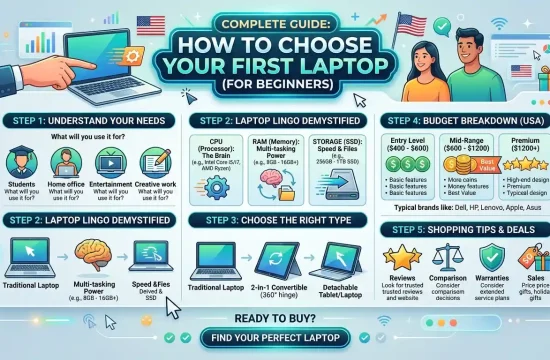
This guide breaks down how to understand laptop specs, covering the key points in plain English. It also offers suggested build specifications for students, office workers, programmers, designers, gamers, and casual buyers.
Note: Laptop Specs And Configurations Are Different Depending On Vendors And Regions. Make sure to verify the exact processor, RAM, storage, display, ports, battery, and warranty before ordering.
Laptop Buying Guide: A Quick Checklist
These are simple questions that you should answer before comparing some individual models:
- What will you primarily use the laptop for?
- Which applications must it run?
- How much can you spend?
- Will you carry it every day?
- In the answer to that question, how long battery life do you need?
- Which one you like more, Windows or Mac or ChromeOS
- Do you need a touchscreen?
- Are you going to be playing games or using high-performance creative software?
- Does RAM or storage want an upgrade?
- What ports do you need for your accessories?
Now that you have these answers, it becomes significantly easier to eliminate those options that aren’t right.
Laptop Specifications Based on the Type of User
| User Type | Processor | RAM | Storage | Graphics |
|---|---|---|---|---|
| Basic home user | Intel Core i3 or AMD Ryzen 3 | 8GB | 256GB SSD | Integrated graphics |
| Student | Intel Core i5 or AMD Ryzen 5 | 16GB | 512GB SSD | Integrated graphics |
| Office professional | Intel Core i5 or AMD Ryzen 5 | 16GB | 512GB SSD | Integrated graphics |
| Programmer | Intel Core i5/i7 or Ryzen 5/7 | 16GB or 32GB | 512GB or 1TB SSD | Integrated or dedicated |
| Graphic designer | Intel Core i7 or Ryzen 7 | 16GB or 32GB | 1TB SSD | Dedicated graphics preferred |
| Video editor | Intel Core i7 or Ryzen 7 | 32GB | 1TB SSD | Dedicated graphics |
| Gamer | Intel Core i5/i7 or Ryzen 5/7 | 16GB or 32GB | 1TB SSD | Dedicated NVIDIA or AMD GPU |
| Business traveller | Energy-efficient processor | 16GB | 512GB SSD | Integrated graphics |
These specifications are general recommendations. The software you actually use might have its own workaround list.
Settle on What You Will Use the Laptop For
Knowing Your Purpose As The First Step of How To Choose A Laptop
A laptop that is used for email and web browsing does not require the same hardware as one used for video editing or gaming.
Basic Everyday Use
An entry-level or mid-range laptop should be good enough for web browsing, email, video streaming, document editing, and online shopping.
Look for:
- Current-gen Intel Core i3 or AMD Ryzen 3 processor
- At least 8GB of RAM
- A 256GB or 512GB SSD
- A Full HD display
- Integrated graphics
School and University Work
Students can require a laptop to attend online classes, complete assignments, work on research projects, make presentations, and take study video calls.
A practical student configuration includes:
- Intel Core i5 or AMD Ryzen 5
- 16GB of RAM
- 512GB SSD
- Full HD display
- Good battery life
- Comfortable keyboard
- Lightweight design
If you are a student pursuing any engineering, architecture, design, or computer science degree, you will likely need more powerful hardware.
Office and Business Work
The Office users usually work with documents, spreadsheets, presentations, web-browsing tabs, and video-calling applications.
A suitable configuration includes:
- Intel Core i5 or AMD Ryzen 5
- 16GB of RAM
- 512GB SSD
- Good webcam and microphone
- Comfortable keyboard
- USB-C and HDMI support

Programming
The programming requirements differ based on the kind of development work.
For simple web development, a mid-range laptop can serve you just fine. Additional memory or processing power may be needed for things like mobile application development, virtual machines, game development, and data work.
Look for:
- Intel Core i5, Intel Core i7 or AMD Ryzen 5 |||| 5700, |||| 5900
- At least 16GB of RAM
- 512GB SSD or larger
- Comfortable keyboard
- Development tools support needed
- 32GB RAM to run virtual machines or bigger projects
Graphic Design and Video Editing
Creative applications can be demanding, even on processors, memory, and graphics.
Look for:
- Intel Core i7 or AMD Ryzen 7
- At least 16GB of RAM
- 32GB for demanding projects
- Dedicated graphics when required
- 1TB SSD
- Color-accurate display
- Effective cooling
Gaming
The mobility of gaming laptops demands integrated graphics and adequate cooling.
Recommended gaming configuration may be
- Intel Core i5 / Core i7, AMD Ryzen 5 / Ryzen 7
- 16GB or 32GB of RAM
- Dedicated NVIDIA or AMD graphics
- 512GB or 1TB SSD
- 120Hz, 144Hz, or 165Hz display
- Effective thermal system
Set a Realistic Budget
The performance, display, build, and features you can expect will depend on your budget.
Do not spend your entire budget before factoring in essential accessories like the following:
- Laptop bag or protective sleeve
- External mouse
- USB hub
- External storage
- Software subscription
- Extended warranty
- Docking station
- External monitor
Please note that a lower price is not necessarily better value. An ultra-affordable laptop probably has thin memory, a low-performance processor, an inexpensive display, or low storage.
You can save more money by NOT buying a laptop, which you will need to replace over the next few years, whereas slightly going up in price now may save more money over a considerable period of time.
Choose the Right Operating System
The OS influences the software compatibility, interface, security features, and the overall experience of your laptop.
Mainstream options are Windows, macOS, and ChromeOS.
Windows
Laptops at just about every price point come with Windows. It is used in many sectors, such as education, business, game development, engineering, and the creative arts.
Advantages of Windows
- Large selection of laptop models
- Wide software compatibility
- Strong support for gaming
- Available at different price points
- Good support for accessories
- Many upgradeable laptop options
Possible Drawbacks
- Quality varies between manufacturers
- Some budget models come with extra software you don’t need
- Battery performance varies widely
So Windows is a common option for most users who are made for freedom.
macOS
Apple MacBooks run on macOS. It has a clean interface and integrates well with other Apple devices.
Advantages of macOS
- Smooth and consistent user experience
- Seamless integration with iPhone and iPad
- Good support for creative applications
- Efficient performance
- High-quality trackpads and displays
- Simple device synchronization
Possible Drawbacks
- Higher starting prices
- Limited hardware upgrade options
- There may be some Windows applications missing
- Gaming support may not be as strong
Make sure that all the required applications can work with macOS before you buy a MacBook.
ChromeOS
ChromeOS is typically reserved for Chromebooks. Ideal for browser-based apps and cloud storage.
Advantages of ChromeOS
- Simple interface
- Fast startup
- Automatic updates
- Suitable for Google Workspace
- Affordable laptop options
- Low maintenance requirements
Possible Drawbacks
- Lack of Support for Some Desktop Applications
- Not ideal for advanced gaming
- Specialist professional applications may not be supported
This makes ChromeOS a compelling solution for students and users whose work is primarily done in the web browser.
Understand Laptop Processors
The CPU, also referred to as the processor, is important since it makes certain your laptop is ready to open applications quickly, execute calculations appropriately, and juggle several activities.
Common processor families include:
- Intel Core
- Intel Core Ultra
- AMD Ryzen
- Apple silicon
- Qualcomm Snapdragon
- Processors designed for Chromebooks
Don’t simply choose a processor because the name includes Core i5 (or Core i7) or Ryzen 5 (or Ryzen 7). Both the processor generation and model are necessary to know as well.
An older high-end processor may get crushed by a newer mid-range chip.
Entry-Level Processors
Entry-level processors are suitable for:
- Web browsing
- Basic documents
- Video streaming
- Online classes
Mid-Range Processors
Mid-range processors are suitable for
- Multitasking
- Office applications
- Programming
- Light photo editing
- General student work
- Everyday professional use
High-Performance Processors
Higher-performance processors are suitable for:
- Video editing
- 3D work
- Engineering applications
- Large programming projects
- Gaming
- Professional creative software
More powerful processors also consume more power and are likely to generate more heat.
Select the Right Quantity of RAM
RAM is what allows a laptop to keep applications and files going when you’re working.
If you open many programs or browser tabs at the same time, then the lack of RAM may slow down the laptop.
4GB of RAM
With four gigabytes, there is simply not enough other memory for most modern laptop users. Though it will only have limited applicability to truly basic ChromeOS needs.
8GB of RAM
Eight gigabytes can handle the following:
- Basic browsing
- Documents
- Video calls
- Streaming
But this can become restrictive with heavier levels of multitasking.
16GB of RAM
The optimal entry-level value for most buyers is 16 GB.
It is suitable for:
- Students
- Office users
- Programmers
- General multitasking
- Light creative work
- Most games
32GB of RAM
Thirty-two gigabytes is useful for the following:
- Professional video editing
- Virtual machines
- Engineering software
- Large design projects
- Advanced programming
- Heavy multitasking
- High-end gaming
Find out if the RAM can be soldered or easily enhanced. Its memory is soldered, which typically cannot be replaced later.
Select the Right Storage Capacity
The most common for modern laptops are solid-state drives, known as SSDs.
Compared to a regular hard disk drive, an SSD is thousands of times faster. This allows the laptop to boot up faster and even speeds up launching applications.
128GB Storage
This reduced capacity is only sufficient for users who perform the majority of their storage online.
256GB Storage
You may find a 256GB SSD sufficient for:
- Documents
- Basic applications
- Cloud-based users
- Light schoolwork
512GB Storage
The 512GB SSD is a good standard for most users.
It provides space for:
- Applications
- Documents
- Photos
- Downloads
- School or office files
- Some games
1TB Storage
A 1TB SSD is useful for:
- Gaming
- Video projects
- Large photo libraries
- Design files
- Engineering applications
- Users who keep files locally
Next, be sure to see if the laptop has a second SSD slot or upgradeable storage.
Choose a Suitable Screen Size
The usability and portability of the skupajOglede screen.
11-Inch to 12-Inch Laptops
Clamshell-style laptops are lightweight but provide limited screen space. They are primarily appropriate for simple tasks and younger students.
13-Inch to 14-Inch Laptops
This size gives you a good compromise between portability and usability.
It is suitable for:
- Students
- Business travellers
- Office users
- Writers
- Everyday use
15-Inch to 16-Inch Laptops
Bigger screens give you more workspace for all the following:
- Spreadsheets
- Programming
- Design work
- Video editing
- Gaming
- Multitasking
But that means these laptops are probably heavier.
17-Inch Laptops
While a 17-inch laptop makes an adequate desktop replacement set at home, it’s not the lightest thing to schlep around.
This would probably be good for gamers or editors, or if you’re just someone who keeps the laptop at home.
Display Resolution and Quality Check
Know where screen size is not the only important display trait.
You should also consider:
- Resolution
- Brightness
- Color quality
- Refresh rate
- Panel type
- Touchscreen support
- Surface finish
Resolution
For eyes other than those of tasteless users, a full HD resolution is enough.
Common resolutions include:
- 1920 × 1080
- 1920 × 1200
- 2560 × 1600
- Higher-resolution 4K displays
Higher resolution screens are punk-sounding and so can suck more battery!
Brightness
A brighter operating display is helpful near windows or outside.
Low-brightness screens could be invisible in bright environments.
Color Accuracy
Color accuracy is important for
- Photography
- Graphic design
- Video editing
- Digital art
Generally, users do not require a professional-grade display.
Refresh Rate
For documents, browsing, and video, a 60Hz screen is more than enough.
If your 120Hz or 144Hz (or some models that go up to 165Hz) screen and how smoothly things move across, one option is motion smoothing.
Touchscreen
A touch screen comes in handy for the following:
- Drawing
- Handwritten notes
- Presentations
- Tablet-style use
Touchscreen laptops do tend to be more expensive as well and also use a bit more battery power.
Determine If You Need Dedicated Graphics
The next one is the graphics processor, which manages all visual frames.
There are two main types:
- Integrated graphics
- Dedicated graphics
Integrated Graphics
Integrated graphics use system resources with the processor.
They are suitable for:
- Browsing
- Documents
- Streaming
- Office applications
- Online classes
- Light photo editing
- Basic games
Integrated graphics can help in terms of better battery efficiency.
Dedicated Graphics
Dedicated graphics utilize their own separate graphics hardware.
They are useful for:
- Modern gaming
- Video editing
- 3D modelling
- Engineering software
- Animation
- Game development
- Professional design applications
Additionally, dedicated graphics can raise the performance level but do come at a cost of more expense, weight, and heat as well as an increase in power usage.
Avoid spending on extra graphics if your professional work or leisure does not necessarily need them.
Consider Battery Life
Students, travelers, and corporate employees who have to work away from sockets are often concerned about battery life.
Its manufacturer’s battery estimates are usually conducted under controlled conditions. Real battery performance depends on:
- Screen brightness
- Processor activity
- Video calls
- Browser tabs
- Gaming
- Background applications
- Wireless connections
- Display resolution
- Battery condition
High-end processors and dedicated graphics have some combination of stronger, longer battery life than slim workhorses.
If you mainly trundle the countryside and want to travel on a budget, go for an energy-efficient model (and check independent battery tests if possible).
Check the keyboard and trackpad.
The keyboard and trackpad make the day-in, day-out laptop experience.
A good keyboard should have:
- Comfortable key spacing
- Clear key labels
- Sufficient key movement
- A logical layout
- Backlighting when needed
- A number pad if required
Pay special attention to keyboard comfort for writers, students, programmers, and office workers.
The large, accurate, and responsive trackpad.
If your visit is in a retail location, wherever you can remain at the counter, check the brace and trackpad.
Review the Available Ports
Related: Laptop Makers Sometimes Ditch Ports for Slimmer Designs
Find out if the laptop has the ports you need before making a purchase.
Common ports include:
- USB-A
- USB-C
- Thunderbolt or USB4
- HDMI
- Headphone jack
- Ethernet
- Memory-card reader
- Charging connector
USB-C does not always mean charging or video output (or high-speed data) Check its exact capabilities.
However, if the laptop has fewer ports, you will have to purchase an adapter or dock separately.
Confirm the webcam, microphone, and speakers.
A good camera and microphone will serve you for the following:
- Online classes
- Remote work
- Interviews
- Video conferences
- Speaking with family and friends
If the video quality is a must, look for at least a 1080p quality webcam.
You can lose a little composure with the physical privacy shutter.
Integrated speakers are really convenient, but they may not have the same sound quality as external headphones or speakers.
Consider Weight and Portability
The laptop that feels light in the store might get unbearable after a few hours of carrying.
Things students and frequent travelers should consider:
- Laptop weight
- Charger weight
- Screen size
- Thickness
- Backpack size
- Build quality
A large, hulking gaming laptop is rarely going to be as portable as the 13-inch or 14-inch laptops
On the other hand, a thin laptop could offer less port variety, inadequate cooling, or limited upgrade potential.
Examine Build Quality
Durability and comfort are influenced by build quality.
Common laptop materials include:
- Plastic
- Aluminium
- Magnesium alloy
- Mixed materials
Just because you have a plastic laptop does not make it garbage. Assembled nice-looking plastic models are durable and cheap.
Check for:
- Excessive keyboard movement
- Weak hinges
- Screen wobble
- Sharp edges
- Loose panels
- Poorly placed air vents
For students and even travelers who carry the laptop regularly, a strengthened design is more important for them.
Check Upgrade and Repair Options
Some laptops that give you the option to replace or upgrade:
- RAM
- SSD
- Battery
- Wireless card
Other laptops solder components to the motherboard that are not as easily upgradeable.
This upgradeability allows a laptop to remain useful for several years and thus mitigate cumulative replacement costs later.
Check if the manufacturer warranty could be affected by upgrades before you open the laptop.
Consider Cooling and Fan Noise
Effective cooling dictates laptop performance.
If its cooling system falsely fails to manage the temperature, a powerful processor may even slow down.
Cooling is especially important for:
- Gaming
- Video editing
- Engineering software
- 3D rendering
- Long programming workloads
Bigger laptops typically provide more room for fans and heat pipes. XPS laptops are ultra-thin and may run hotter or louder than other options under heavy load.
Fan noise under heavy load is to be expected.
Review Security Features
For business users, students, and travelers, security features will be very important.
Useful options include:
- Fingerprint reader
- Facial recognition
- Webcam privacy shutter
- Trusted Platform Module
- Device encryption
- BIOS security
- Physical lock slot
Fingerprint readers or facial recognition systems can help sign in quickly and in a simple manner.
Check the Warranty and Support
Warranty support cannot be overlooked since a laptop is an expensive purchase.
Check:
- Warranty length
- Parts and labour coverage
- International warranty availability
- Accidental damage coverage
- Return policy
- Repair centre availability
- Battery warranty
- On-site service options
Consider that a more expensive laptop from a seller who has reliable support may be better overall.
Read Reviews Carefully
Reviews inform you of the data not readily available on a product page.
Look for reviews discussing:
- Real battery life
- Display brightness
- Fan noise
- Keyboard comfort
- Webcam quality
- Gaming performance
- Heat management
- Build quality
- Upgrade options
Ensure the review details the very configuration you have in mind. One laptop name can come with multiple processors, displays, and graphics options.
Common Laptop Buying Mistakes
To learn about purchasing a laptop, you also need to know the errors to avoid.
Buying Based Only on Brand
All major manufacturers have both strong and weak models.
Instead of relying only on the brand name, assess the guy’s laptop itself and its setup.
Choosing the Cheapest Option
Anyone suggesting an extremely cheap laptop will be next to useless and might have a low amount of memory, slow storage, or an outdated processor.
Sometimes a low purchase cost will be expensive, as the device has to be picked up very quickly.
Paying for Performance You do not Need
You would not get a gaming laptop if you were only using it to write documents and watch videos.
Get a fair performance for your work but do not pay too much for features you will never use.
Ignoring RAM and Storage
A blazing-fast processor cannot make up for less RAM & storage.
The best starting point for most buyers is 16GB of RAM and a 512GB SSD.
Buying an Unsuitable Screen Size
This makes for a more comfortable desk experience but may be impractical for daily on-the-road use with its big screen.
A smaller laptop is portable but can often feel cramped when multitasking.
Ignoring Software Compatibility
Just make sure that the apps you need to use are compatible with whichever OS you’re going for—be it Windows, macOS, or even ChromeOS.
Expecting Advertised Battery Life
Yes, it has less battery than the manufacturer, and that may shorten real-life usage.
Think about independent tests and what your workload expects you to do.
Ignoring the Exact Model Configuration
Two laptops with the same product name could have different processors, RAM, storage, screens, or graphics cards.
Verify complete model number and specifics.
Frequently Asked Questions
How To Select The Perfect Laptop For Yourself?
To begin, you should determine your major work and software that you are using or plan to. Next up, check the processor, RAM, storage, display, battery life, ports, and build quality.
How much RAM do I need for a laptop?
8GB is sufficient for basic usage, but most students, office users, and regular civilian buyers should stick to 16GB. 32GB is necessary for professional creative workflows, people using virtual machines in a programming environment, and heavy multitasking needs.
Is 256GB of Storage Enough?
For mostly document and cloud use, 256GB of SSD is sufficiently large. For most users, a 512GB SSD may be the smart choice. Gamers and creative users could want or need 1TB or higher.
Processor: Which is Best Laptop For You
The right processor depends on how the user intends to apply it. For newer CPUs, a Core i3 or Ryzen 3 will be fine for basic work; Core i5 and Ryzen 5 are choices better suited to general-purpose use. High-end and demanding workstation workloads may necessitate a Core i7, Ryzen 7, or another performance chip
Should you buy a 14 or 15-inch laptop?
A 14-inch laptop is typically more portable. The 15-incher will offer a bigger screen and potentially a full-size keyboard. Which is better ultimately comes down to what you prioritize more: portability or workspace.
Dedicated Graphics Card in PC?
If you are playing the latest games, doing 3D modeling, advanced movie editing, animation, or some engineering programs, you will need discrete graphics. Graphics: Integrated graphics are perfectly adequate for web browsing, processing documents, streaming, and office tasks.
Is Windows or macOS better?
Windows provides a wider range of hardware compatibility and extensive software support. macOS offers a seamless experience and tight integration with Apple hardware. Which one is best for you will depend on your needs, wallet (in terms of budget), and personal choice.
We Review Chromebooks for Daily Use
A Chromebook is good for getting online, checking email, using Google Docs, attending a few online classes, and working in the cloud. You may not get support for specialized Windows or macOS applications.
How Long a Laptop Should Last?
A well-chosen and properly maintained laptop may last for years. How long a PC will live in practice depends on its build quality, hardware specs, battery condition, and how much you’re allowed to upgrade it (or, even more wishfully thinking, how much of the software it runs doesn’t become obsolete).
Buy online or buy at the store loptop.
In case you might not already have noticed, purchasing online has actually more options and competitive prices. You can try the keyboard, screen, weight, and build quality in a physical store. So pick a seller that has an uncomplicated return policy and better support for warranties.
Final Verdict
To achieve understanding on how to choose a laptop, first you need to comprehend what your own requirements are.
That student might value portability, battery life, and a comfortable keyboard. An office pro may want great multitasking performance and useful ports. Dedicated graphics, extra RAM, and better cooling are what a game or creative pro might need.
For the average non-power user, a half-decent laptop with an Intel Core i5 or AMD Ryzen 5 CPU, 16GB RAM, a 512GB SSD, and a Full HD display is generally the sweet spot for performance per dollar.
Always remember that specifications should be aligned with the workload requirements. Overbuying power, in fact, means wasting money; on the contrary, picking inadequate hardware will not give relevant performance, and it also can fail much earlier than expected.
Check and compare the exact processor, memory, storage, screen, battery, graphics elements, ports, weight, and warranty. A thorough comparison will enable you to choose a laptop that would be long-used, comfortable, and reliable in the course of multiple years.